
Overview
The Frontend Views settings in EventPrime control how your Event content is displayed on the website, including Event Listings, Event Details pages, and listing layouts for Event Types, Performers, Venues, and Organizers. You can choose layouts, control what sections appear, and fine-tune display behavior for each view.
Accessing and Configuring Frontend View Settings in EventPrime
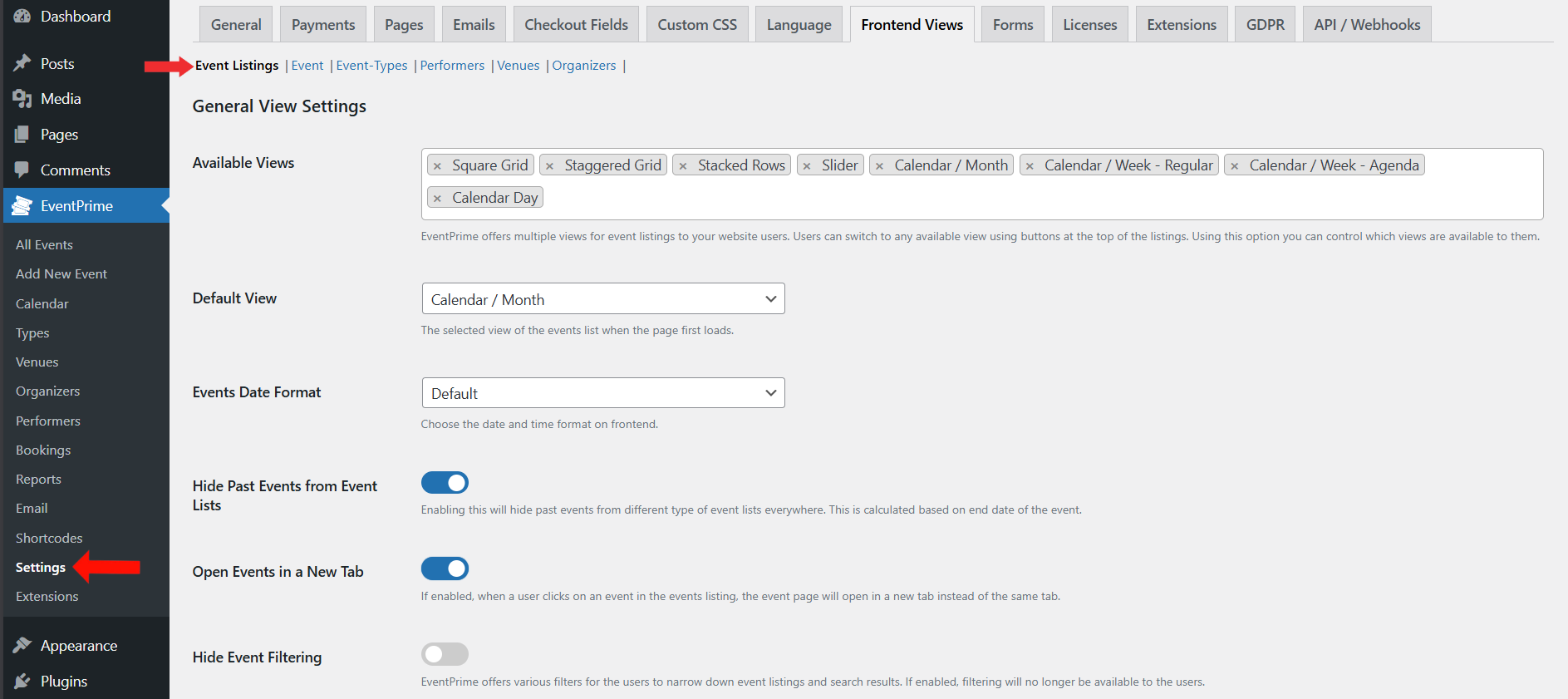
Access Frontend Views Settings
- Navigate to EventPrime menu and select Settings submenu.
- Open the Frontend Views tab.
- Use the available sub-tabs to configure views:
- Event Listings
- Event
- Event-Types
- Performers
- Venues
- Organizers
Event Listings Tab
This tab controls how the main Event Listing pages look and behave.
General View Settings
Use these options to control which listing views are available and what the default experience looks like.
- Available Views: Select which view buttons visitors can use (for example: Square Grid, Staggered Grid, Stacked Rows, Slider, Calendar views).
- Default View: Choose the default view loaded first on the Events Listing page.
- Events Date Format: Select the date/time format shown on the frontend.
- Hide Past Events from Event Lists: Enable to hide past Events across Event list views.
- Open Events in a New Tab: Enable to open Event pages in a new browser tab.
- Hide Event Filtering: Enable to hide filtering controls from visitors.
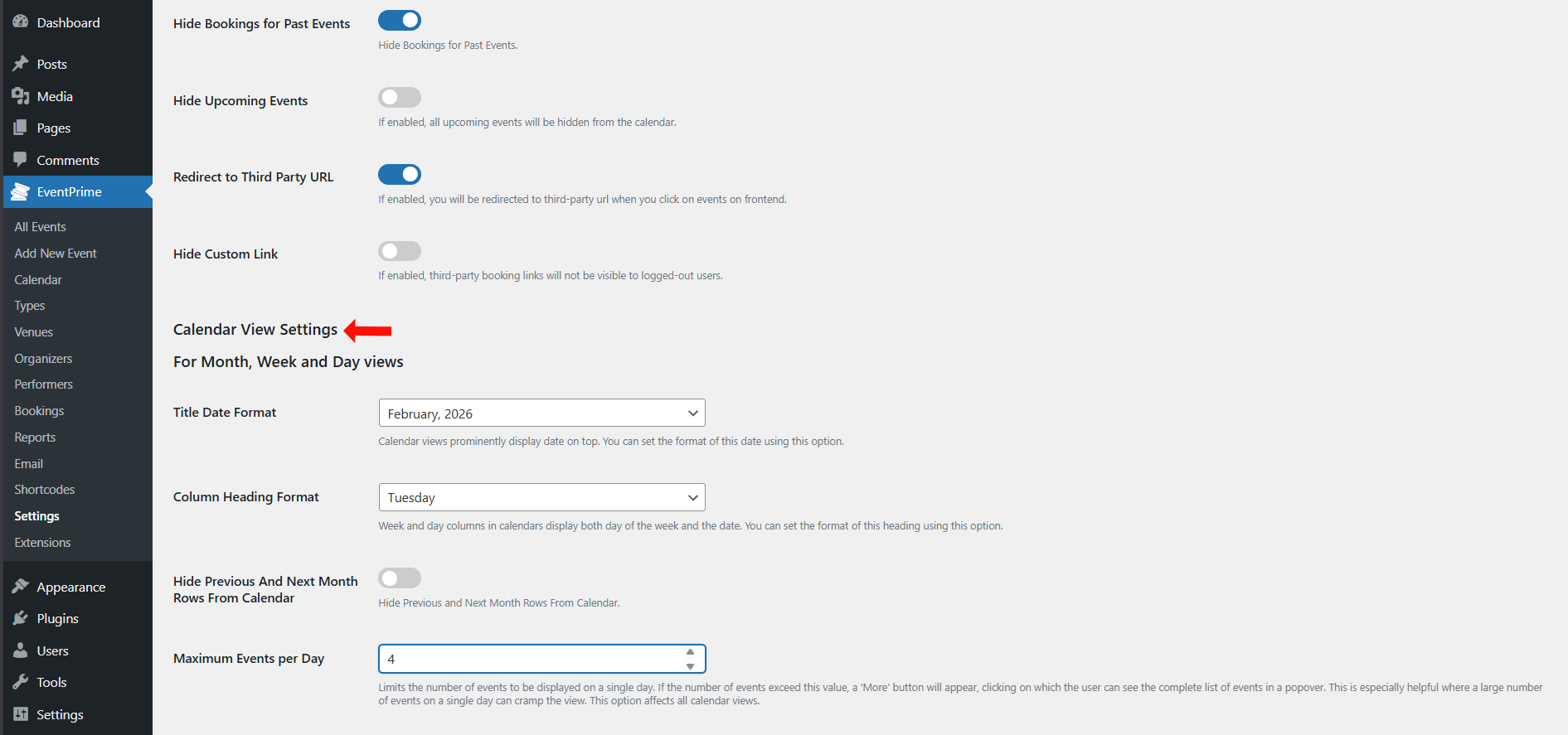
- Hide Bookings for Past Events: Enable this option to hide Booking information for Events that have already ended. This helps keep past Event Booking details out of calendar views.
- Hide Upcoming Events: Enable this option to hide all upcoming Events from the calendar. Use this when you want to temporarily stop showing future Events on the frontend calendar.
- Redirect to Third Party URL: Enable this option to redirect users to a third-party URL when they click an Event on the frontend. This is useful when Event details or ticketing are handled on another website.
- Hide Custom Link: Enable this option to hide third-party Booking links for logged-out users. Logged-in users can still see the link, depending on your site access setup.
Calendar View Settings
These options apply to Calendar-based views (Month, Week, Day).
- Title Date Format: Controls the date format shown in the calendar header.
- Column Heading Format: Controls how day headings appear in calendar views.
- Hide Previous And Next Month Rows From Calendar: Enable to hide extra weeks shown from adjacent months.
- Maximum Events per Day: Limits how many Events display per day before a “More” option appears.
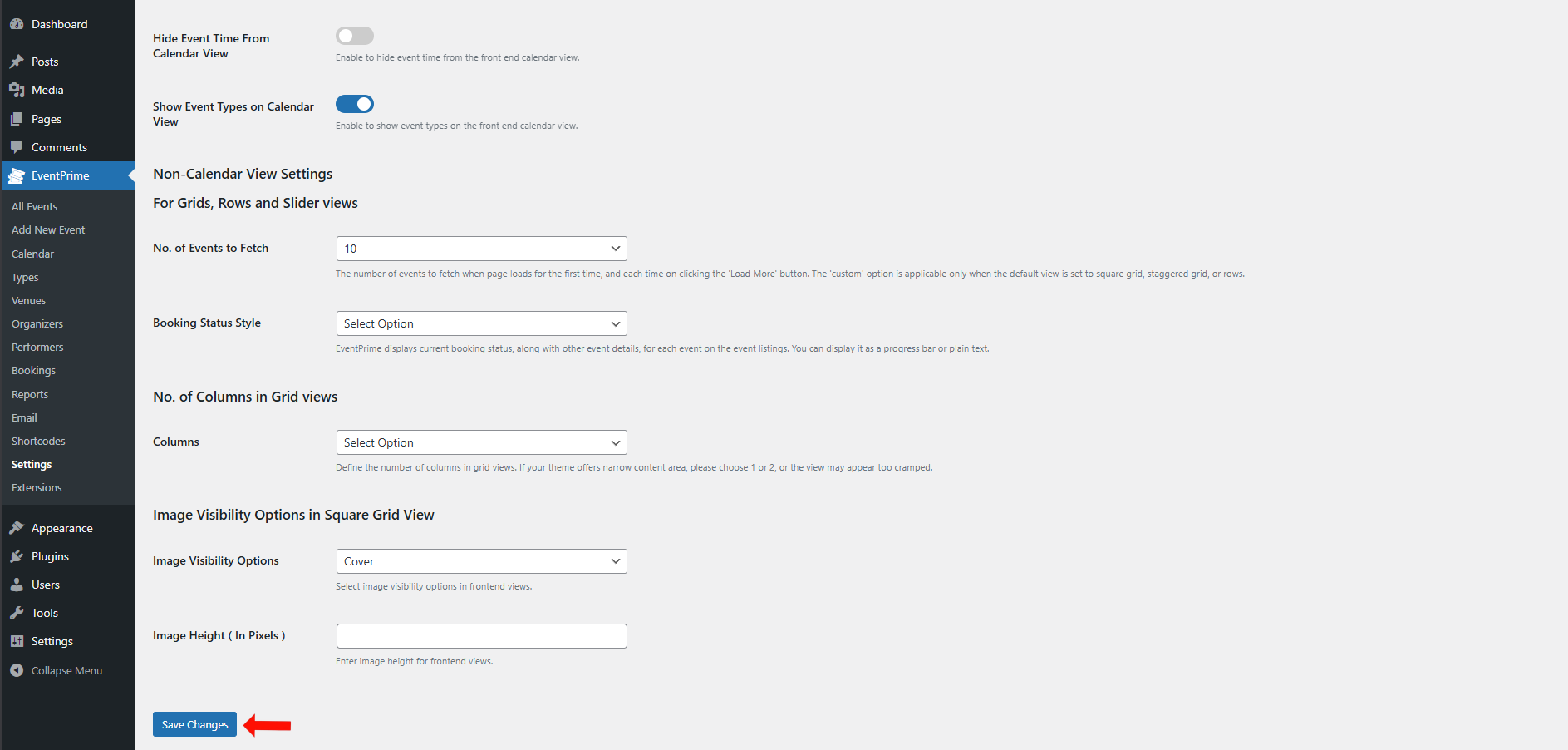
- Hide Event Time From Calendar View: Enable this option to hide the Event time in the frontend calendar view. Only the Event title and other visible details will be shown.
- Show Event Types on Calendar View: Enable this option to display Event Types on the frontend calendar view. This helps visitors understand the category/type of Events directly on the calendar.
Non-Calendar View Settings
These options apply to Grid, Rows, and Slider views.
- No. of Events to Fetch: Number of Events loaded initially and on “Load More”.
- Booking Status Style: Controls how Booking status is shown in listings (style depends on available choices).
- Columns: Number of columns used in grid views.
- Image Visibility Options: Controls how Event images are displayed in grid views.
- Image Height (In Pixels): Sets a fixed image height for listing thumbnails.
After configuring Event Listings options, click Save Changes button.
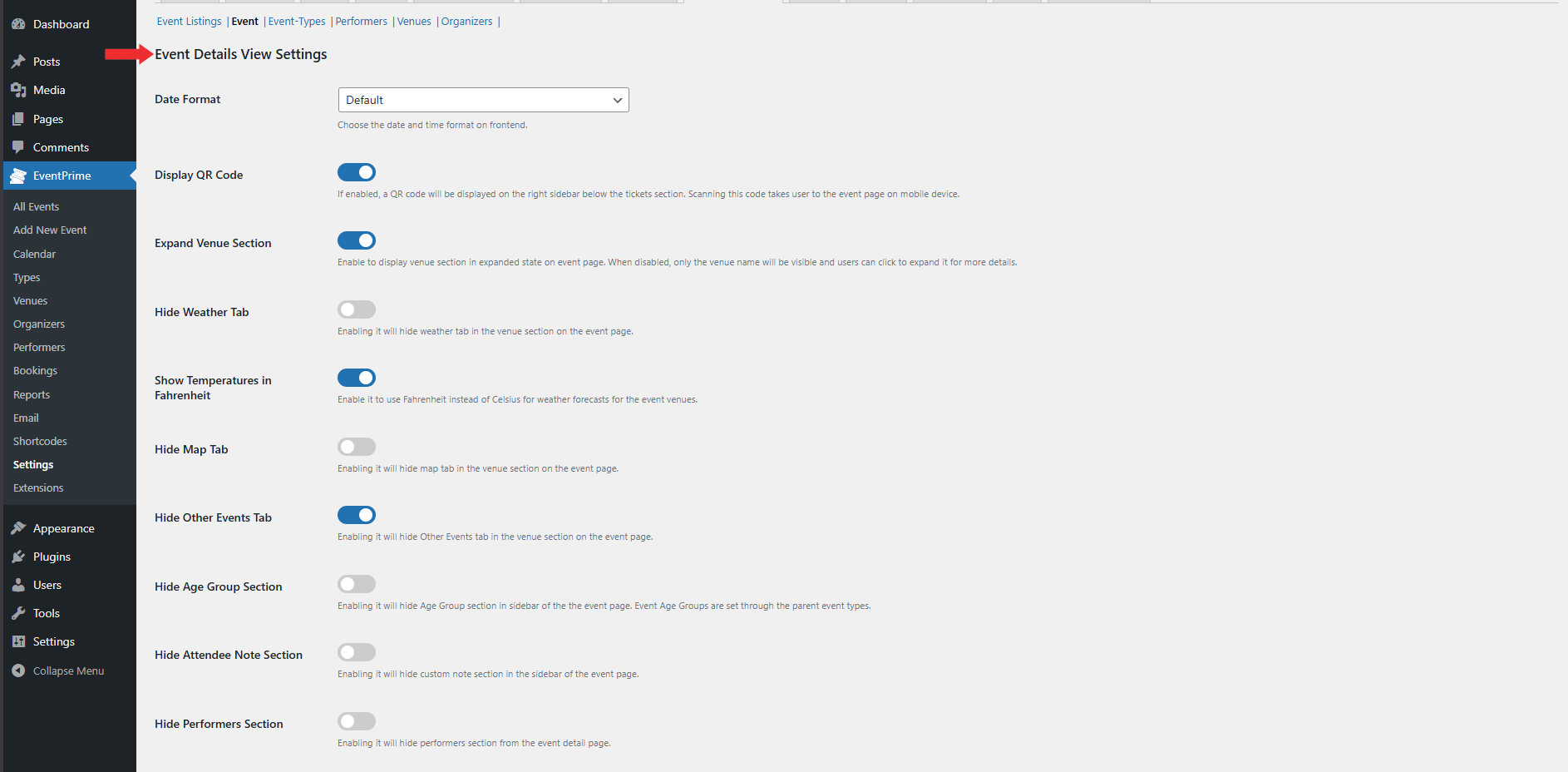
Event Tab
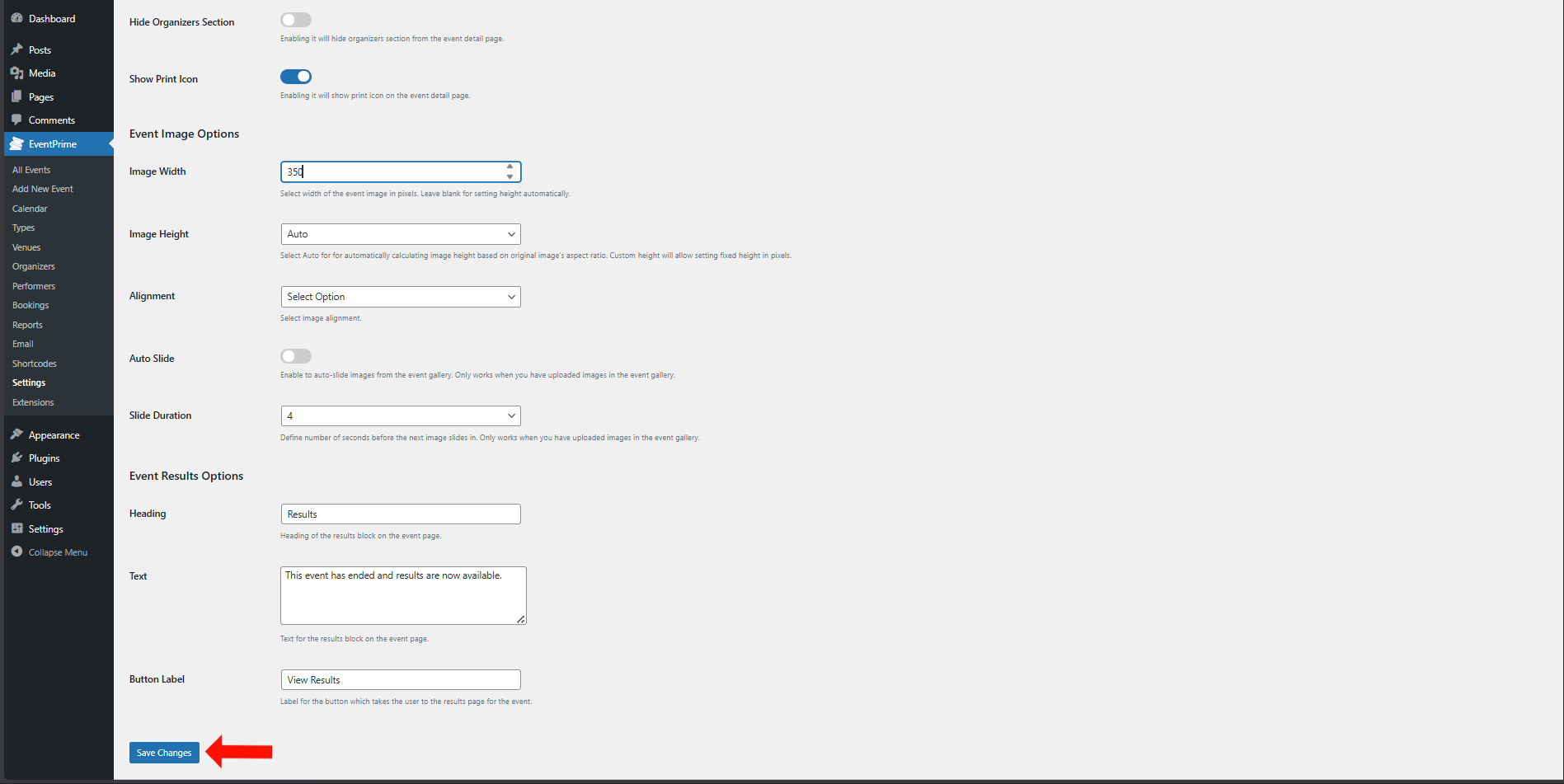
This tab controls what shows on the single Event Details page and how Event images behave.
Event Details View Settings
Use these toggles and dropdowns to show or hide sections and features on the Event Details page.
- Date Format: Choose the date/time format used on the Event Details page.
- Display QR Code: Show a QR code in the sidebar (typically links to the Event page on mobile).
- Expand Venue Section: Show venue section in expanded state by default.
- Hide Weather Tab: Hide the weather information tab (if available).
- Show Temperatures in Fahrenheit: Switch weather display to Fahrenheit.
- Hide Map Tab: Hide the map tab in the Venue section.
- Hide Other Events Tab: Hide the “Other Events” tab in the Venue section.
- Hide Age Group Section: Hide the age group section on the Event page.
- Hide Attendee Note Section: Hide attendee note section (if present).
- Hide Performers Section: Hide performers block from the Event page.
- Hide Organizers Section: Hide Organizers block from the Event page.
- Show Print Icon: Show a print icon on the Event Details page.
Event Image Options
These options control the Event image display on the Event page.
- Image Width: Set the Event image width in pixels.
- Image Height: Choose how image height is calculated (Auto or fixed options, depending on settings).
- Alignment: Select image alignment.
- Auto Slide: Enable automatic sliding for Event gallery images.
- Slide Duration: Time interval for image sliding.
Event Results Options
If you show results content after an Event ends, configure how it appears:
- Heading: Title shown for the results block.
- Text: Description shown in results block.
- Button Label: Label for the results button.
After updating Event options, click Save Changes button.
Event Types Tab
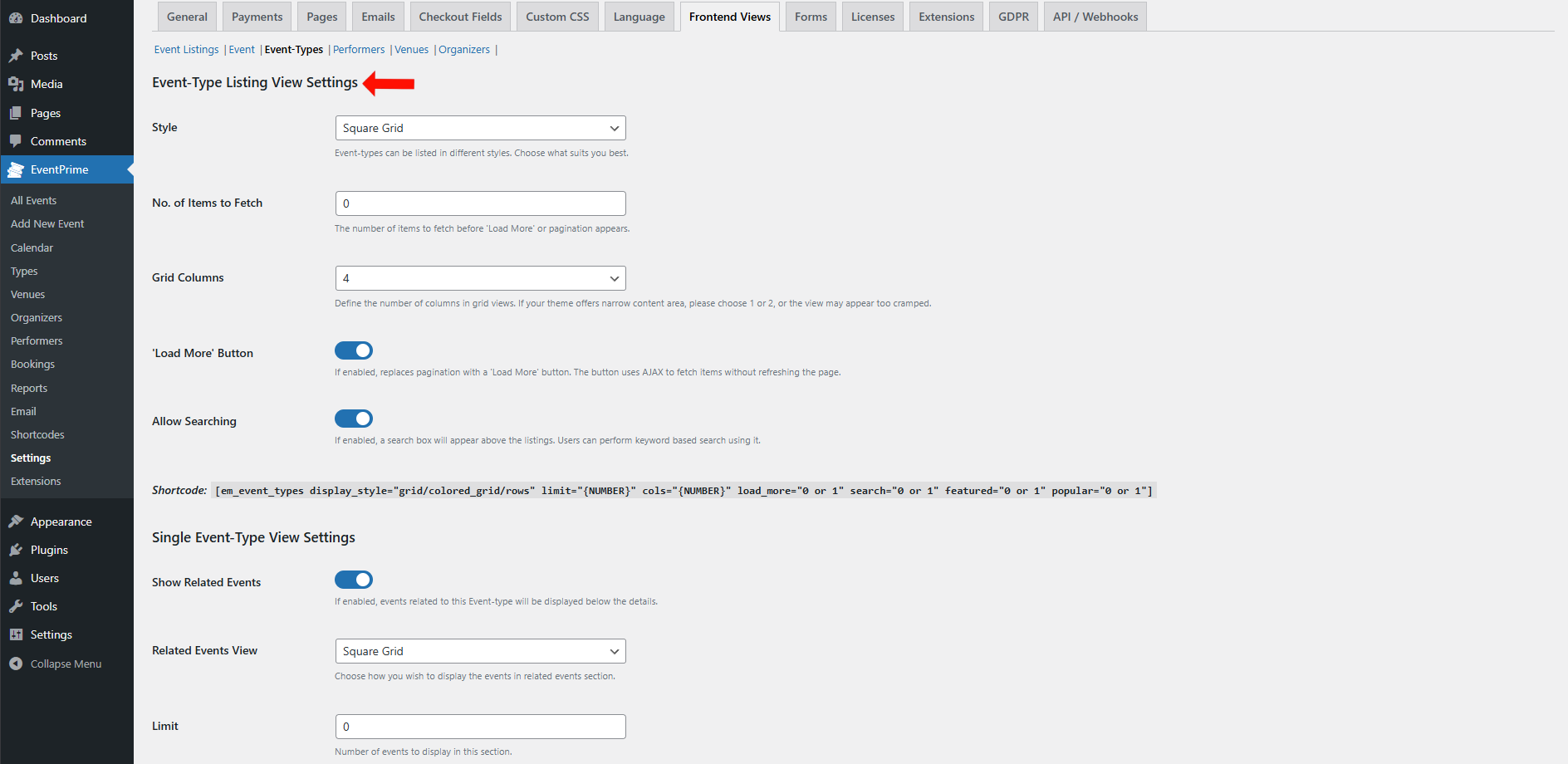
Event-Type Listing View Settings
- Style: Select how Event Types will be displayed. Available option: Square Grid.
- No. of Items to Fetch: Enter the number of Event Types to load before pagination or the Load More button appears.
- Grid Columns: Define the number of columns in the grid layout.
- ‘Load More’ Button: Enable to replace pagination with a Load More button. Items will load dynamically using AJAX without refreshing the page.
- Allow Searching: Enable to display a search box above the listing. Users can perform keyword-based searches.
Single Event-Type View Settings
- Show Related Events: Enable to display Events related to the selected event type below the details page.
- Related Events View: Choose how related Events will be displayed. Available option: Square Grid.
- Limit: Set the number of related Events to display in this section.
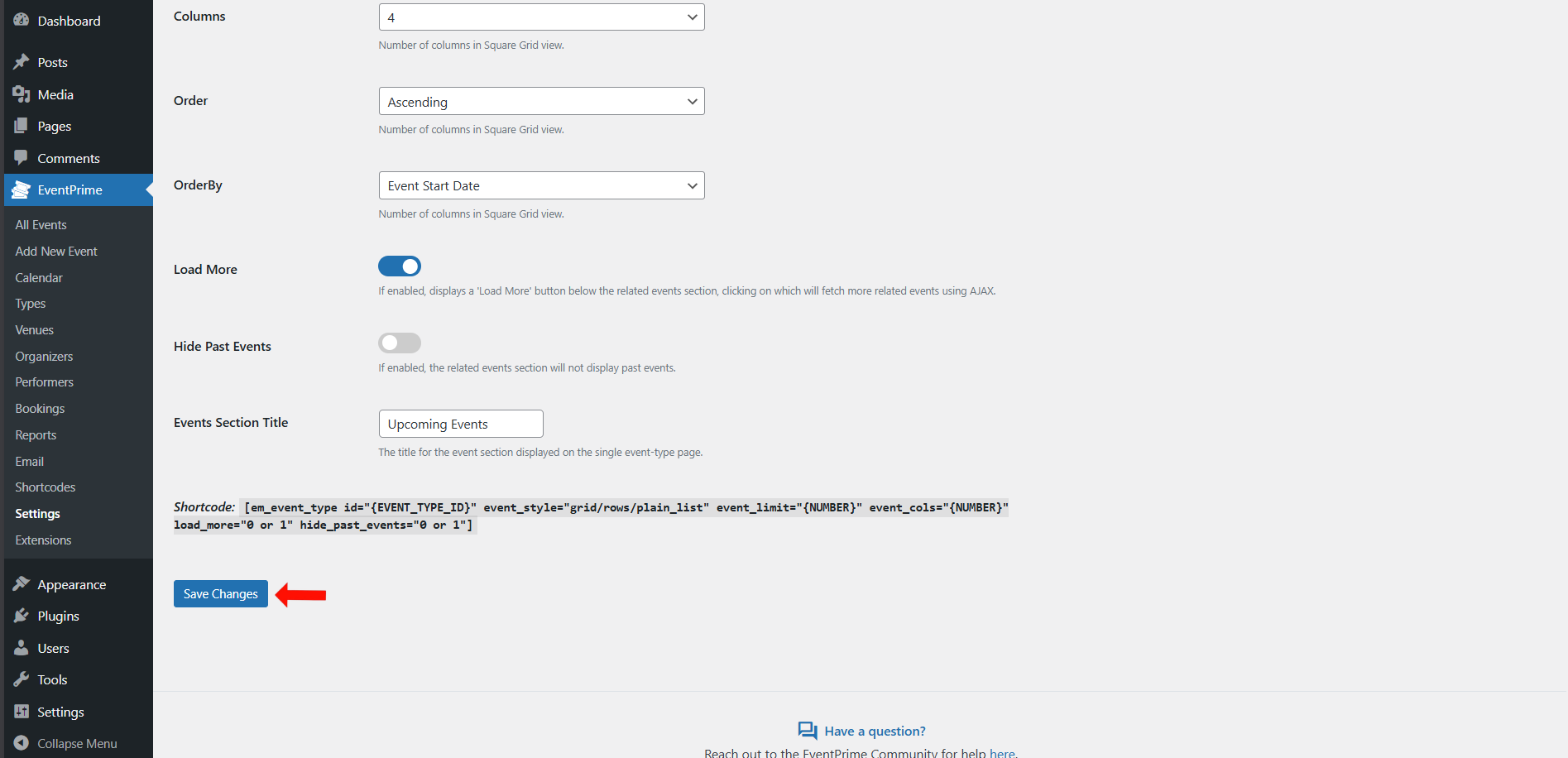
- Columns: Define the number of columns for the Square Grid layout.
- Order: Select the sorting order of related Events: Ascending or Descending.
- Order By: Choose how related Events should be sorted. Example: Event Start Date.
- Load More: Enable to display a Load More button below the related Events section. Additional Events will load using AJAX.
- Hide Past Events: Enable to prevent past Events from appearing in the related Events section.
- Events Section Title: Set the title displayed above the related Events section.
After configuring the settings, click Save Changes to apply them.
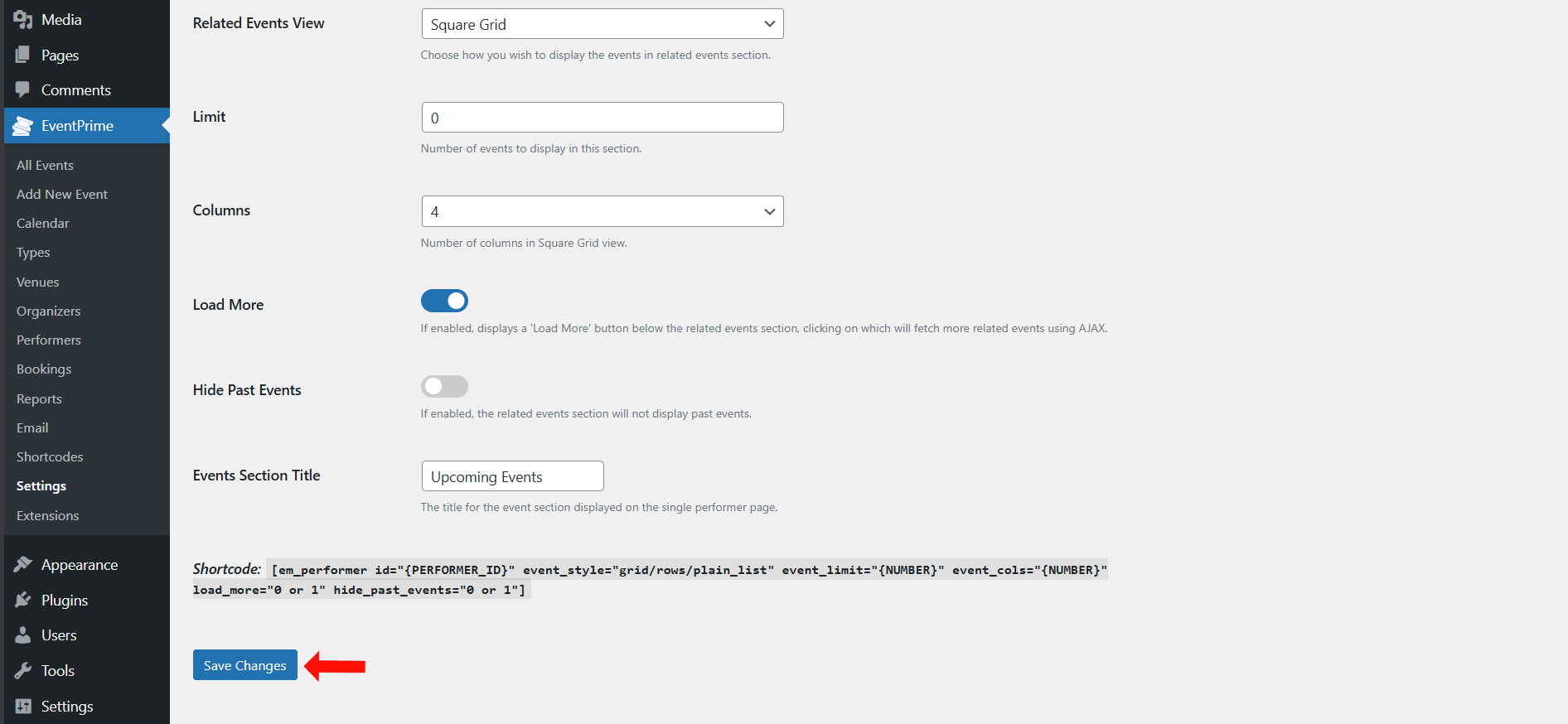
Performers Tab
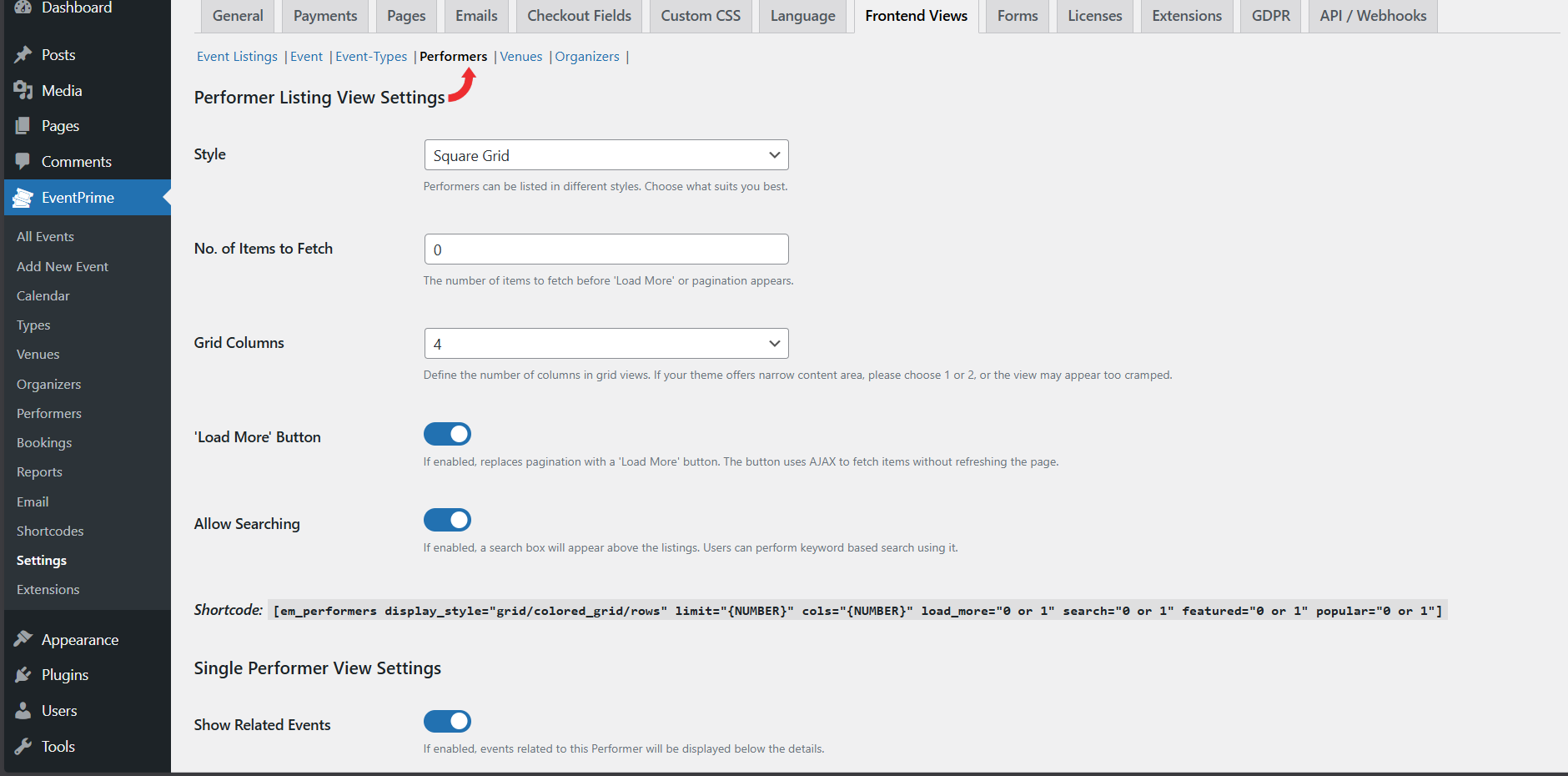
This tab controls both the Performer listing page layout and the single Performer page related Events section.
Performer Listing View Settings
- Style: Choose how Performers are listed (for example: Square Grid).
- No. of Items to Fetch: Number of Performers loaded before pagination or “Load More”.
- Grid Columns: Number of columns in grid layout.
- ‘Load More’ Button: Enable to replace pagination with a “Load More” button.
- Allow Searching: Enable a search box above Performer listings.
- Shortcode: Use the provided shortcode to display performers on any page.
Single Performer View Settings
- Show Related Events: Enable to show Events related to a Performer below Performer details.
When related Events are enabled, these options control the related Events section:
- Related Events View: Choose how related Events display (for example: Square Grid).
- Limit: Number of related Events to show.
- Columns: Number of columns used for related Events layout.
- Load More: Enable a “Load More” button for related Events.
- Hide Past Events: Hide past events from the related Events section.
- Events Section Title: Title displayed above related Events.
- Shortcode: Use the provided shortcode for embedding a single Performer view if needed.
Click Save Changes after updating performer view settings.
Venues
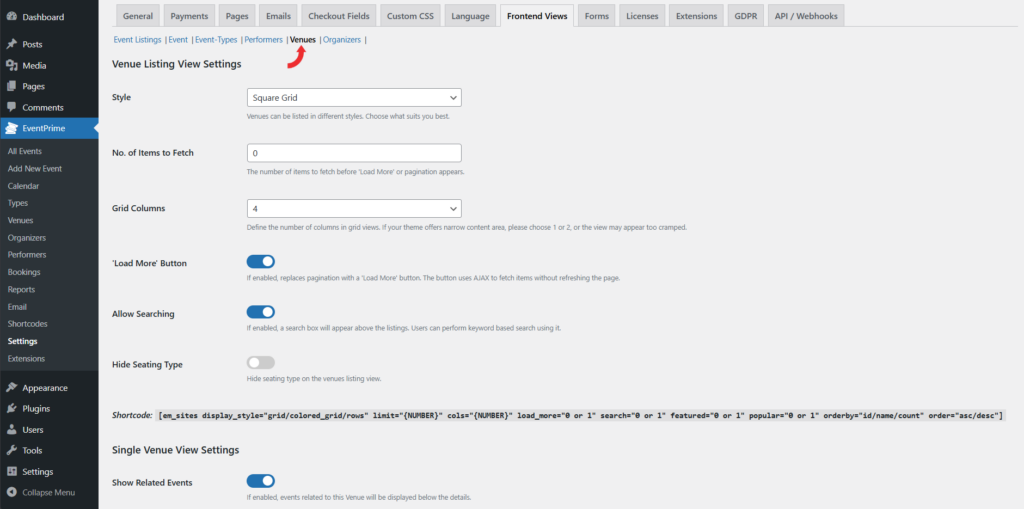
This tab controls Venue listing layout and the single Venue page related Events section.
Venue Listing View Settings
- Style: Choose listing style (for example: Square Grid).
- No. of Items to Fetch: Number of Venues loaded before pagination or “Load More”.
- Grid Columns: Number of columns in grid layout.
- ‘Load More’ Button: Enable “Load More” loading behavior.
- Allow Searching: Enable a search box above Venue listings.
- Hide Seating Type: Hide seating type on the Venues listing view.
- Shortcode: Use the provided shortcode to embed Venue listings.
Single Venue View Settings
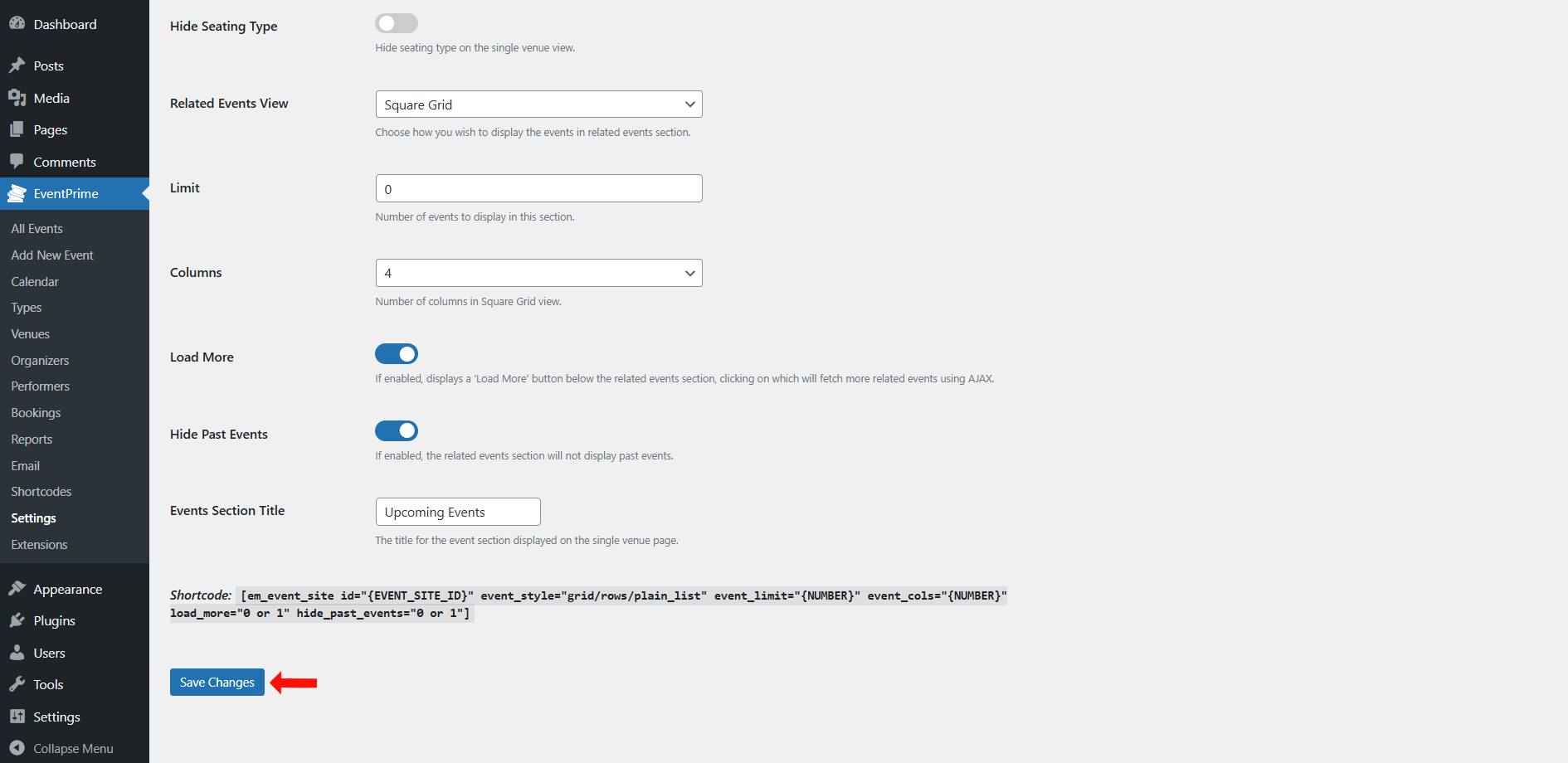
If related Events are enabled for a Venue, you can configure the following options:
- Hide Seating Type: Enable to hide the seating type information on the single Venue view.
- Related Events View: Choose how related Events will be displayed. Available option: Square Grid.
- Limit: Enter the number of Events to display in the related Events section.
- Columns: Select the number of columns for the Square Grid layout.
- Load More: Enable to display a Load More button below the related Events section. Additional Events will load using AJAX.
- Hide Past Events: Enable to prevent past Events from appearing in the related Events section.
- Events Section Title: Set the title displayed above the related Events section.
Click Save Changes after updating Venue settings.
Organizers Tab
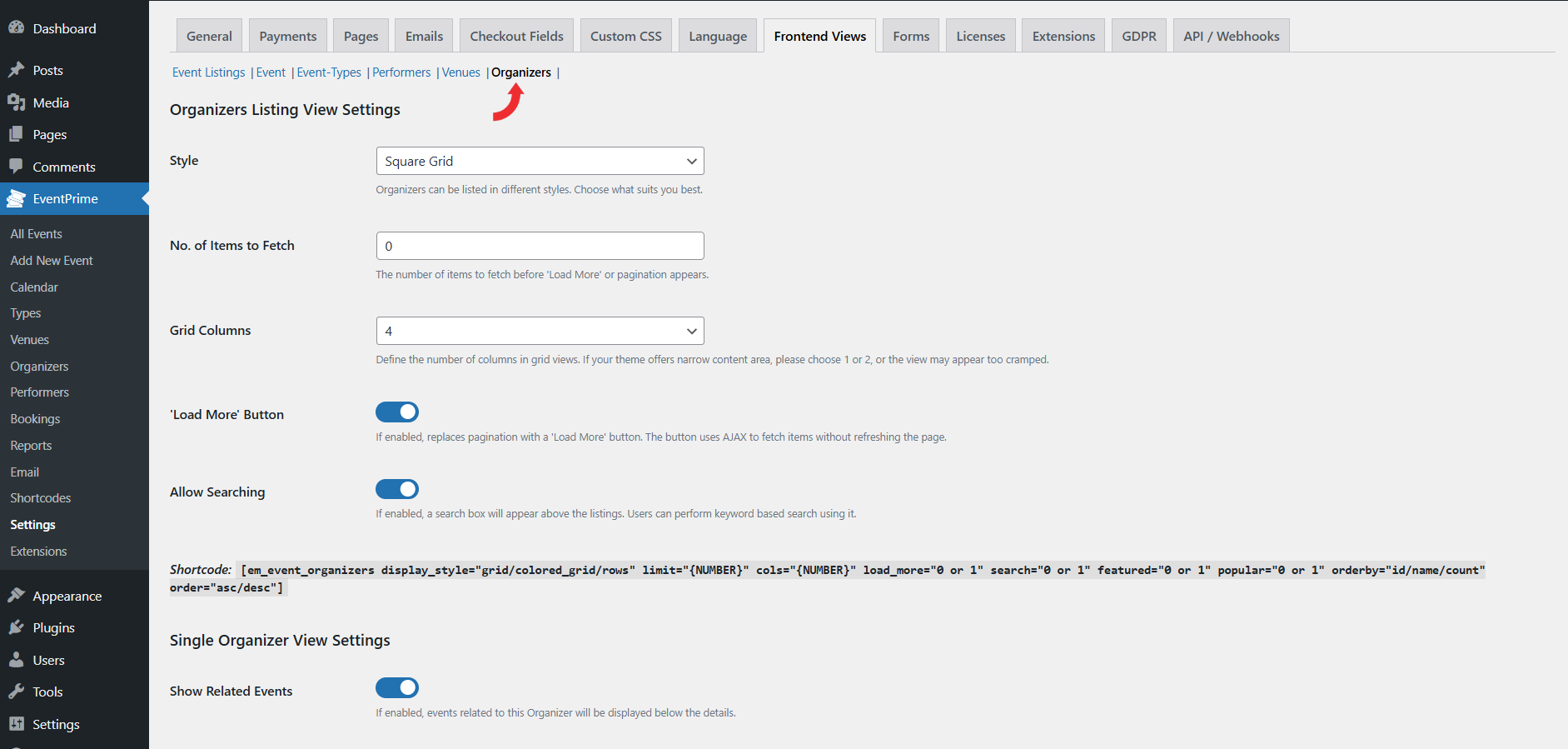
Organizers Listing View Settings
- Style: Select how Organizers will be displayed on the listing page. Available option: Square Grid.
- No. of Items to Fetch: Define the number of Organizers to load before pagination or the Load More button appears.
- Grid Columns: Choose the number of columns to display in the grid layout.
- ‘Load More’ Button: Enable this option to replace default pagination with a Load More button. Additional Organizers will load dynamically using AJAX without refreshing the page.
- Allow Searching: Enable this option to display a search box above the Organizer listings. Users can perform keyword-based searches.
Single Organizer View Settings
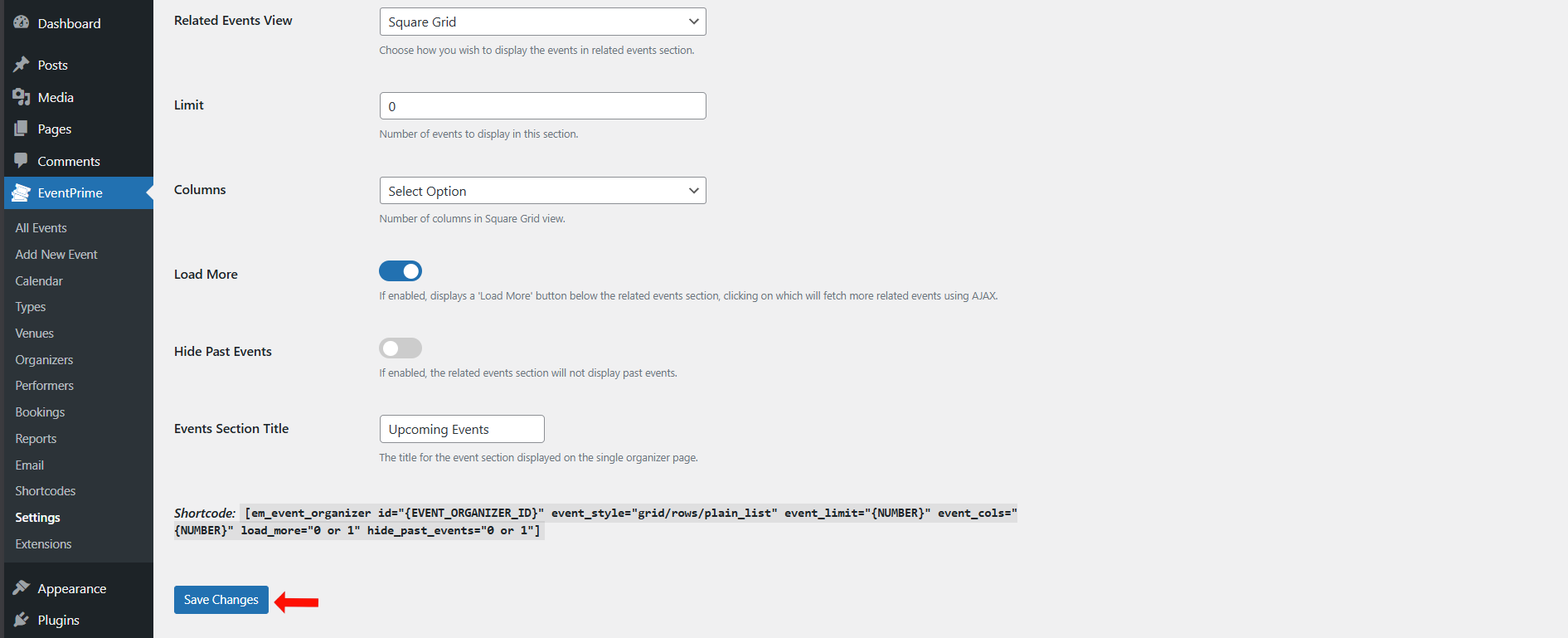
If Show Related Events is enabled for an Organizer, the following options can be configured:
- Related Events View: Select how related Events will be displayed. Available option: Square Grid.
- Limit: Specify the number of related Events to display in this section.
- Columns: Define the number of columns for the Square Grid layout.
- Load More: Enable to display a Load More button below the related Events section. Additional events will load dynamically using AJAX.
- Hide Past Events: Enable this option to exclude past Events from the related Events section.
- Events Section Title: Set the title that appears above the related Events section.
After configuring the settings, click Save Changes to apply them.
Conclusion
The Frontend Views settings in EventPrime control how Events and related content appear across listings and detail pages. Proper configuration ensures consistent layouts, accurate visibility, and structured presentation of Events, Performers, Venues, Organizers, and Event Types.
Questions, Support & Custom Solutions
- Need more details or can't find what you're looking for? Let us know how we can help! Contact our support team here.
- Looking for a tailor-made solution to meet your specific needs? Our dedicated customization team is here to help! Use this link to share your requirements with us, and we'll collaborate with you to bring your vision to life.