
Overview
EventPrime’s built-in Import Export extension lets you easily transfer Events to and from external sources. Import from calendars like Google Calendar or plugins such as The Events Calendar, and export your existing Events for sharing or backup in various formats.
1. Access the Import Export Interface
- In your WordPress dashboard, navigate to EventPrime menu.
- Select Import Export from submenu.
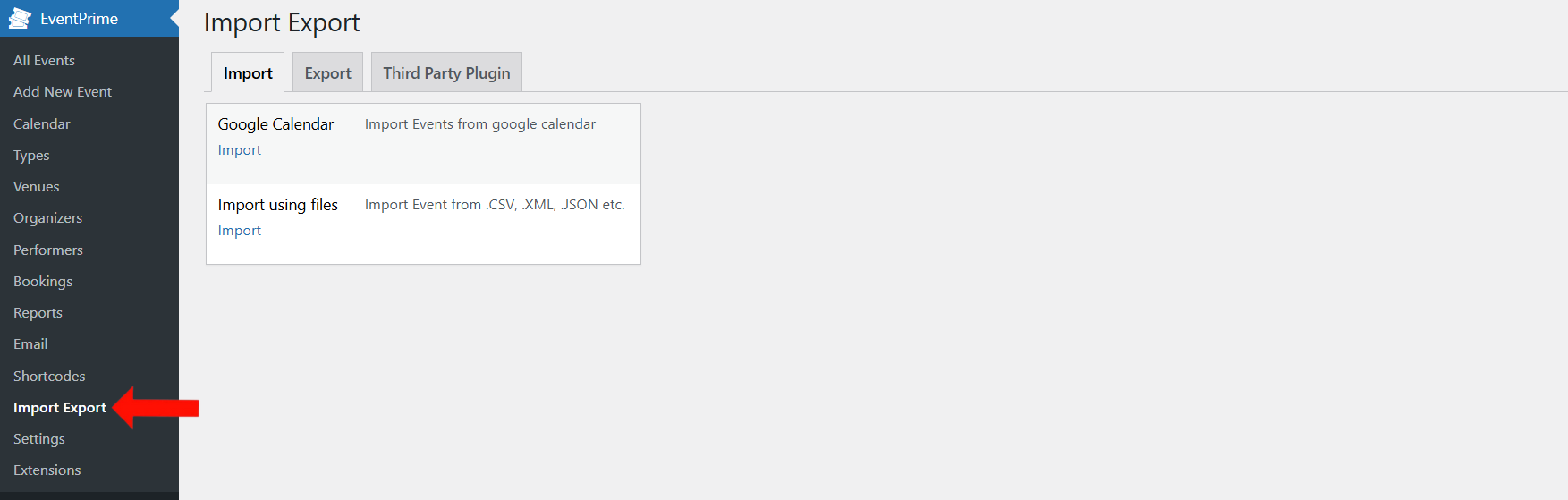
2. Importing from Google Calendar (API & OAuth Setup)
To import Events from Google Calendar into EventPrime, you’ll need valid Google API credentials. Follow this step-by-step guide to set up your API key and OAuth client for a smooth import and export experience.
2.1. Enabling Google Calendar API and Generating API Key
1. Visit the API Quickstart Page
Open your browser and navigate to the official Google Calendar API Quickstart.
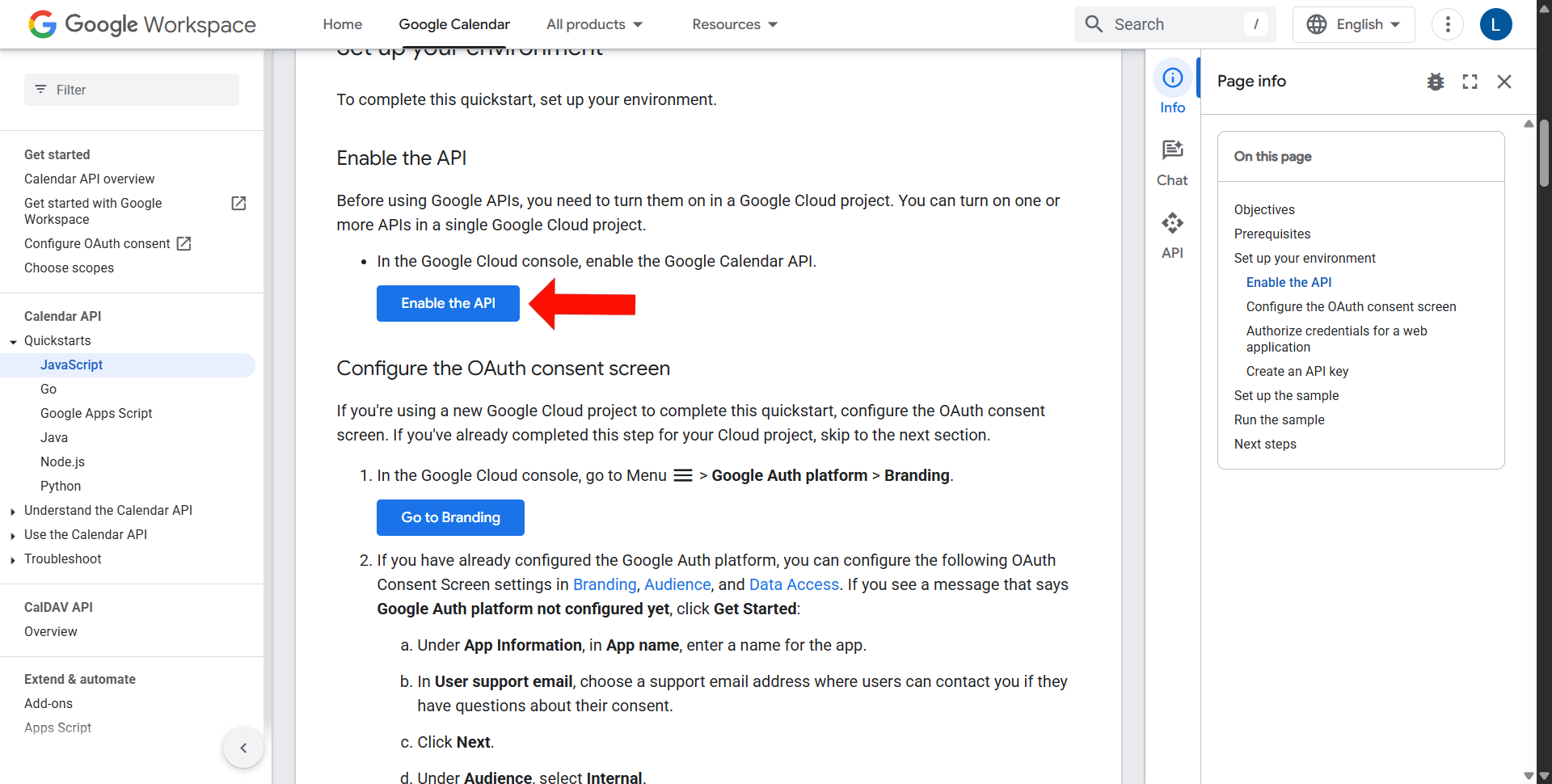
2. Click “Enable the API”
On the Quickstart page, click the “Enable the API” button to initiate access.
3. Redirect to Google Cloud Console
You will be redirected to the following page:https://console.cloud.google.com/apis/enableflow?apiid=calendar-json.googleapis.com&project=molten-acumen-457609-m8
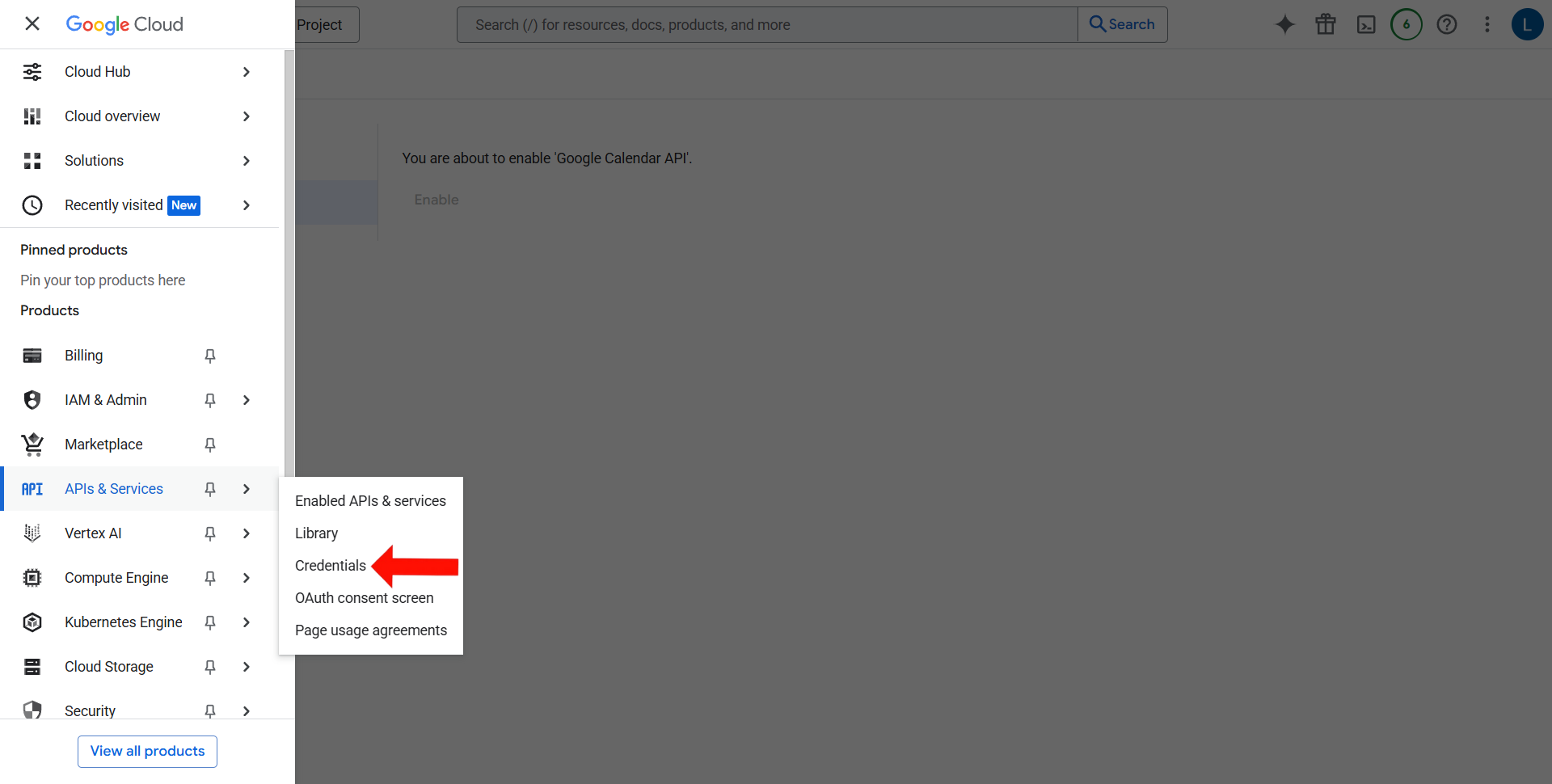
4. Access the Credentials Section
From the left-hand navigation panel, click on APIs & Services → Credentials.
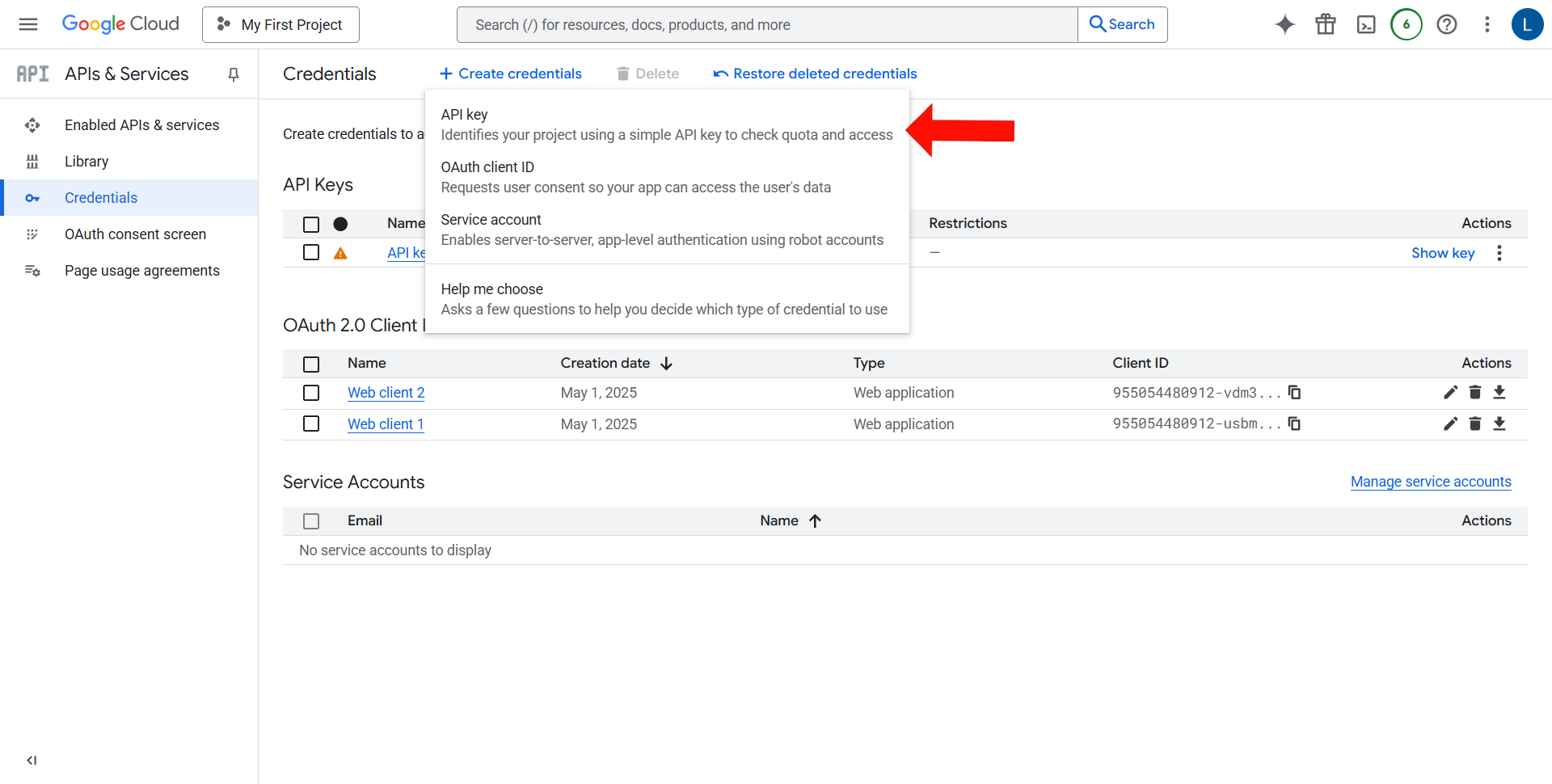
5. Create a New API Key
Click on Create Credentials → API Key. Your API Key will be generated automatically, copy and save the key.
2.2. Obtaining Your Google Calendar ID
To import specific Event entries, you will need your Google Calendar’s unique ID:
- Go to Google Calendar.
- On the left-hand side under “My Calendars,” click the three dots next to the Event you want to import.
- Choose Settings from the dropdown.
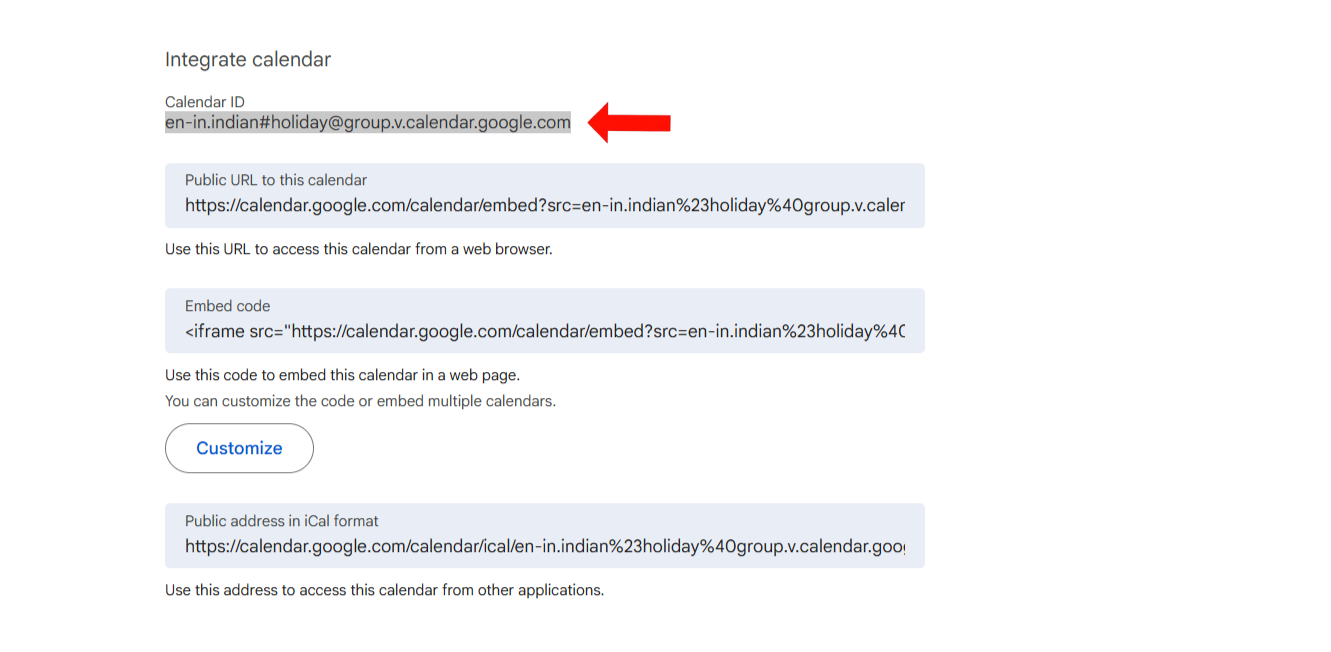
- Scroll down to the Integrate Calendar section.
- Copy the Calendar ID displayed here.
2.3. Setting Up OAuth Credentials (Client ID & Secret for Exporting Events)
If you want to export Events from EventPrime to your Google Calendar, you will need an OAuth Client ID and Secret in addition to the API Key.
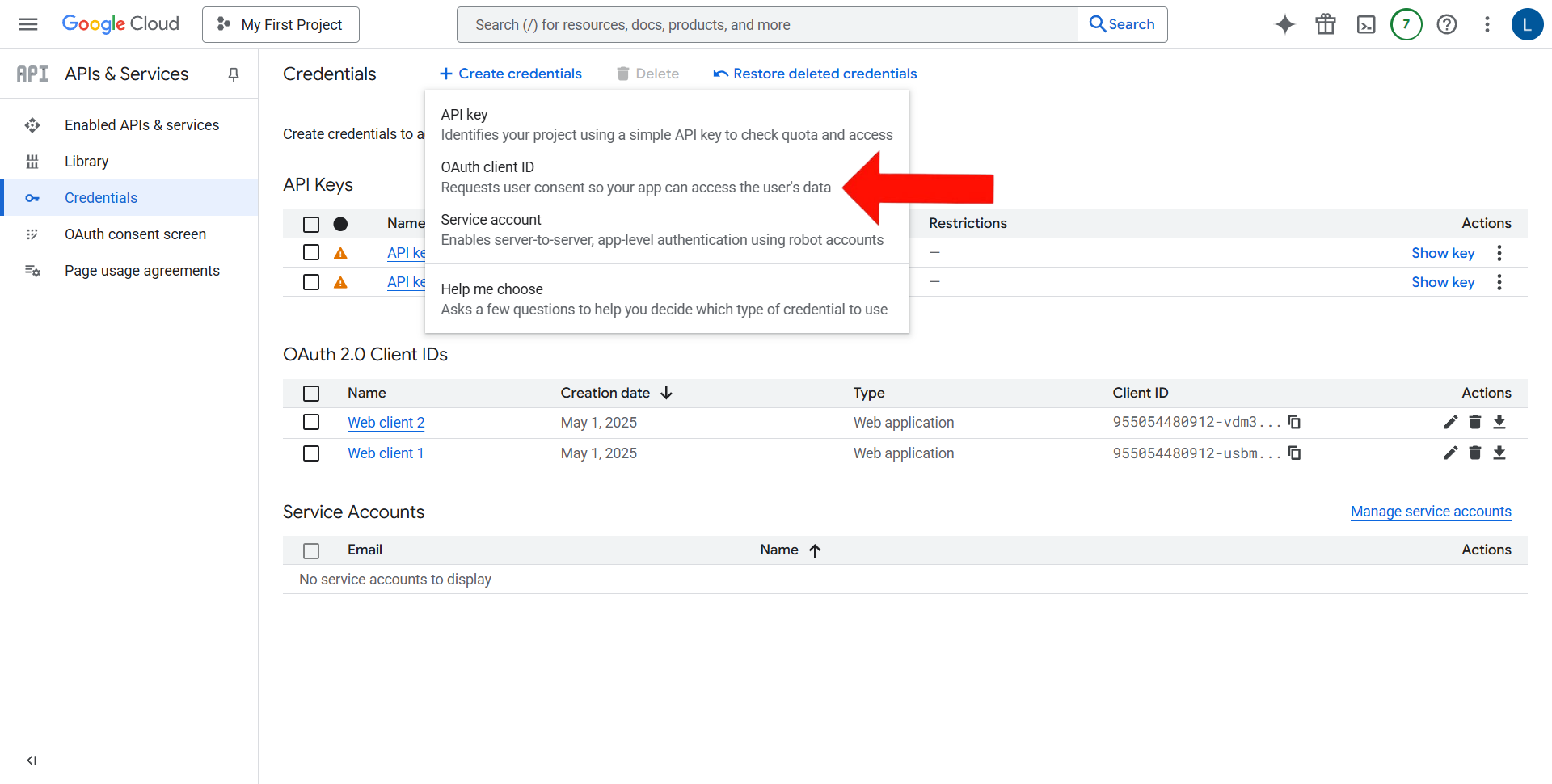
1. Go back to the Credentials page in the Google Cloud Console.
2. Click on Create Credentials → OAuth Client ID.
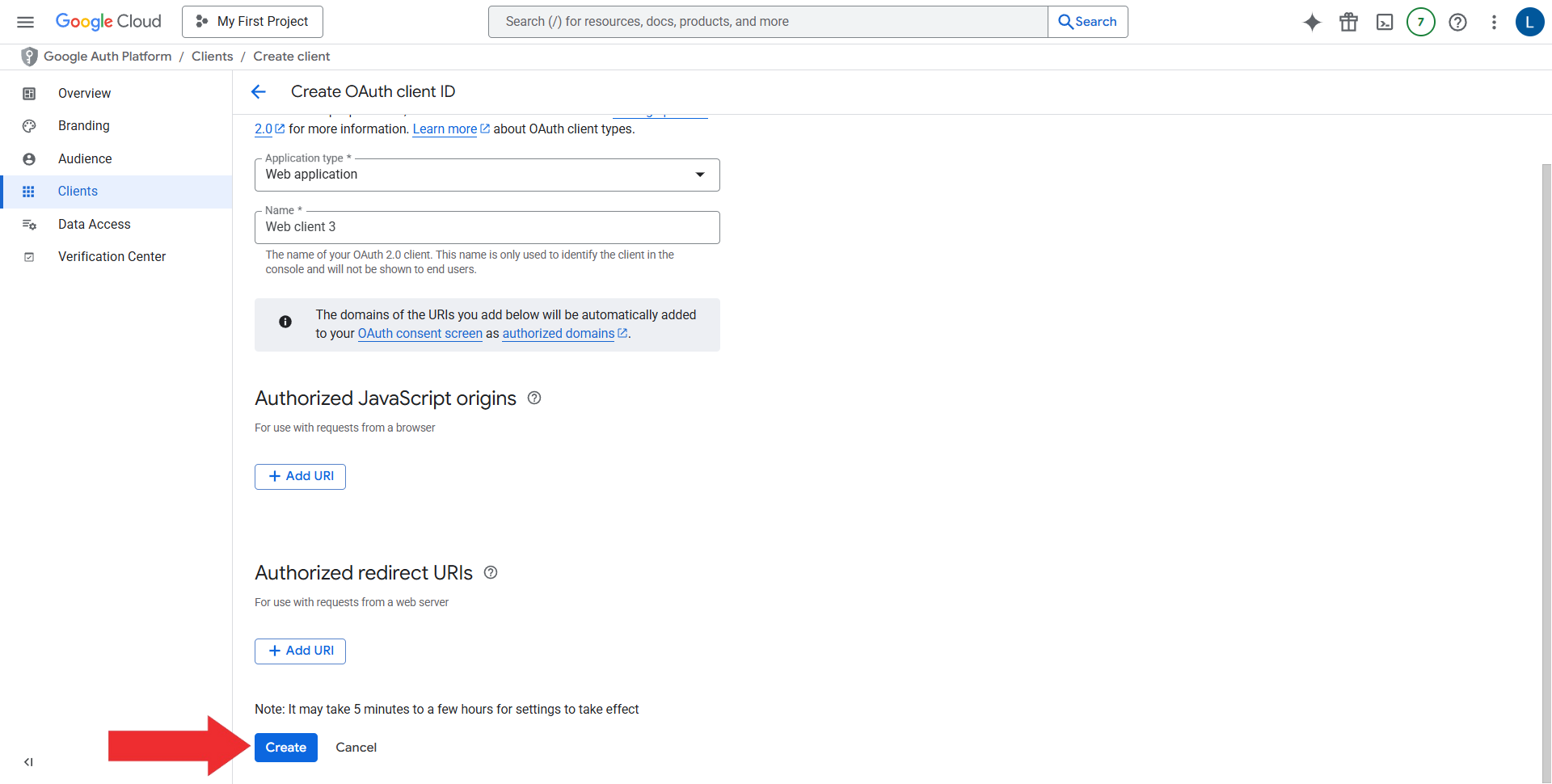
3. On the configuration screen, choose:
- Application Type: Web Application
- Name: <Enter the name that will identify your OAuth 2.0 client, for example, EventPrime OAuth Client>
- Authorized JavaScript Origin : <Enter your website domain in the following format, for example,
https://yourdomain.com> - Authorized Redirect URIs : <Enter the exact path where OAuth should redirect after authentication, for example,
https://yourdomain.com/wp-admin/admin.php?page=ep-import-export&action=google_callback,
replaceyourdomain.comwith your actual domain name.>
Click on Create to generate Client ID and Client Secret.
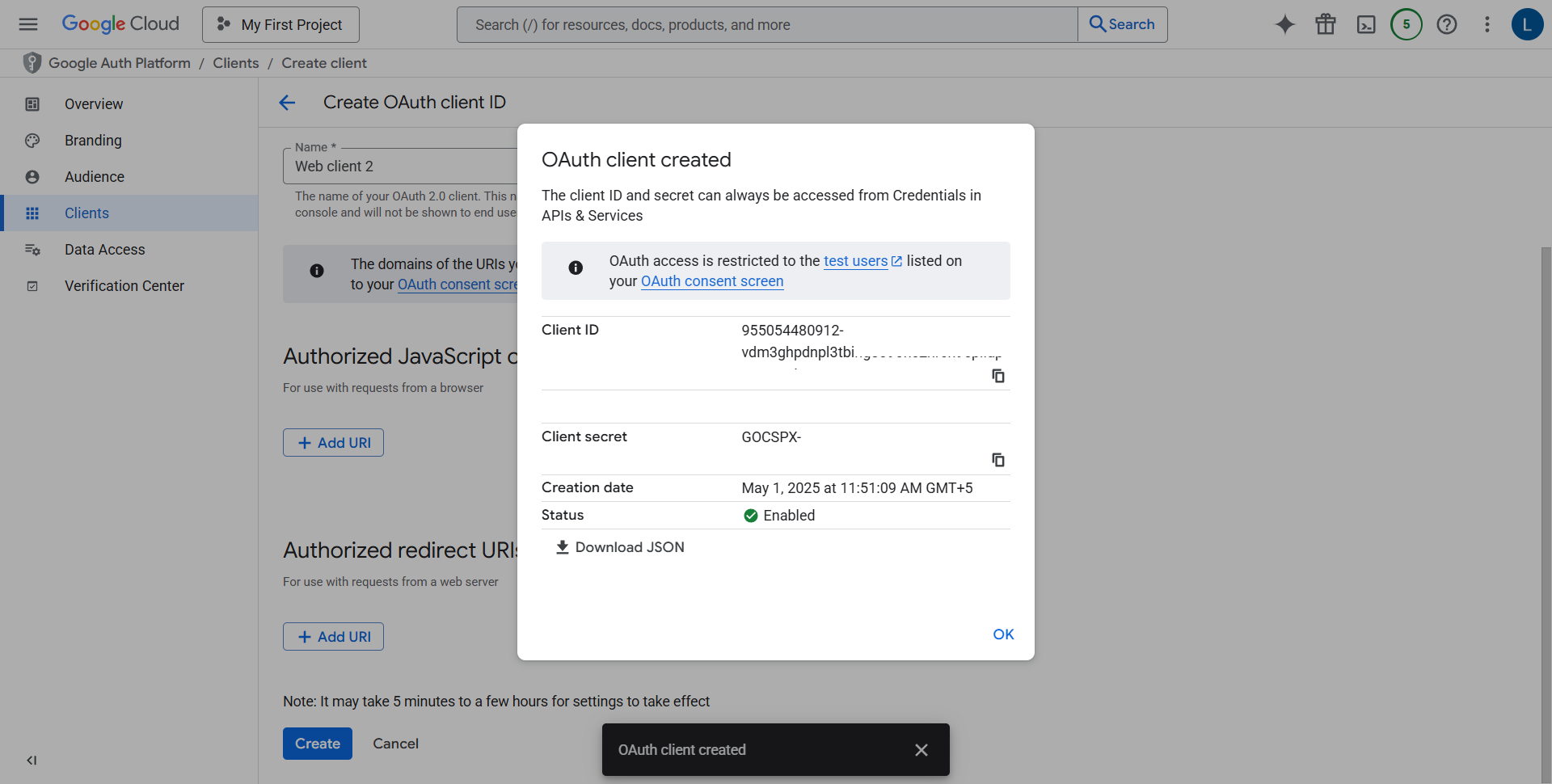
4. Copy Client ID and Client Secret
3. Importing and Exporting Events from Google Calendar and Third Party Plugin
We are now ready to actually start with the process of importing or exporting. By this point, you should already have obtained the API keys. So let’s proceed with the next steps:
3.1 Importing Events from Google Calender
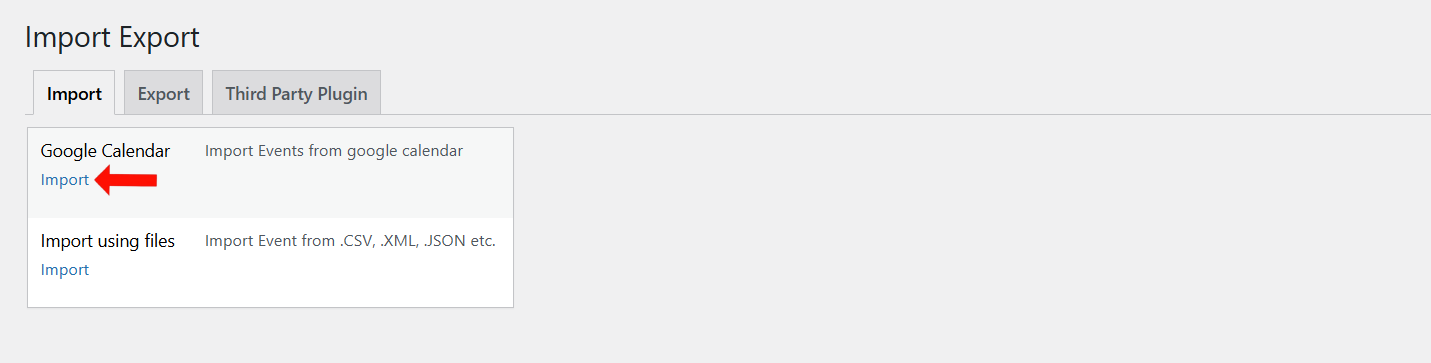
Go back to Import Export Page, and under Import tab click on Import button under Google Calendar.
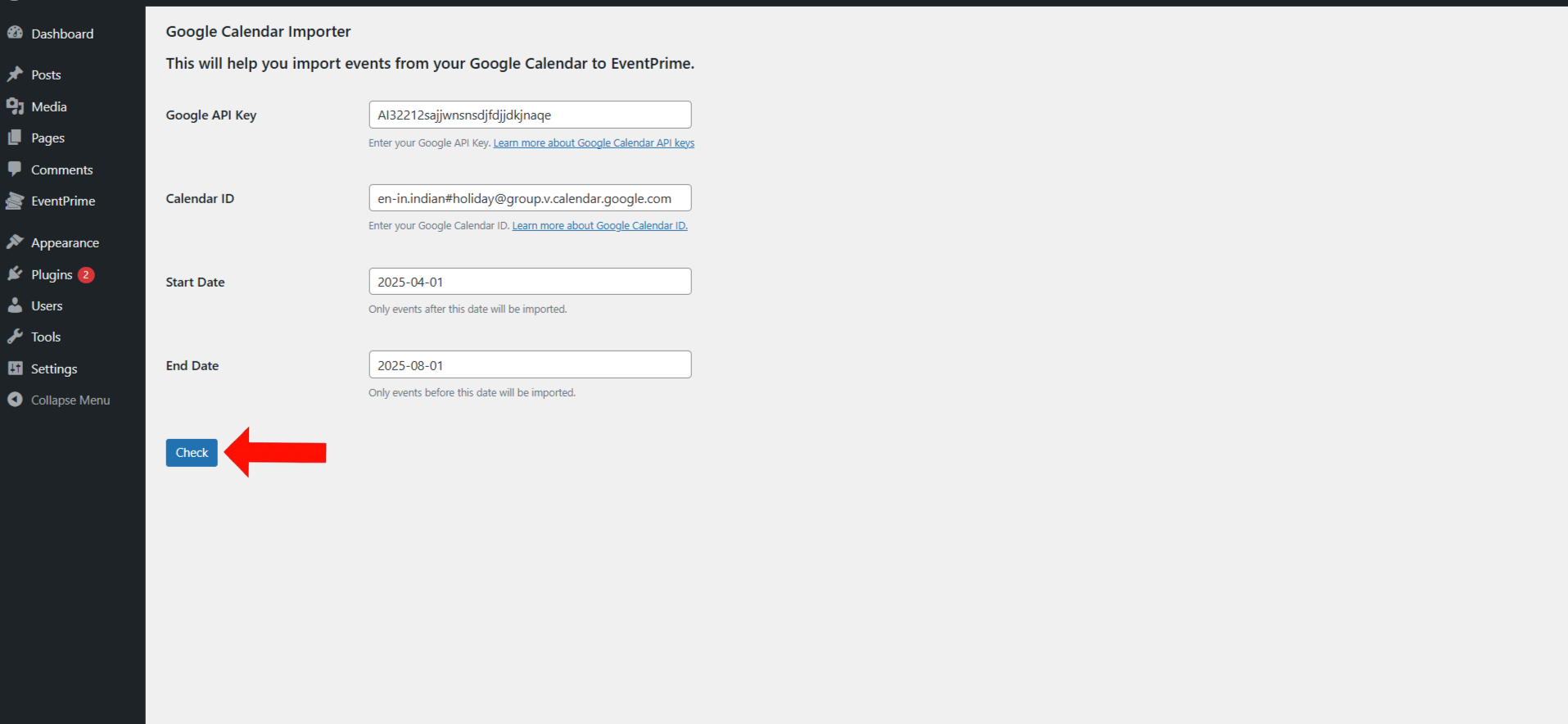
- Enter the Calendar ID and Google API Key.
- Select the Start Dates and End Dates for importing and exporting Events. Events scheduled within the specified date range will be included in the process.
- Click Check to be redirected to the authorization page. Once you authorize access, your Events will be imported into EventPrime.
3.2 Import with Third-Party Plugins
If you’re migrating from another Event management plugin such as The Events Calendar, EventPrime’s Import Export extension streamlines the process.
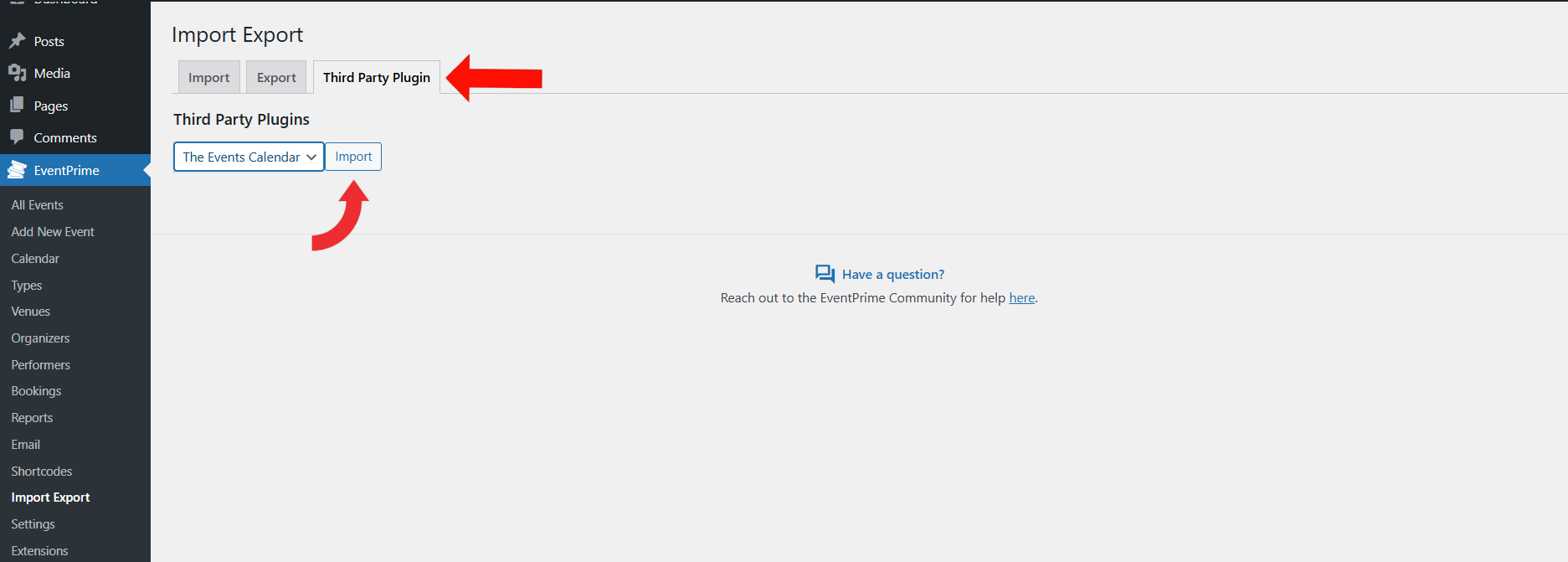
To begin, go to the Import Export page and open the Third-Party Plugin tab. From the dropdown, select The Events Calendar, then click the Import button next to it.
For more details refer to this article : How to Migrate Events From The Events Calendar.
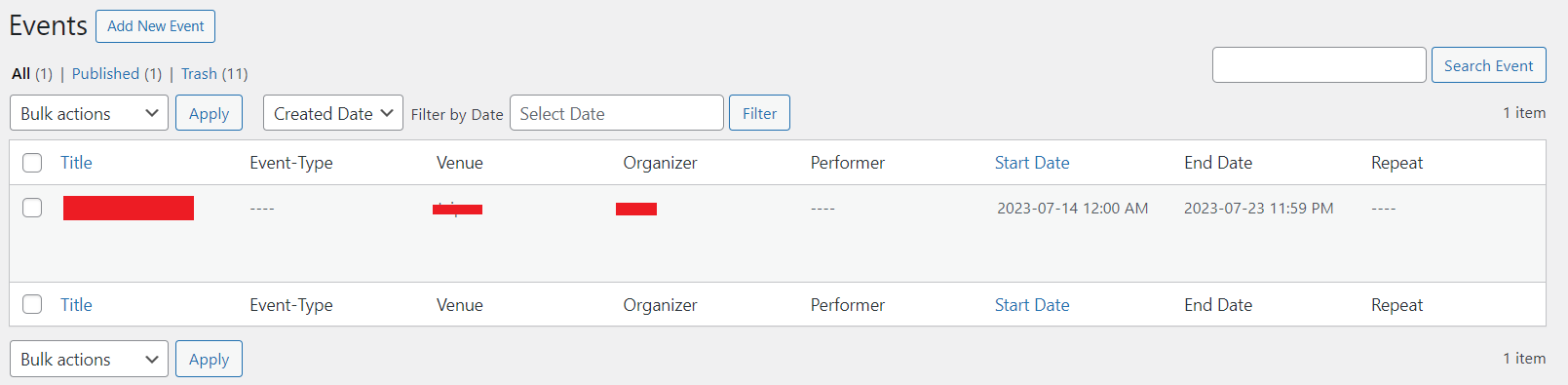
You can now go back to the EventPrime menu, then select All Event submenu to confirm that all Events have been successfully imported into your WordPress site.
3.3 Exporting Events from EventPrime
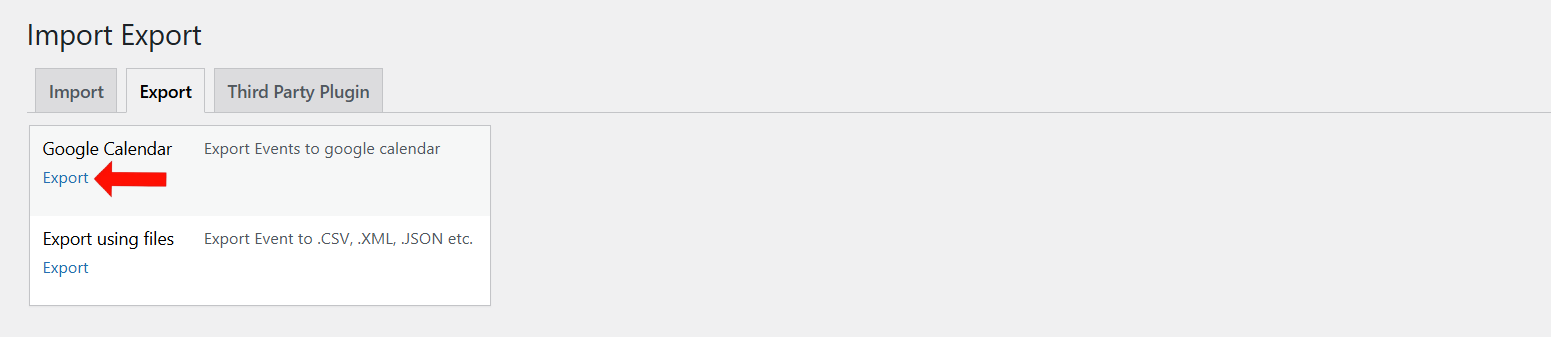
To begin, go to the Import Export page and open the Export tab. Click the Export button under Google Calendar to open the export interface.
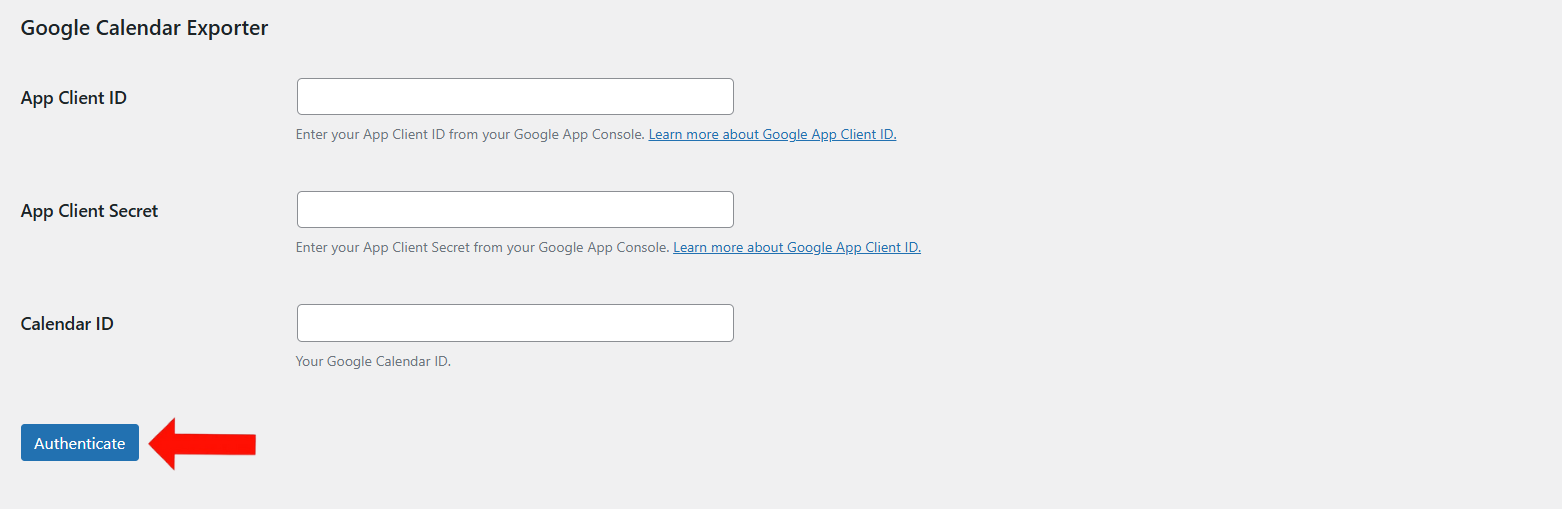
- Enter your App Client ID, App Client Secret, and Calendar ID.
- These credentials are required to authenticate with your Google account.
- Click on Authenticate button to export your Events from EventPrime to Google Calendar.
Conclusion
EventPrime’s Import Export extension streamlines the transfer of Events between platforms or calendars. Whether you’re switching tools or creating backups, it offers a reliable and organized way to manage your Event data.
Questions, Support & Custom Solutions
- Need more details or can't find what you're looking for? Let us know how we can help! Contact our support team here.
- Looking for a tailor-made solution to meet your specific needs? Our dedicated customization team is here to help! Use this link to share your requirements with us, and we'll collaborate with you to bring your vision to life.
Question:
with the integration, does it automatically create events now if the google calendar gets updated regardless of the start and end dates? Or do i need to manually click import everytime i make changes.
Thanks for reaching out to us.
The integration doesn’t sync automatically. You’ll need to manually Import whenever you update or change events in your Google Calendar.
If you have any further questions, please don’t hesitate to reach out to us.
I’ve imported events via an ics file. All events appear in the Events list, but none of them show up on the Events page until I go into each event and update them one-by-one. Since I don’t want to do this for 100s of events, what is blocking the imported events from being displayed in the calendar?
Hi,
As outlined on the extension’s feature page, imported events are designed to require admin review before appearing on the frontend.
We have taken note of your request and will be incorporating an option to bypass this, and encourage you to stay tuned for furture updates.
Do you have a file with the JSON import field names? What fields are required and/or need to be associated with pre-existing records. For example does Organizer need exist and match in the import data set? Is there a log of the errors during import to help trouble shoot failures?
Thanks.
Hi,
A demo JSON file is available for reference here.
When importing events, please ensure the JSON includes the mandatory fields: “title”, “start_date”, and “end_date”. Events without organizers will still be imported successfully.
I tried to import events from a .csv-file. There are several errors. Which columns does the file need? How do I format the file so that it works? There are no instructions for this.
Thank you for reaching out.
We have attached a sample CSV file to help you with the import process. This file includes the correct structure and field names required for a successful import.
link
Please ensure that your CSV file follows the same format to avoid any errors.
If you have any questions or need further clarification, feel free to ask—we’re happy to assist!
Hi
I have tried importing your sample file with no changes (I´ve have exported it as csv from excel) and is giving a lot of errors. The initial dates are missing, lots of titles missing…
I´m evaluating buying pro version but I need first to make sure plugin is working for the import. In the other hand, I cannot see a columns for images…I need to upload venue images and events images…Can you detail how to fix all this? Thanks and happy new year
Please contact to our support team directly for further assistance. We are always happy to help. You can reach our official support through the following support contact link: http://theeventprime.com/support/.
Hello there. Do you perhaps have some dummy sample Event data I can use to upload into Eventprime? Best wishes, Michelle.
Thanks for reaching out to us.
Here is the link for Event data https://metagauss-my.sharepoint.com/:x:/p/rishika_arora/EZH9DjXVNpxHil4rrRVdPYMBMNPayG62nuY0RwW898XJ3Q?e=OFwfCb
How long does it take to import an .ics file with 1217 events. It’s been importing now for 5 hours.
Hi Manon,
Thank you for reaching out to us.
We’ve tested the import process on our end, and it appears to be functioning as expected. The issue you’re experiencing may be related to server settings, specifically the max_execution_time and post_max_size limits, which could be affecting the import’s completion.
We recommend increasing the server’s max_execution_time and post_max_size settings, as this may resolve the ongoing import process.
Please let us know if the issue persists, and we’ll be happy to assist further.
Hey there,
I would love to connect my EventPrime event bookings to my google calendar. Does this allow bookings to show up on my google calendar automatically?
I don’t seem to have the Import/Export option on my menu within my eventprime on my dashboard. Is there something I need to do to ensure it’s there?
Thanks
Karina
Thanks for reaching out to us.
Please ensure that the EventPrime Events Import/Export extension is installed and activated on your site. For more information please visit the following link: http://theeventprime.com/all-extensions/events-import-export/
If you have any further questions, please don’t hesitate to reach out to us.