
Overview
The EventPrime Invoice extension allows you to automatically generate and send PDF invoices for Event Bookings. It enables organizers to add company details, branding, tax information, and custom notes to invoices. Attendees can download or print invoices directly from their Booking Details page, ensuring a professional and streamlined billing experience.
Prerequisite
Along with the EventPrime plugin, the EventPrime Invoice extension must be installed and activated to use this feature. You can access the extension from the following link: Get Your EventPrime Invoice Extension
How to Configure Invoice Settings
Step 1: Access Invoice Settings
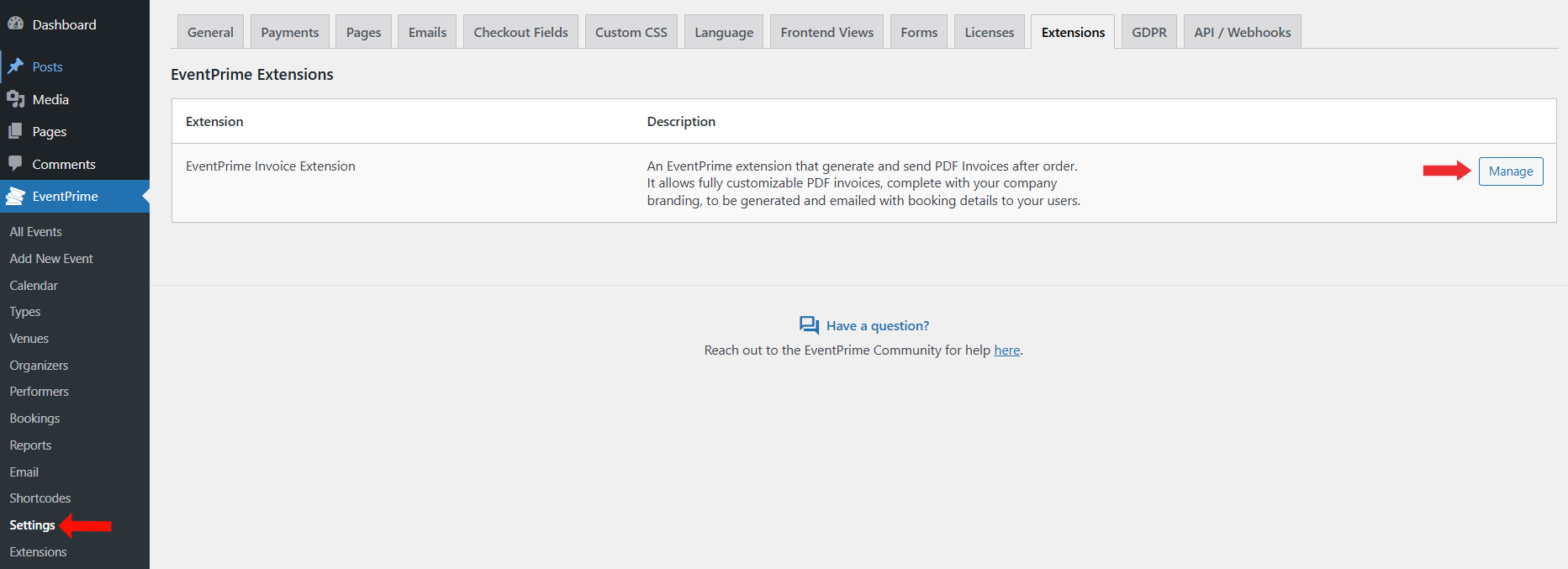
- Navigate to EventPrime menu and select Settings submenu.
- Open the Extensions tab.
- Click Manage for the EventPrime Invoice extension.
Step 2: Configure Invoice Settings
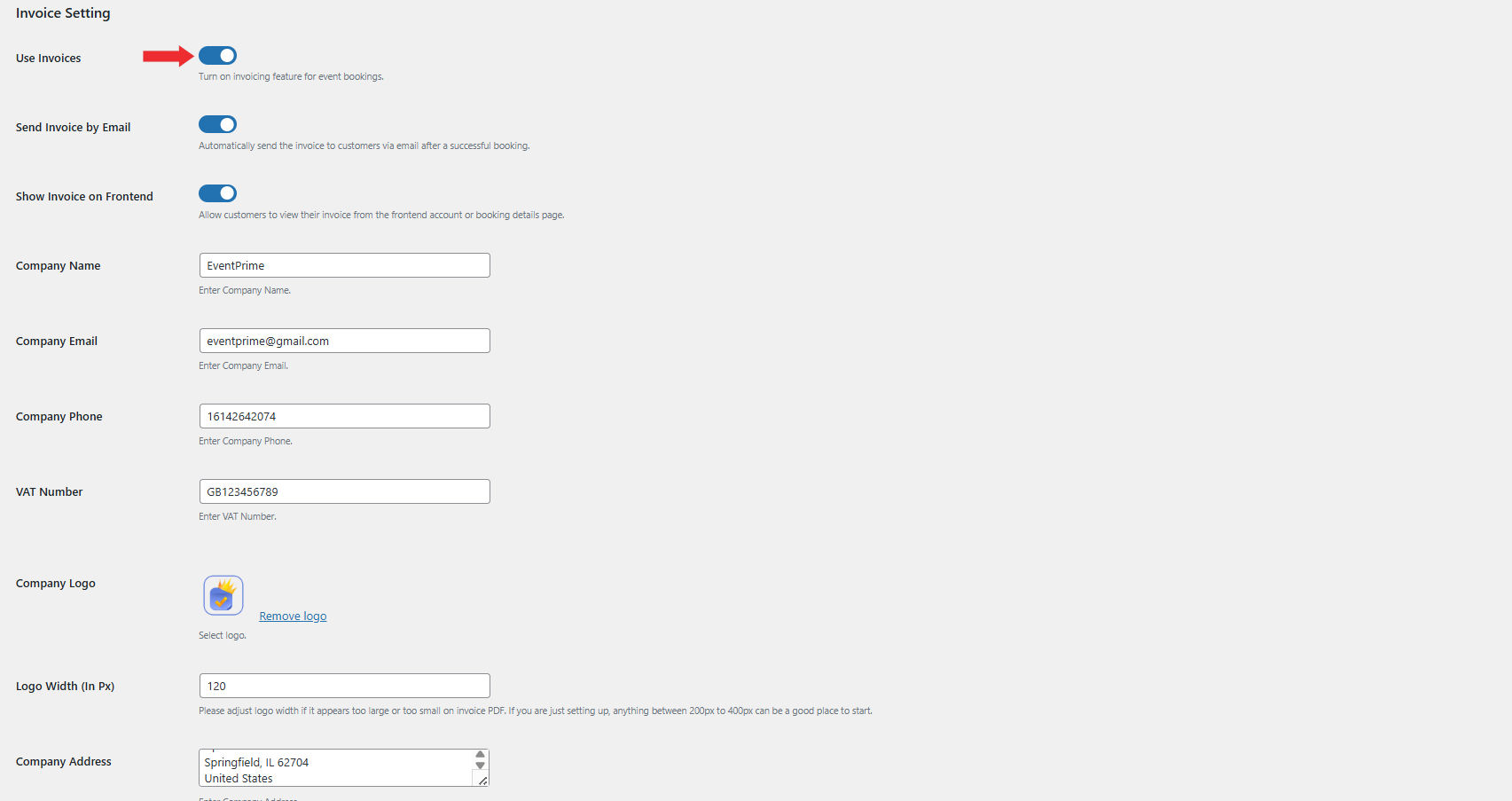
On the Invoice Settings page, enable and configure the following options:
- Use Invoices: Enable this option to activate invoice generation for Event Bookings.
- Send Invoice by Email: Enable this option to automatically send the invoice PDF to attendees after successful Booking.
- Show Invoice on Frontend: Allow attendees to view their Invoice from the frontend Booking Details page.
- Company Name: Enter your company or organization name that will appear on the Invoice.
- Company Email: Provide the official company email displayed on the Invoice.
- Company Phone: Enter your contact phone number.
- VAT Number: Add your VAT or tax registration number if applicable.
- Company Logo: Upload your company logo to display on the Invoice PDF.
- Logo Width (In px): Set the width of the logo in pixels to control its size on the Invoice.
- Company Address: Enter your complete company address as it should appear on the Invoice.
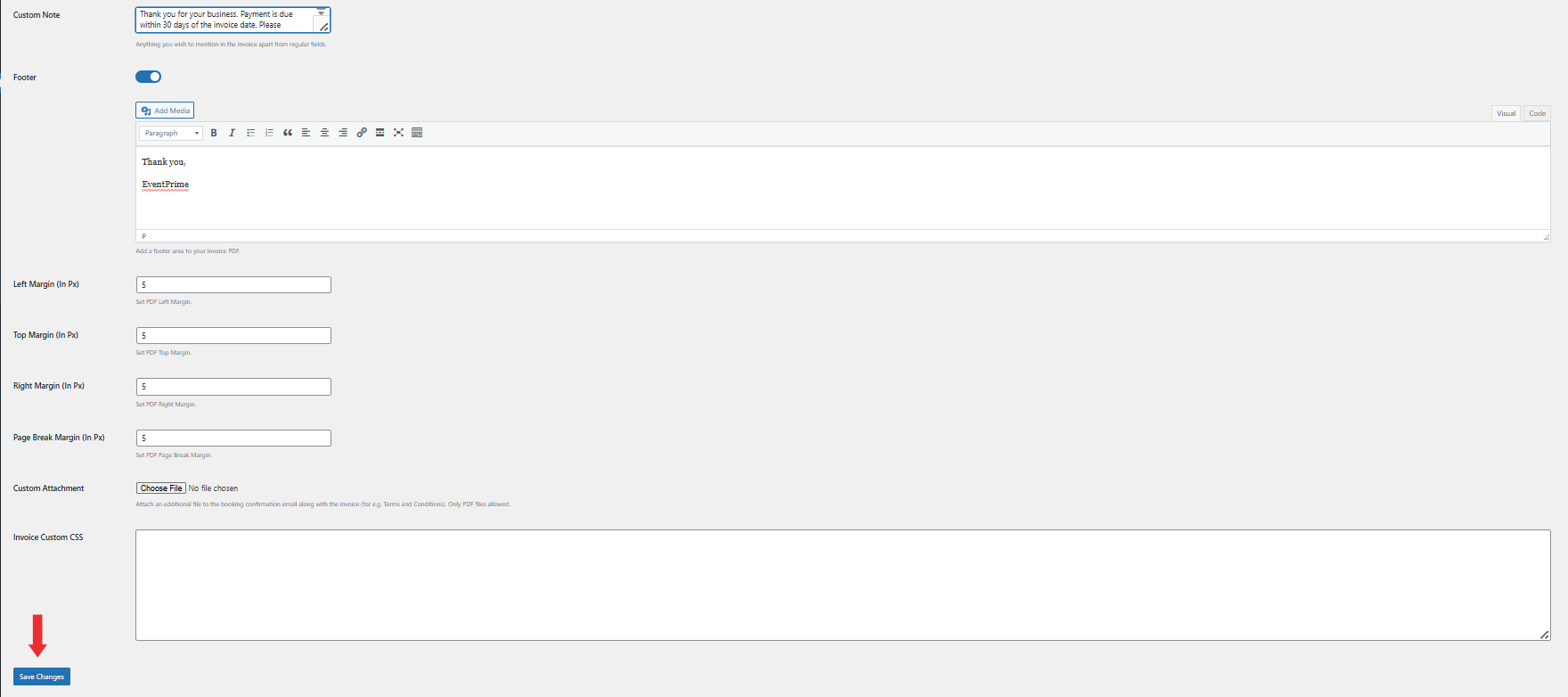
- Custom Note: Add any additional message to be shown on the Invoice, such as payment terms or thank you notes.
- Footer: Enable and customize the footer content for the Invoice PDF.
- PDF Margins: Configure Left, Top, Right, and Page Break margins in pixels to adjust Invoice layout.
- Custom Attachment: Upload an optional PDF file to attach along with the Invoice email, such as terms and conditions.
- Invoice Custom CSS: Add custom CSS to style the Invoice layout if required.
After completing the configuration, click Save Changes to apply the settings.
Frontend View
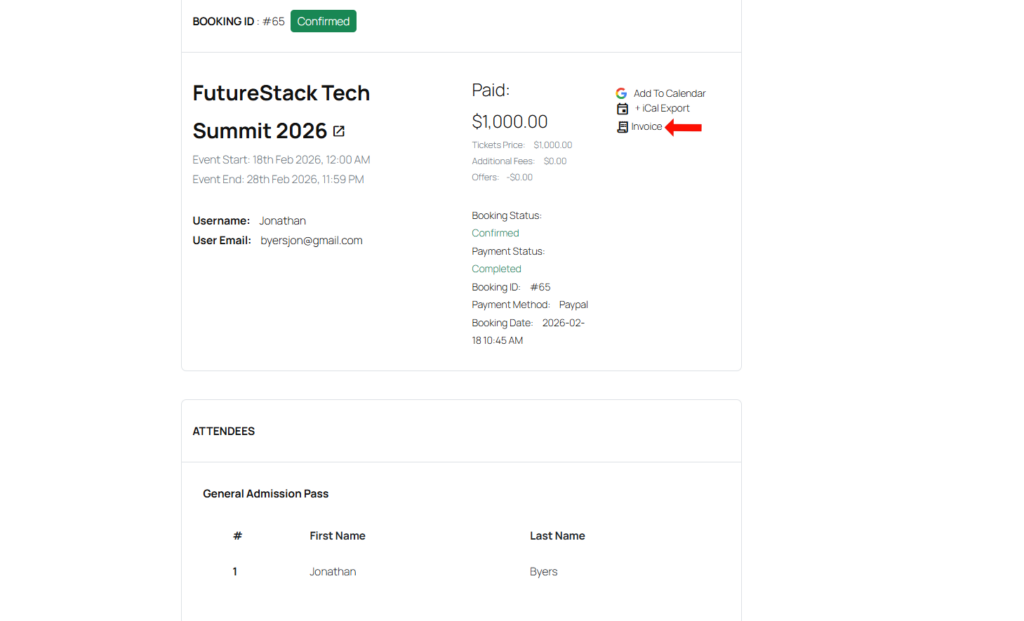
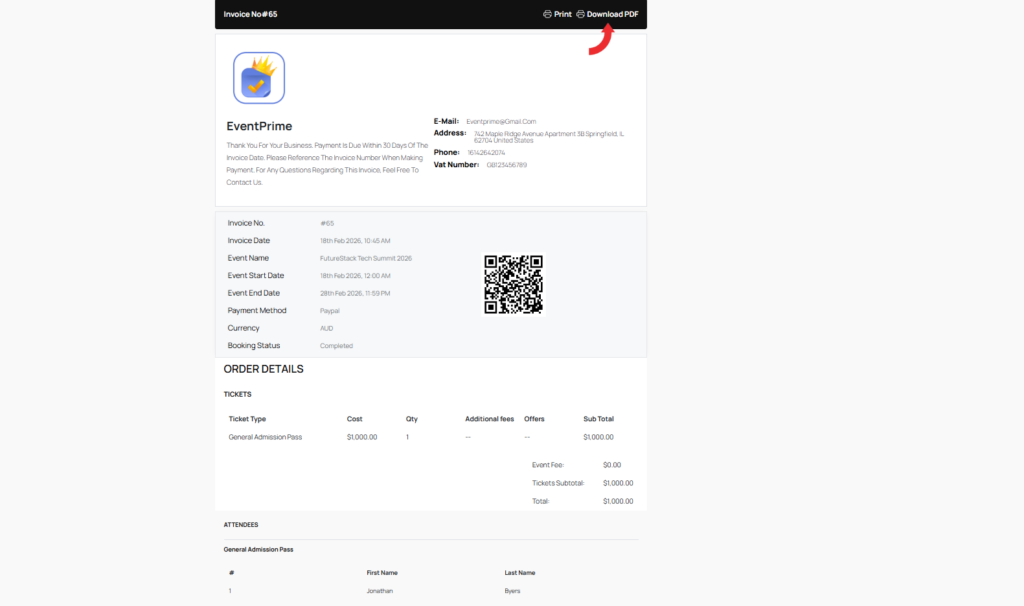
Once an attendee completes a Booking for a Event, an Invoice icon becomes available on the Booking Details page. By clicking the Invoice option, the attendee is redirected to the Invoice preview screen where they can view complete Booking Details along with billing information.
From this screen, the attendee can Download the Invoice as a PDF or Print it directly. If the email option is enabled, the Invoice PDF is also automatically sent to the attendee’s registered email address after successful Booking.
Conclusion
The Invoice Extension helps automate billing for WordPress Events with professionally generated PDF invoices. It improves transparency by allowing attendees to access and download invoices anytime.
This ensures a smooth and organized post-Booking experience for both Organizers and attendees.
Questions, Support & Custom Solutions
- Need more details or can't find what you're looking for? Let us know how we can help! Contact our support team here.
- Looking for a tailor-made solution to meet your specific needs? Our dedicated customization team is here to help! Use this link to share your requirements with us, and we'll collaborate with you to bring your vision to life.