
Overview
The EventPrime Event Materials & Downloads extension allows you to upload downloadable files for your WordPress Events and share them with attendees from the frontend Event Details page. You can upload materials as Pre-Event and Post-Event files and control how they are displayed on the frontend using global settings.
This is useful for sharing documents such as schedules, PDF guides, presentation slides, workshop checklists, and certificates-related instructions.
Prerequisite
Along with the EventPrime plugin, the EventPrime Event Materials & Downloads extension must be installed and activated to use this feature. The extension can be accessed from the following link: Get Your Event Materials & Downloads Extension
How to Configure Event Materials & Downloads
Step 1: Open Event Materials & Downloads Settings
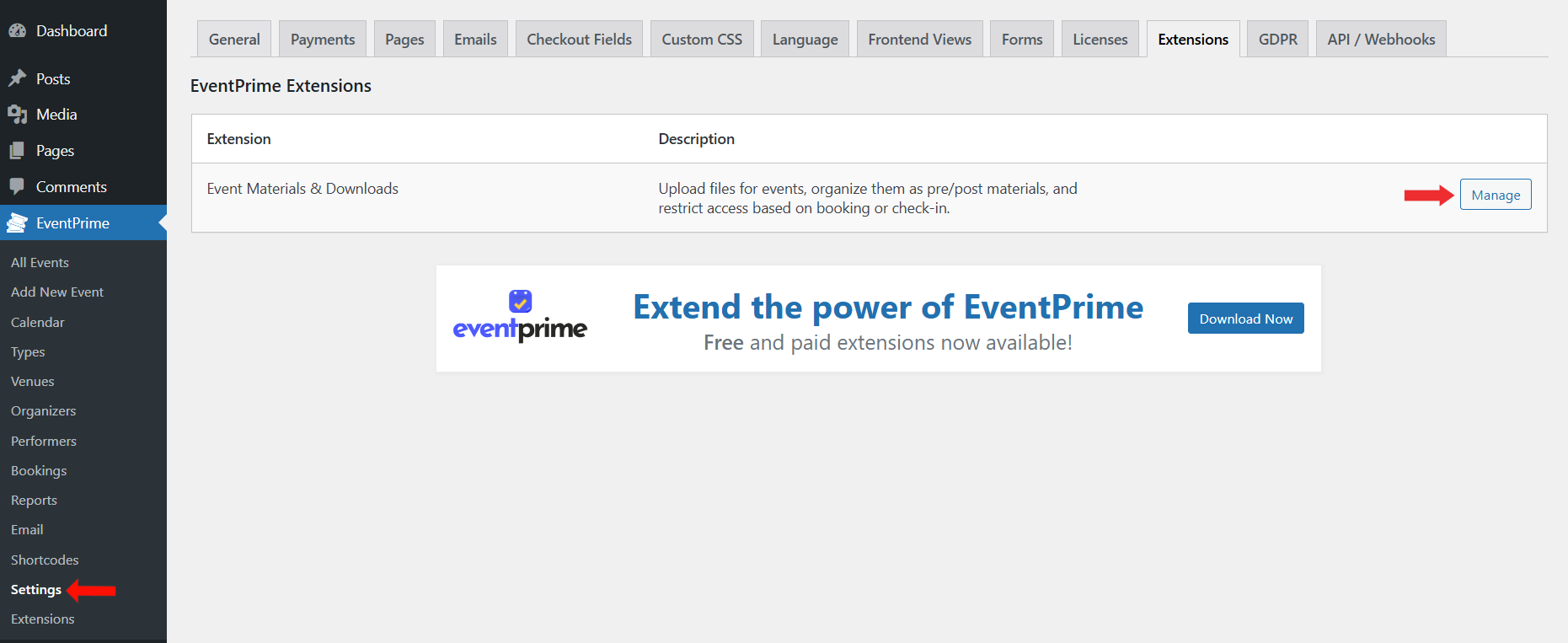
- Navigate to EventPrime menu and select Settings submenu.
- Click the Extensions tab.
- Locate Event Materials & Downloads extension and click the Manage button.
Step 2: Configure Event Materials Settings
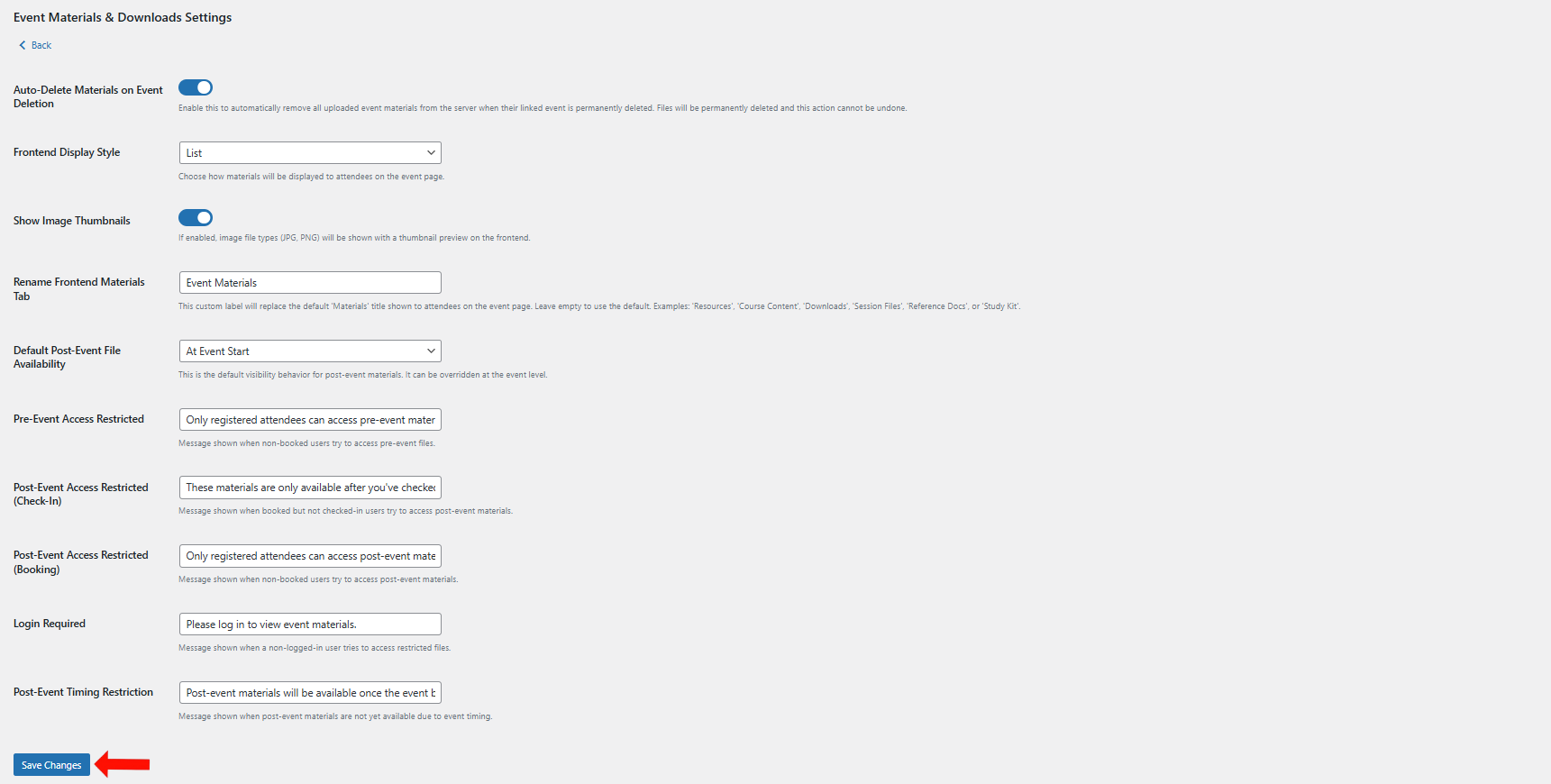
On the Event Materials & Downloads Settings page, configure the following options:
- Auto-Delete Materials on Event Deletion: Enable this option to automatically delete all uploaded Event materials when an Event is permanently deleted.
- Frontend Display Style: Choose how materials should appear on the frontend. Available options include:
- List
- Grid
- Show Image Thumbnails: Enable this option to display preview thumbnails for image file types such as JPG and PNG on the frontend.
- Rename Frontend Materials Tab: Enter a custom name for the frontend materials tab. This label will replace the default Materials title.
- Default Post-Event File Availability: Select when post-event materials should become available:
- At Event Start
- At Event End
- Pre-Event Access Restricted: Enter a custom message shown when users without a valid Booking try to access pre-event materials.
- Post-Event Access Restricted (Check-In): Enter a custom message shown when booked users try to access post-event materials but are not checked-in.
- Post-Event Access Restricted (Booking): Enter a custom message shown when non-booked users try to access post-event materials.
- Login Required: Enter a custom message shown when a non-logged-in user tries to access restricted materials.
- Post-Event Timing Restriction: Enter a custom message shown when post-event materials are not yet available due to event timing.
After completing the configuration, click Save Changes.
Step 3: Open the Event to Add Materials
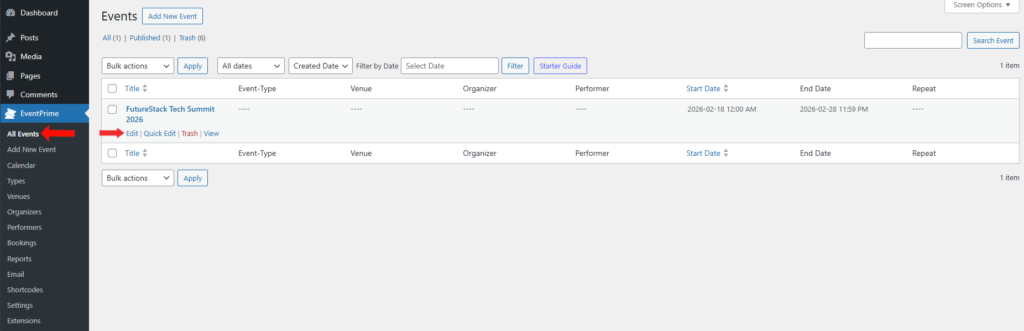
- Navigate to EventPrime menu and select All Events submenu.
- Click the Edit button for the Event where you want to upload materials.
Step 4: Upload Pre-Event and Post-Event Materials
- On the Edit Event page, locate the Event Settings metabox and click the Materials tab.
- Inside this tab, you will find separate sections for:
- Pre-Event Materials
- Post-Event Materials
- From here, you can upload downloadable files and control how they are shown to attendees. You can also restrict access to booked users and choose when post-event files become available.
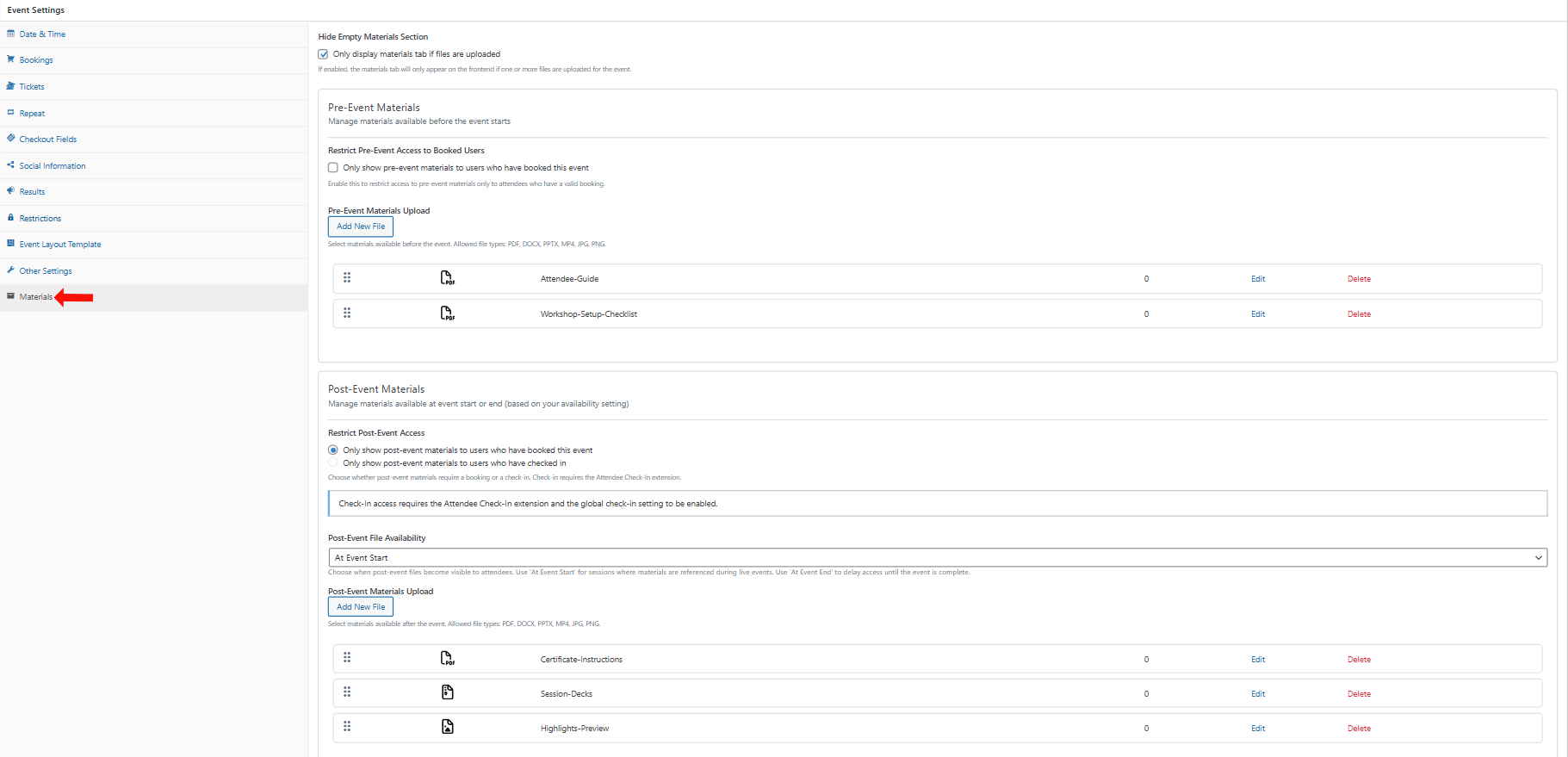
Under both Pre-Event Materials and Post-Event Materials, click Add New File to upload a file.
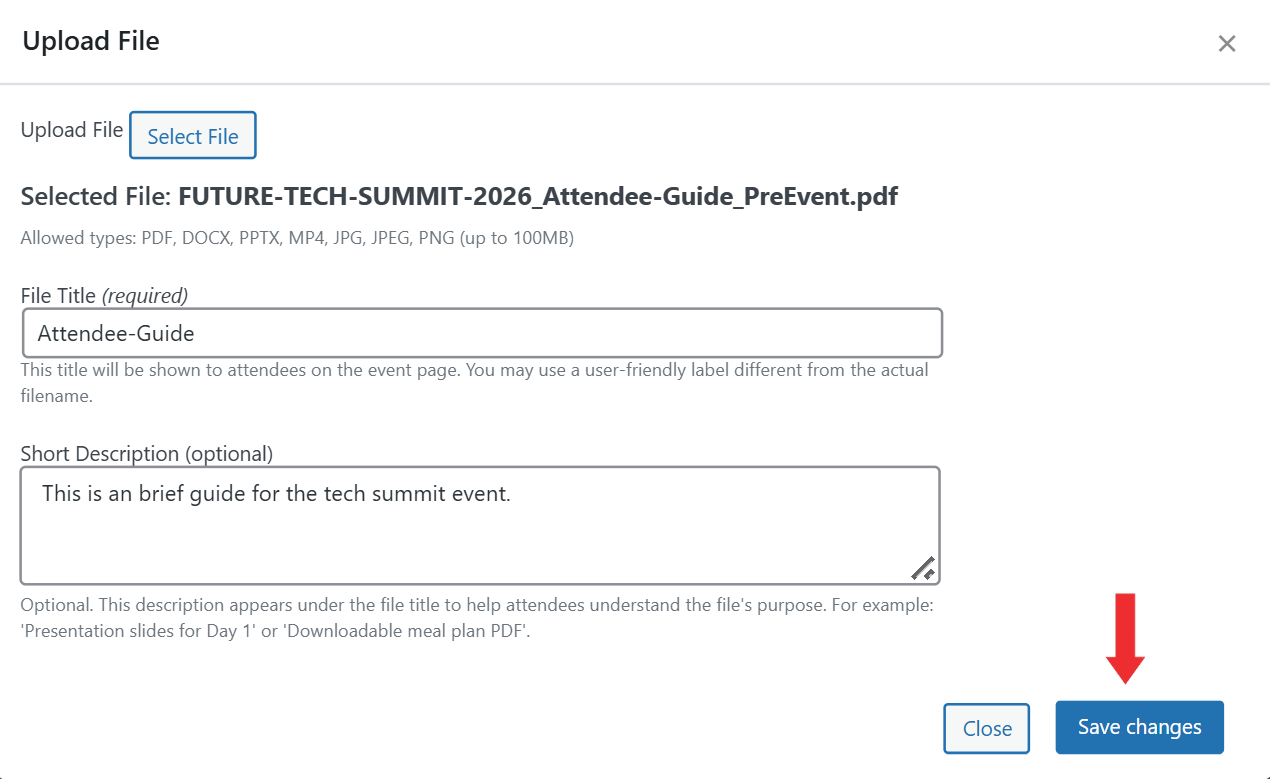
In the popup window:
- Select the file to upload.
- Enter a File Title (required).
- Add a Short Description (optional).
Click Save changes to add the file, then repeat the same steps to upload more files if needed. After completing the configuration, Update Event to save these configuration.
Frontend View
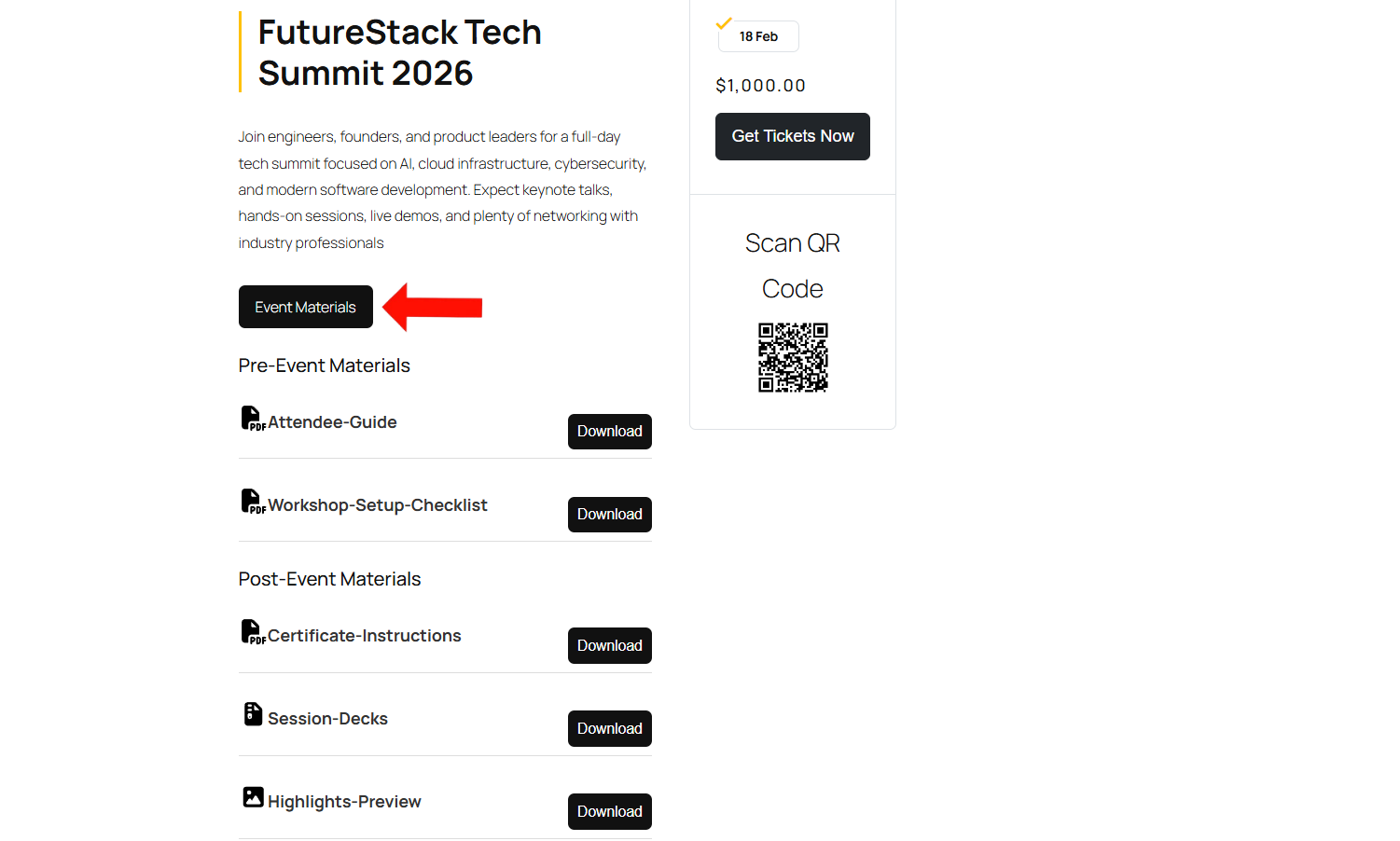
On the frontend Event Details page, attendees will see a tab labeled based on the name configured in the backend (for example, Event Materials). From this section, attendees can view and download the uploaded pre-event and post-event files depending on the availability settings and access restrictions.
Conclusion
The EventPrime Event Materials & Downloads extension helps you share downloadable files with attendees directly from the frontend Event Details page. By configuring global settings and uploading materials inside each Event, you can provide pre-event resources and post-event downloads in a structured and controlled way.
Questions, Support & Custom Solutions
- Need more details or can't find what you're looking for? Let us know how we can help! Contact our support team here.
- Looking for a tailor-made solution to meet your specific needs? Our dedicated customization team is here to help! Use this link to share your requirements with us, and we'll collaborate with you to bring your vision to life.