
Overview
The EventPrime Printable Event Program extension allows you to generate a print-friendly program page for your Events. This program can include key event details such as the Event Title, Date and Time, Venue, Description, Speaker List, Sponsor Logos, and a Footer Note.
You can configure the printable program settings globally from the EventPrime settings panel and also override those settings for individual Events when needed. On the frontend, attendees can access the printable program directly from the Event Details page and print it using the browser print option.
Prerequisite
Along with the EventPrime plugin, the EventPrime Printable Event Program extension must be installed and activated to use this feature. The extension can be accessed from the following link: Get Your Event Printable Program Extension
How to Configure Printable Program Settings (Global)
Step 1: Access Printable Program Settings
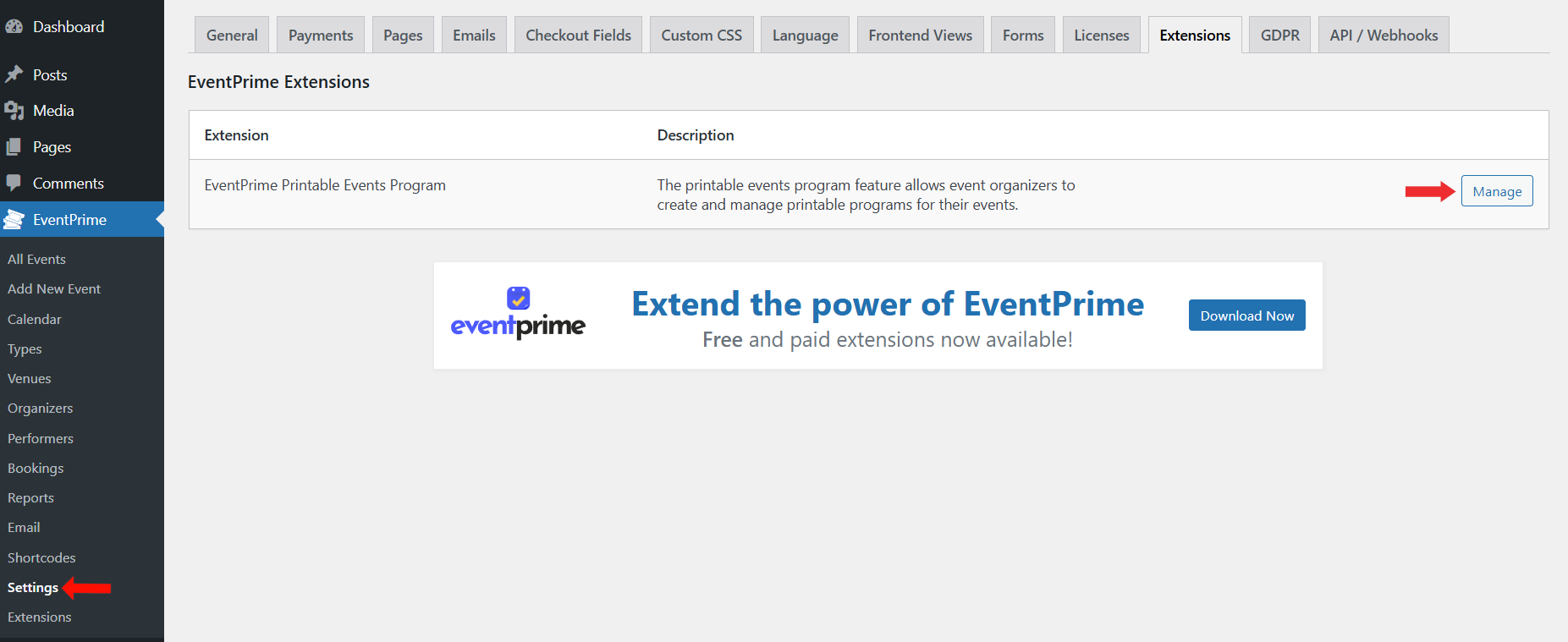
- Navigate to EventPrime menu and select Settings submenu.
- Open the Extensions tab.
- Locate EventPrime Printable Event Program and click the Manage button.
You will be redirected to the Printable Program Settings page.
Step 2: Configure Global Printable Settings
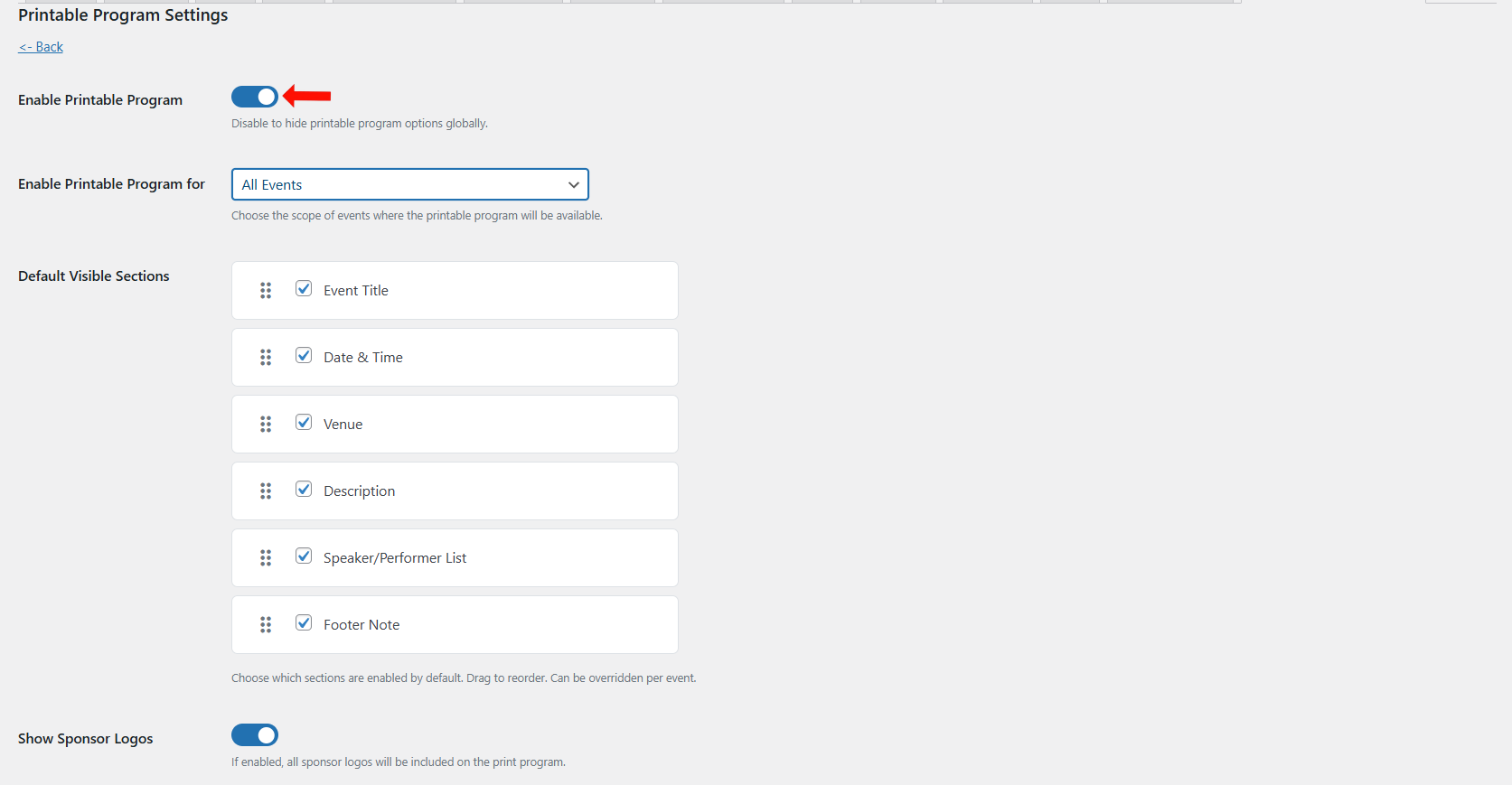
On the Printable Program Settings page, configure the following options:
- Enable Printable Program: Turn this ON to activate printable program functionality globally.
- Enable Printable Program For: Choose where the feature should be available:
- All Events
- Specific Event Types
- Individual Events Only
- Default Visible Sections: Select which sections should appear by default. These sections can be toggled ON or OFF and reordered using drag-and-drop. Available sections include:
- Event Title
- Date and Time
- Venue
- Description
- Sessions (if Multi-Session extension is available)
- Speaker or Performer List
- Event Materials (if extension available)
- Certificate Access (if extension is available)
- Sponsor Logos
- Footer Note
- Show Sponsor Logos: Enable this to display sponsor logos in the printable layout.
- Access Restriction: Choose one of the following options:
- Public (anyone can view)
- Only Logged-in Attendees (booking email validation required)
- Allow Organizer Branding Override: Enable this if Organizers should be allowed to override the header logo and footer branding per Event.
- Global Footer Note: Add a footer message using the rich text editor. This will appear at the bottom of the printable page unless overridden per Event.
- Global Header Logo: Upload a logo that will appear at the top of all printable pages.
After configuring the settings, click Save Changes to apply them.

Step 3: Select an Event to Override Global Settings
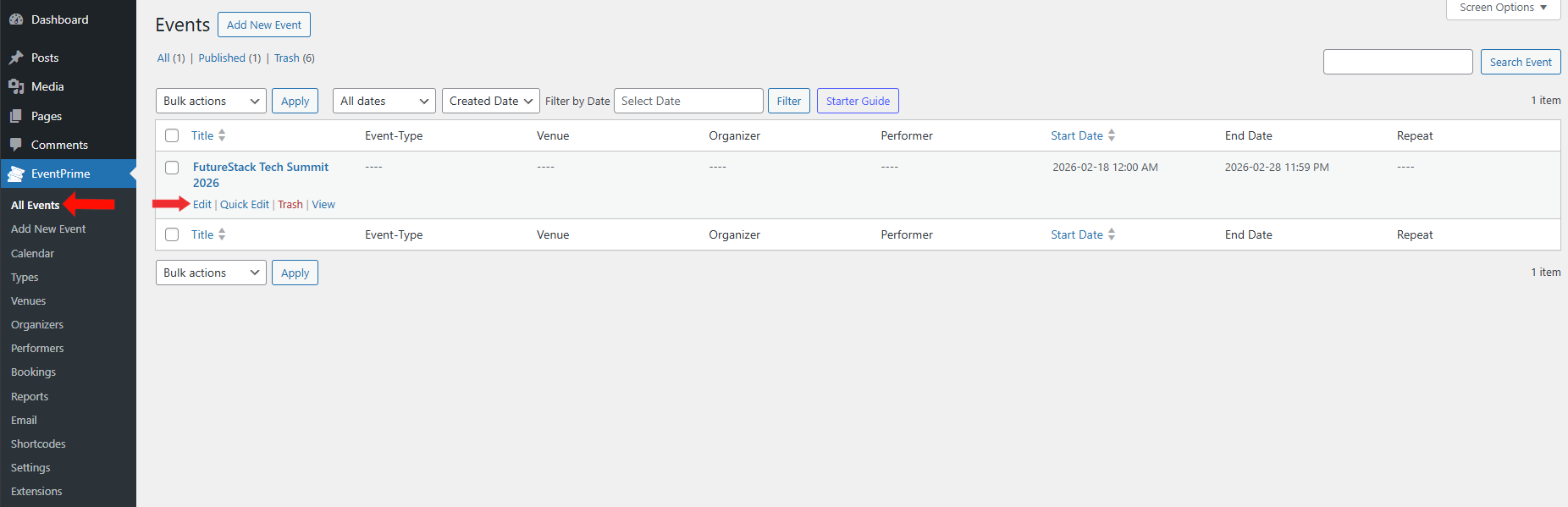
- Navigate to EventPrime menu and select the All Events submenu.
- Click the Edit button for the event where you want to override the global printable program settings.
Step 4: Configure Printable Program for the Selected Event
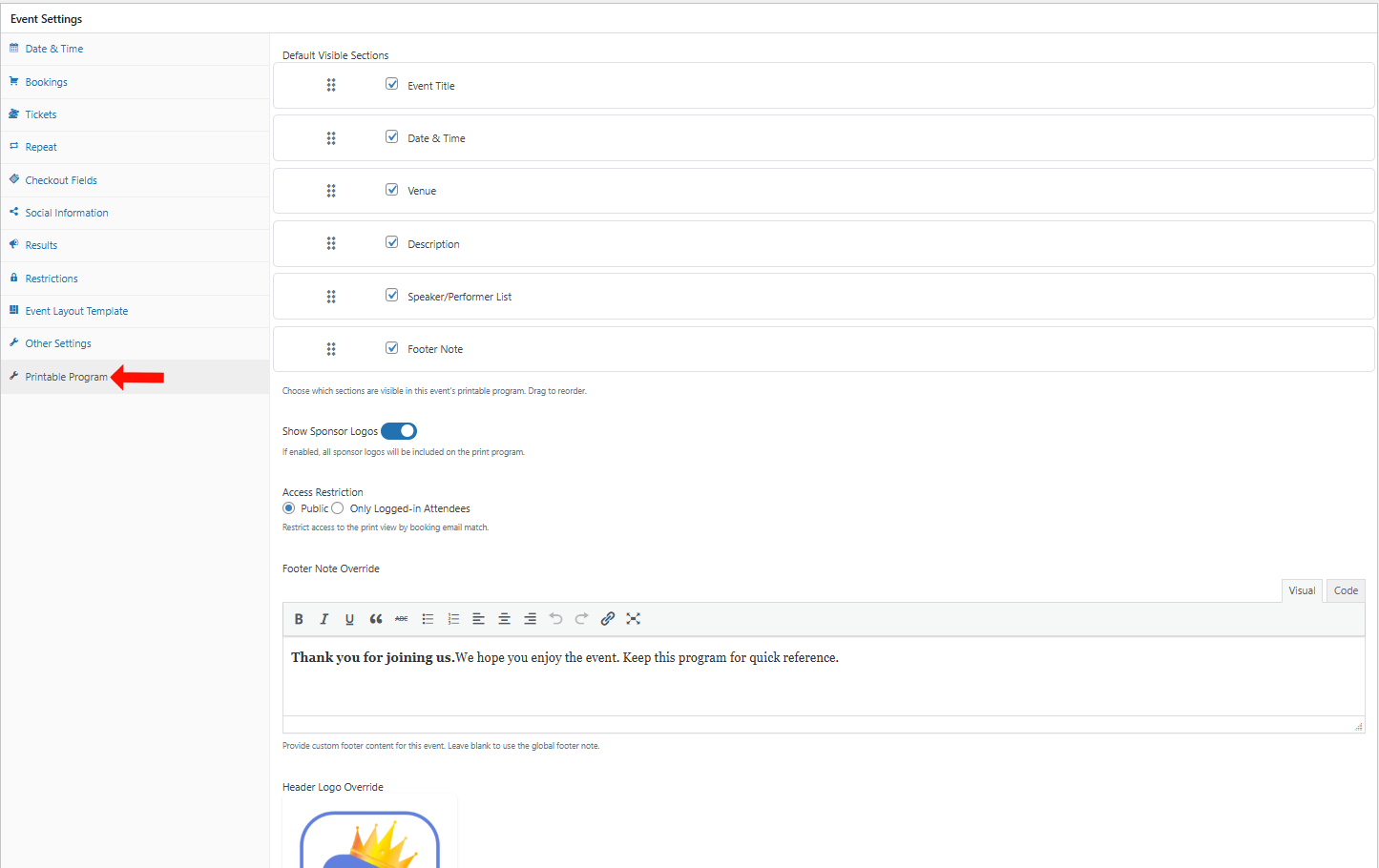
- On the Edit Event page, locate the Event Settings metabox.
- Click the Printable Program tab.
- Configure the available options as needed:
- Enable or disable specific sections
- Reorder sections using drag and drop
- Upload or override the header logo
- Add a custom footer note
- Set visibility to Public or Attendees Only
These settings will override the global printable program configuration for this specific Event.
- Update the Event to apply these changes.
Frontend View
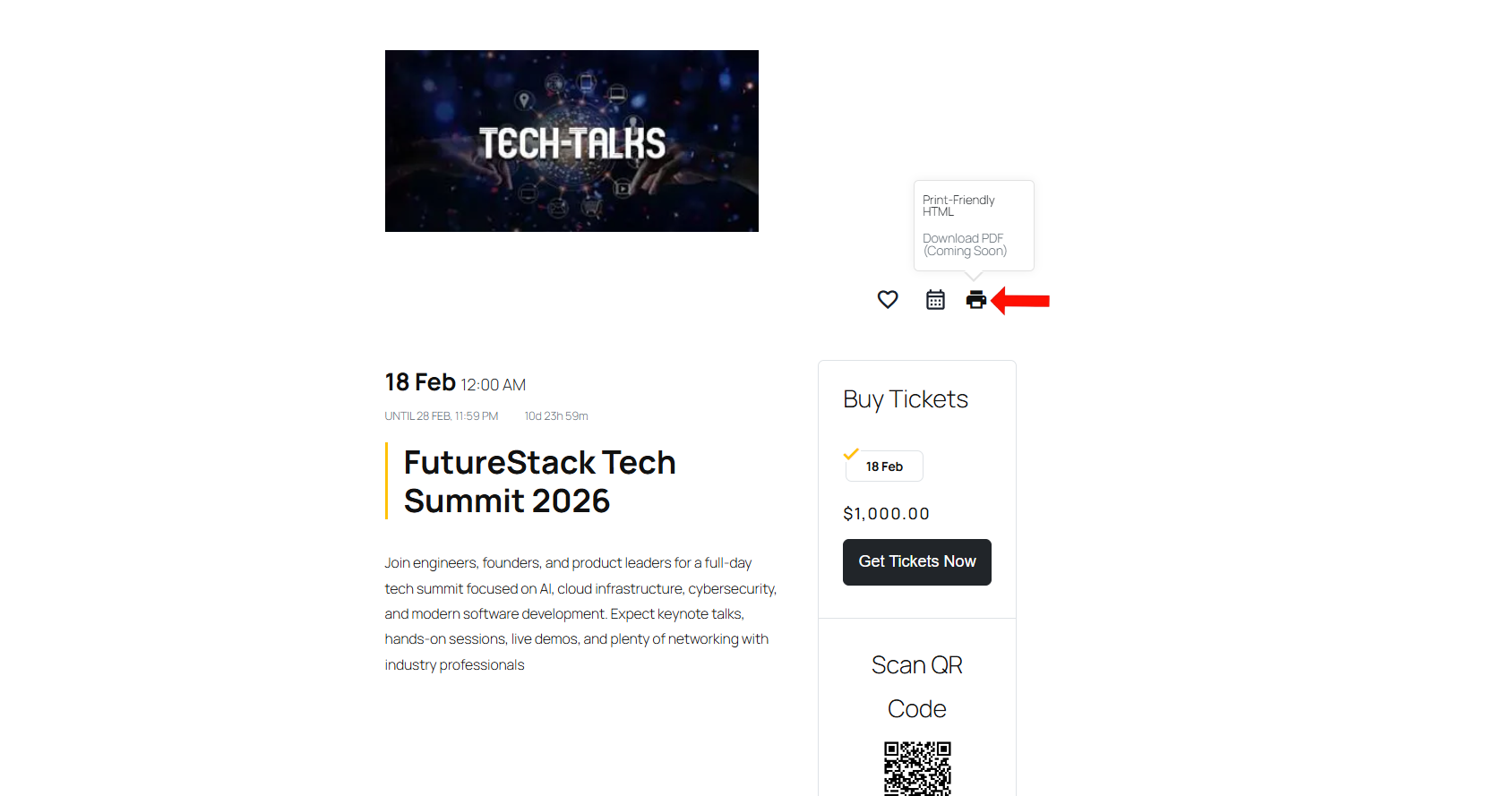
On the frontend Event Details page, a print icon appears in the action icon area based on your global printable program settings. When a user hovers over the icon, they can open the print-friendly program in a new tab.
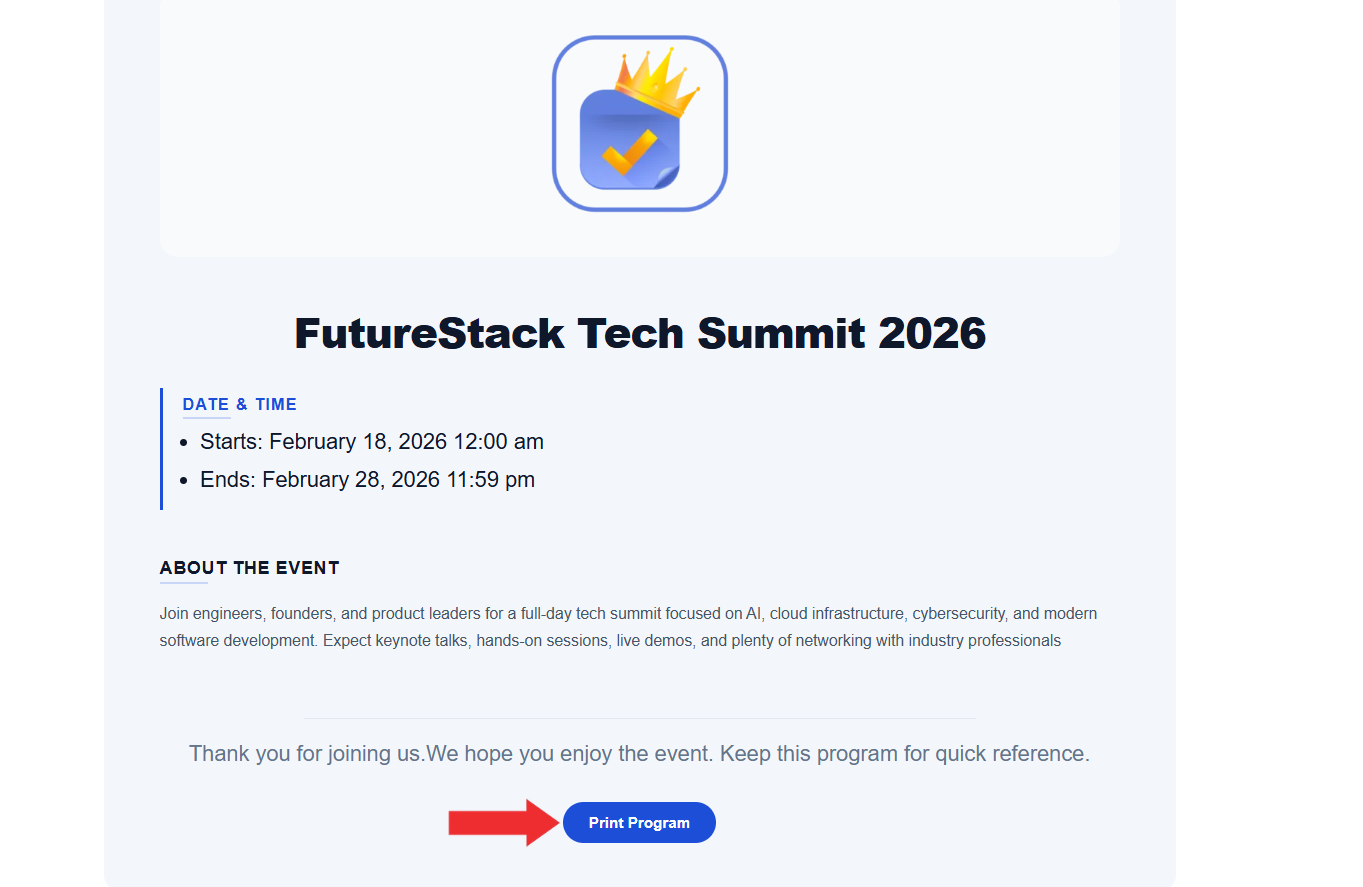
The printable preview displays the selected Event sections in the same order configured in the settings, including the header logo, sessions grouped by date (if Multi-Session extension is active), sponsor logos (if enabled), and the footer note. From this screen, users can print the program using the browser Print Program option and PDF Download support will be added in future updates.
Conclusion
The EventPrime Printable Event Program extension allows administrators to generate structured, print-friendly Event programs directly from Event data. Global settings control visibility, branding, access restrictions, and default sections, while per-event configuration allows overrides when required. Once enabled, attendees can access a clean printable layout from the Event Details page without requiring theme modifications or template overrides.
Questions, Support & Custom Solutions
- Need more details or can't find what you're looking for? Let us know how we can help! Contact our support team here.
- Looking for a tailor-made solution to meet your specific needs? Our dedicated customization team is here to help! Use this link to share your requirements with us, and we'll collaborate with you to bring your vision to life.