
Overview
The Join Chat Integration extension for EventPrime allows Event Organizers to enable direct WhatsApp communication between attendees and Organizers. Once enabled, a WhatsApp chat icon appears on the Event Details page, allowing attendees to instantly contact the Organizer for information related to the Event.
The integration supports a global default WhatsApp number and Event-specific overrides, giving Organizers complete control over how and where attendee communication is handled.
Prerequisite
Along with theEventPrime plugin, the Join.chat plugin and the EventPrime Join Chat Integration extension must be installed and activated to use this feature. You can get the extension here: Get Your EventPrime Join Chat Integration Extension
How to Use Join Chat Integration
Step 1: Configure Default WhatsApp Number
- From the WordPress dashboard, navigate to Join chat menu.
- Enter the WhatsApp phone number that attendees should use to contact the organizer.
- Configure additional Join.chat settings if required.
- Click Save Changes.
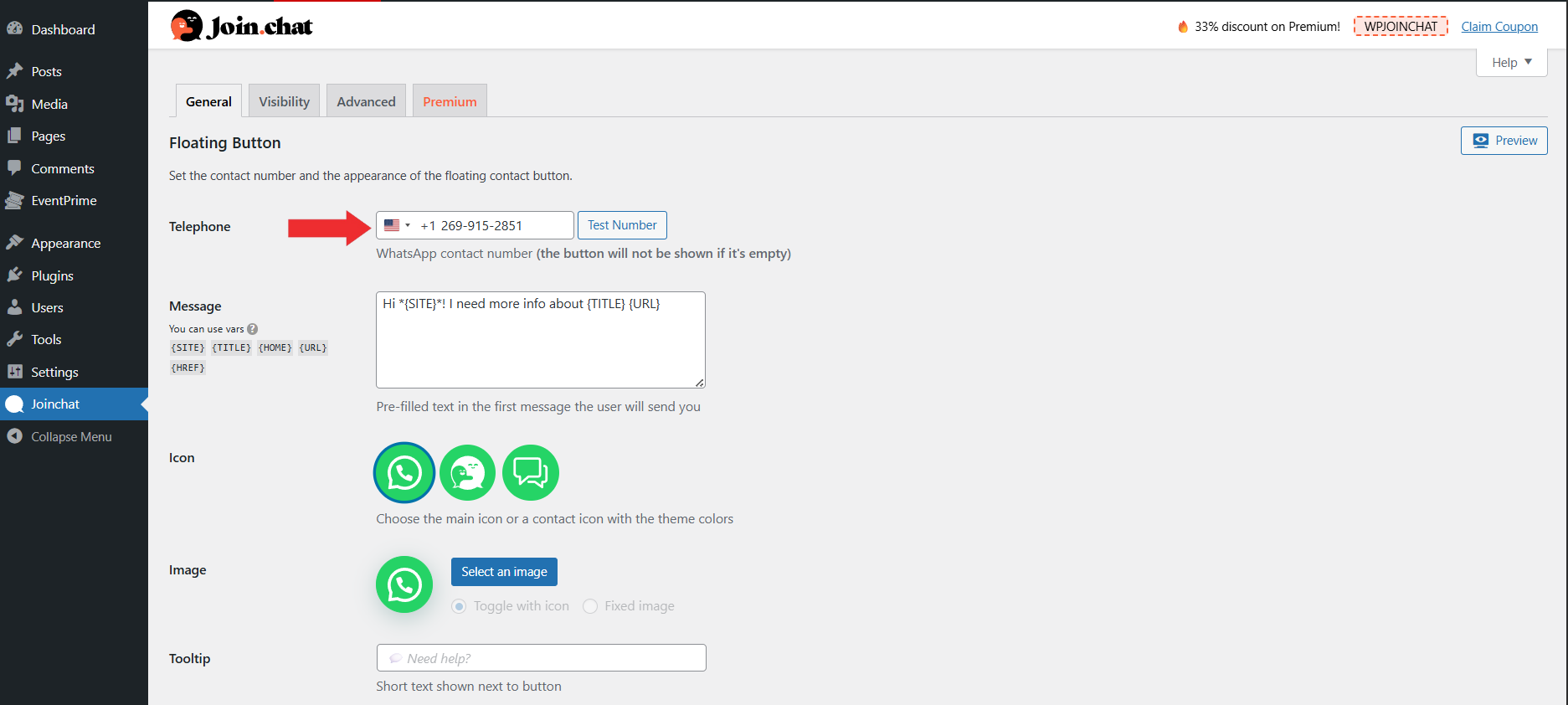
This phone number is used as the default Organizer contact number and applies to all Events unless overridden at the Event level.
Step 2: Access Join Chat Integration Settings
- Navigate to EventPrime menu and select the Settings submenu.
- Open the Extensions tab.
- Locate EventPrime Join Chat Integration extension. Click the Manage button.
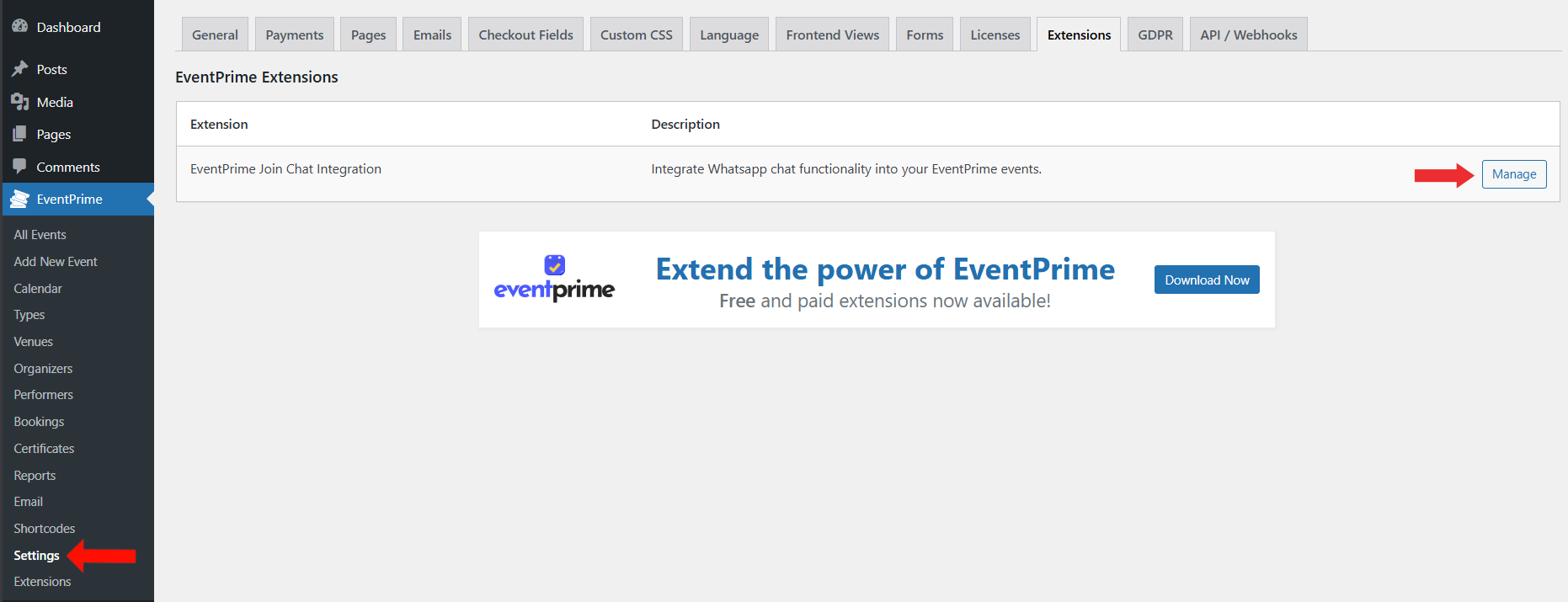
Step 3: Enable Join Chat Integration
On the Join Chat Integration settings page:
- Enable the Join.chat (WhatsApp) toggle.
- Click Save Changes to activate the integration.
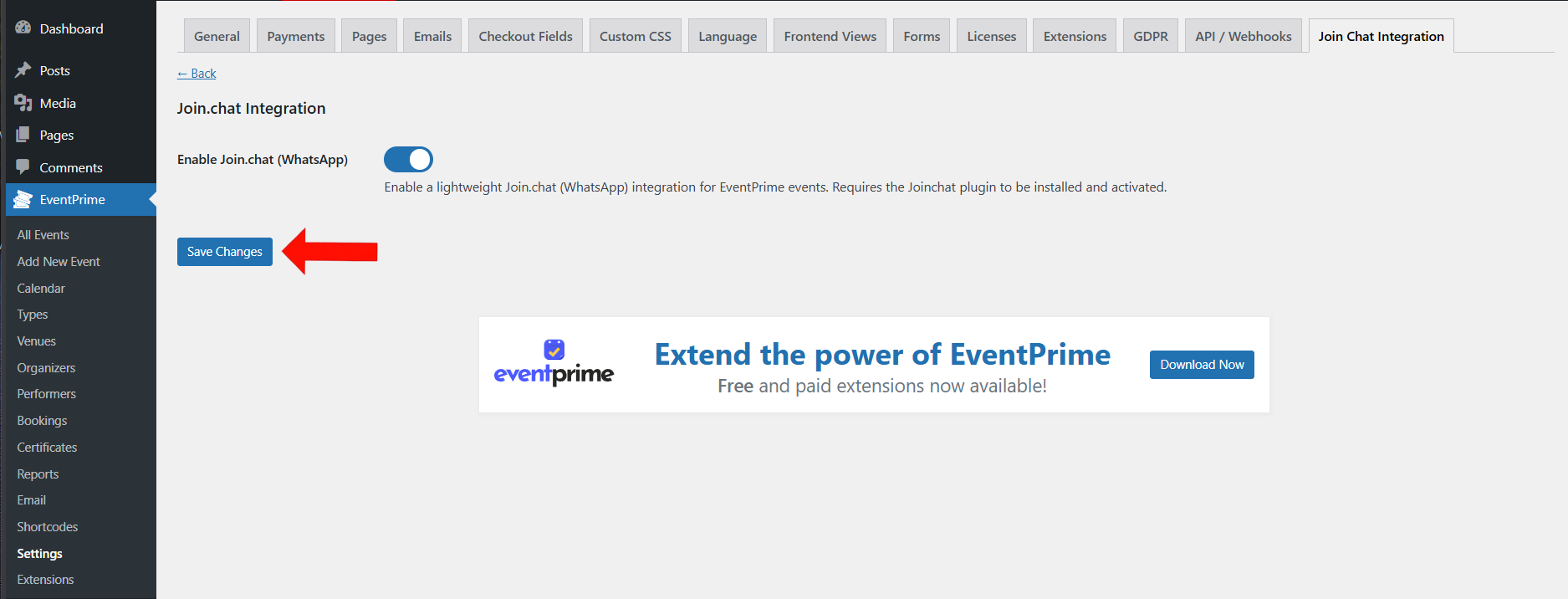
Step 4: Open Event Where you Want to Enable WhatsApp Chat
- Navigate to EventPrime menu and select All Events submenu.
- Click Edit for the event where you want to enable WhatsApp chat.
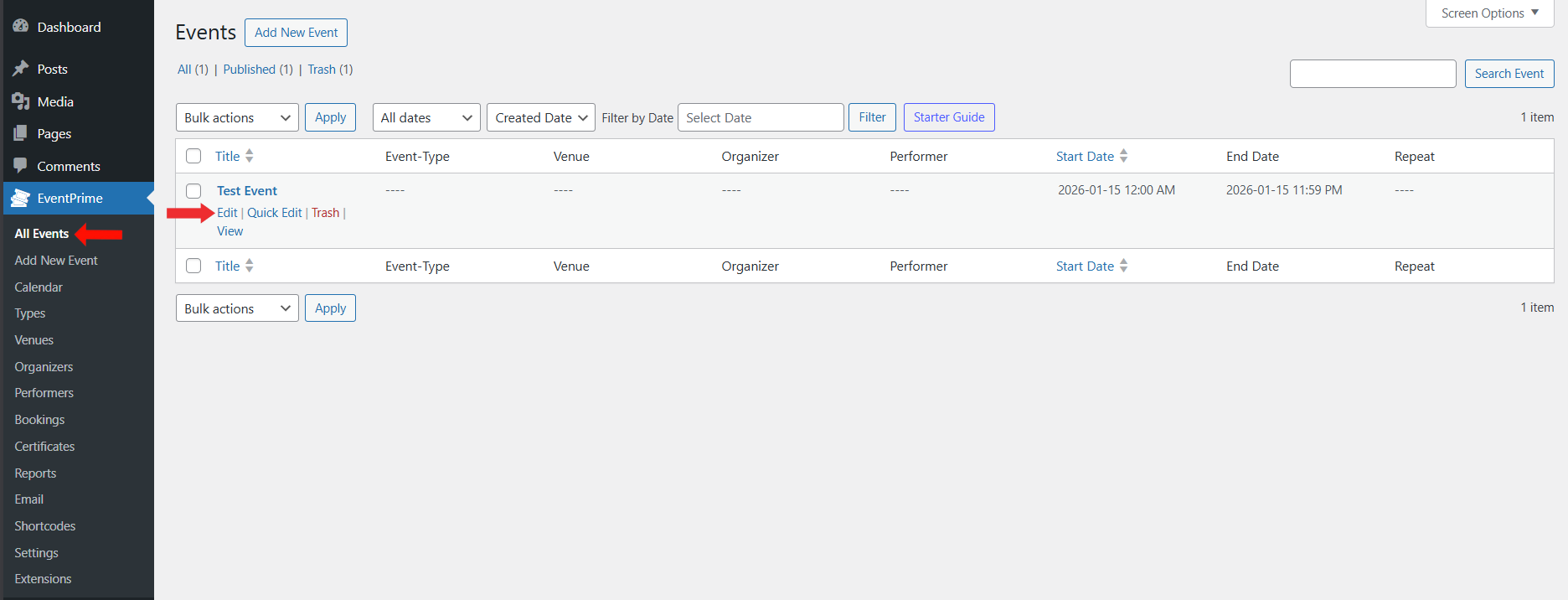
Step 5: Enable Join Chat for Event
On the Edit Event page:
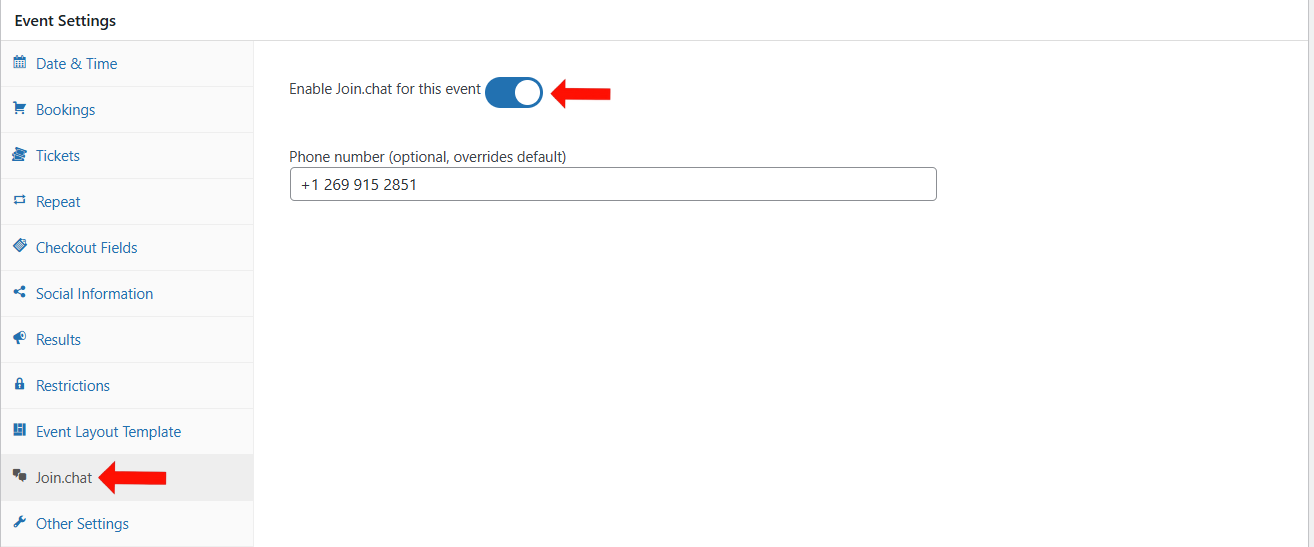
- Go to the Event Settings metabox.
- Open the Join.chat tab.
- Enable Join.chat for this event by checking the checkbox.
- Optionally enter a custom phone number to override the global WhatsApp number for this Event.
- Update the Event to apply these settings.
Frontend View
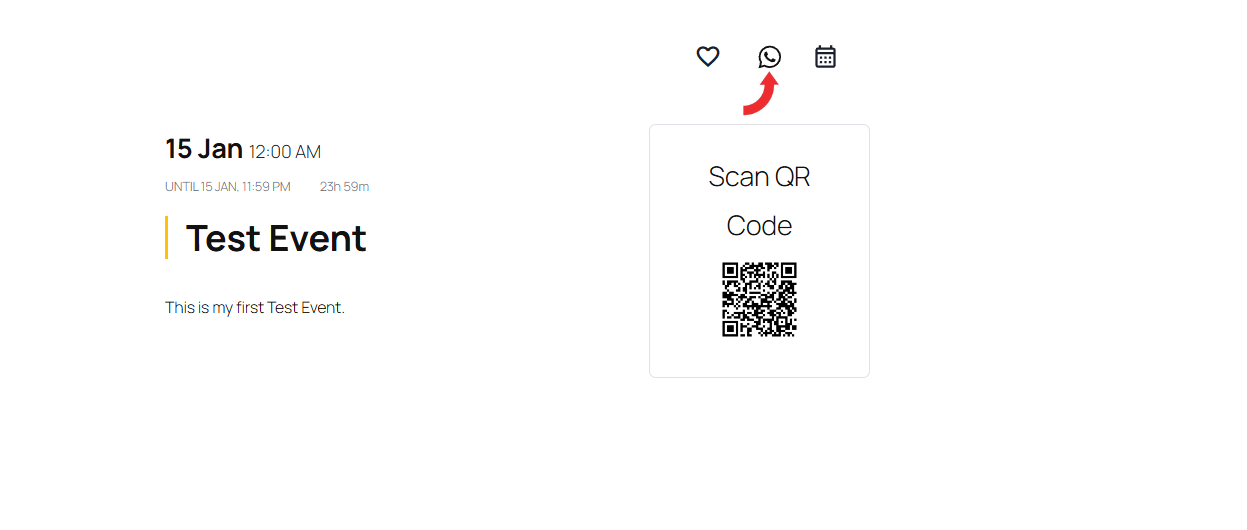
On the frontend Event Details page:
- A WhatsApp icon appears near the wishlist icon.
- Clicking the icon opens:
- the WhatsApp app on mobile devices, or
- WhatsApp Web on desktop browsers.
- Attendees can directly start a conversation with the Organizer using the configured phone number.
Conclusion
The Join Chat Integration extension provides a simple and effective way to enable real-time communication between Event Organizers and attendees using WhatsApp. With support for global defaults and Event-specific overrides, Organizers can manage inquiries efficiently while offering attendees a familiar and convenient contact option.
This integration is ideal for events that require quick responses, personalized support, or direct attendee engagement
Questions, Support & Custom Solutions
- Need more details or can't find what you're looking for? Let us know how we can help! Contact our support team here.
- Looking for a tailor-made solution to meet your specific needs? Our dedicated customization team is here to help! Use this link to share your requirements with us, and we'll collaborate with you to bring your vision to life.