
Overview
The hCaptcha Security extension in EventPrime protects your website from unauthorized activities such as spam and automated abuse. It adds a secure verification step to login, registration, and checkout registration forms, ensuring that only genuine attendees can complete these actions.
Prerequisite
Please make sure that EventPrime and the hCaptcha Security extension are installed and activated on your WordPress site.
If you haven’t installed the extension yet, you can get it from here: Get Your hCaptcha Security Extension
Steps to Use hCaptcha Security Extension
1. Log in or Create an hCaptcha Account
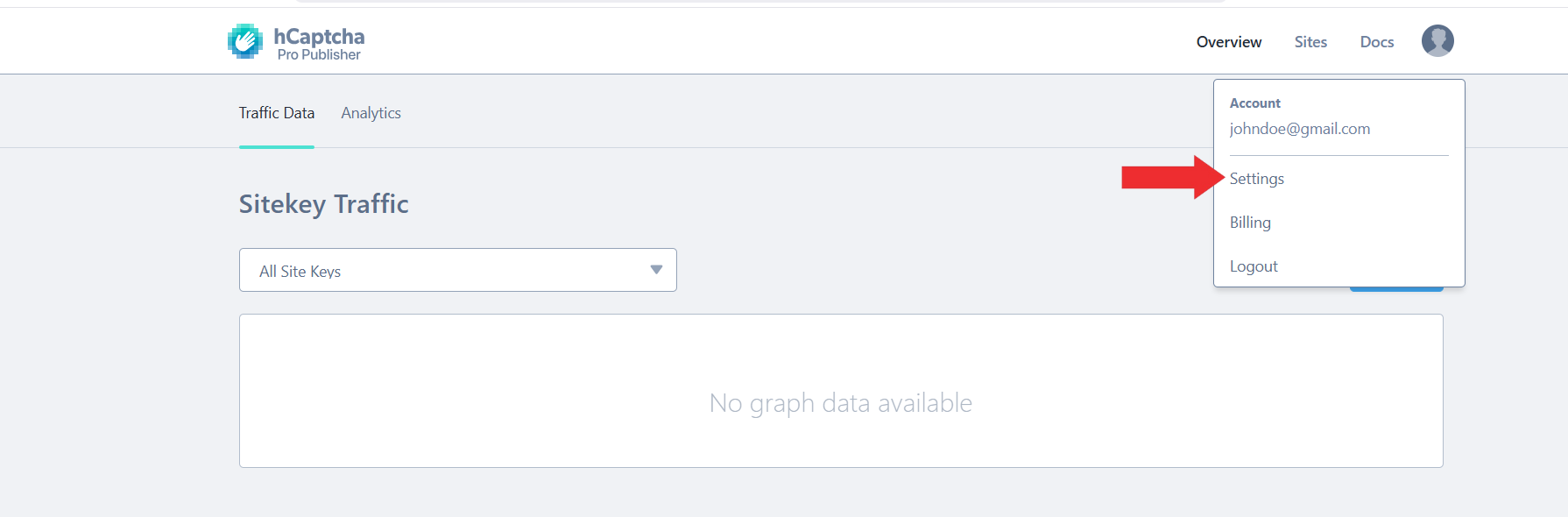
Go to the hCaptcha Documentation page and either log in to your account or create a new one. After logging in, open the hCaptcha Dashboard. Click on your profile icon and select Settings from the submenu.
2. Generate and Copy the Secret Key
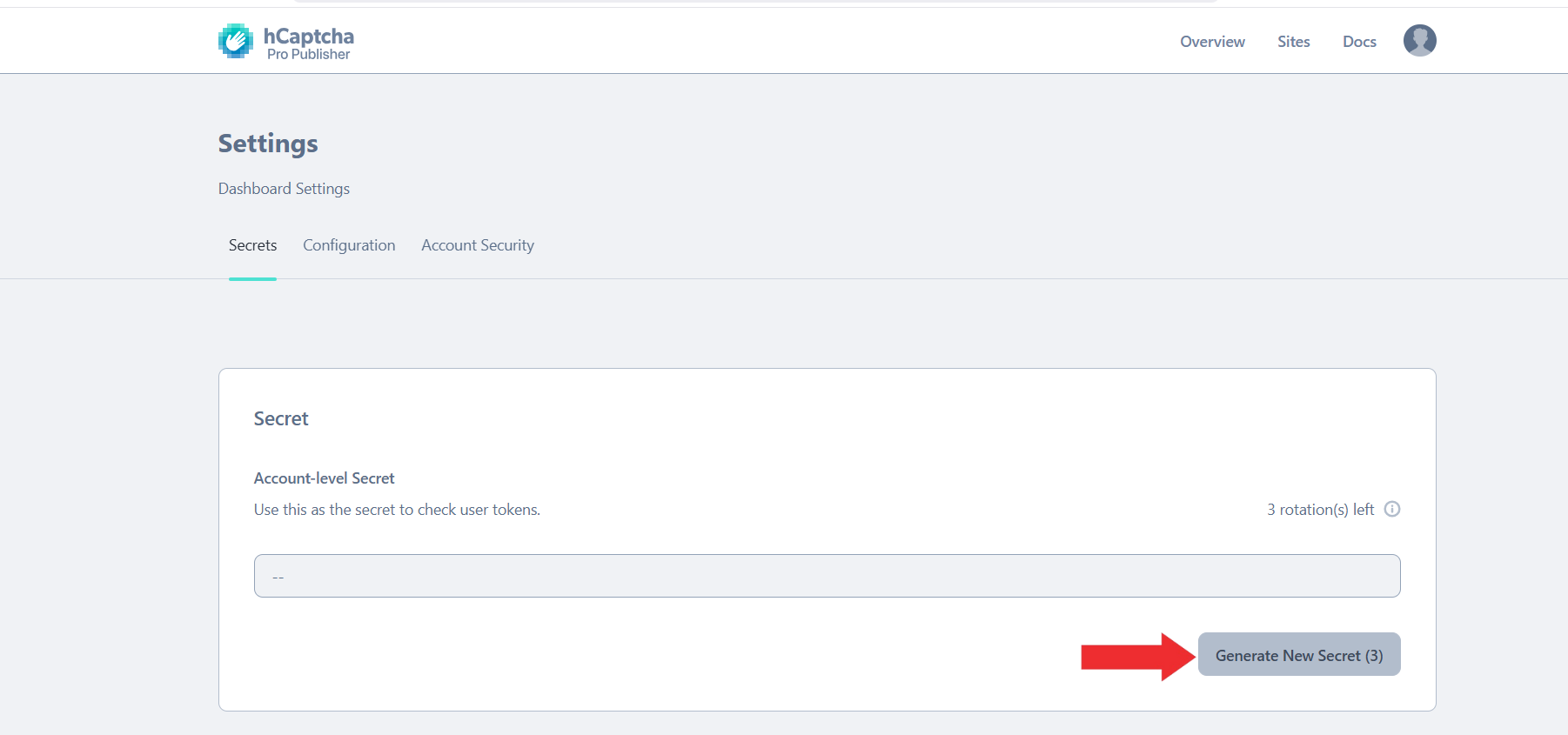
On the Dashboard Settings page, locate the Secret section. Click the Generate New Secret button to create your Secret Key. Copy this key and keep it ready for use in EventPrime configuration.
3. Add a New Site in hCaptcha Dashboard
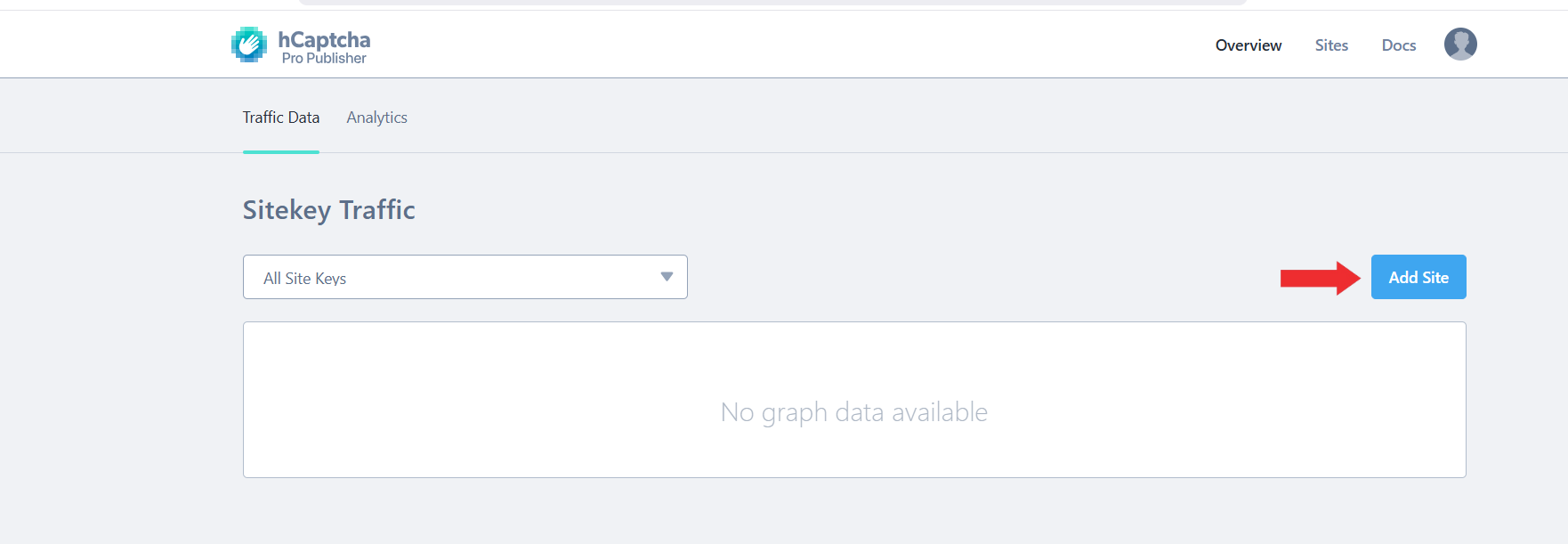
Return to the hCaptcha dashboard and click the Add Site button to create a new site entry.
4. Enter Site Details and Save
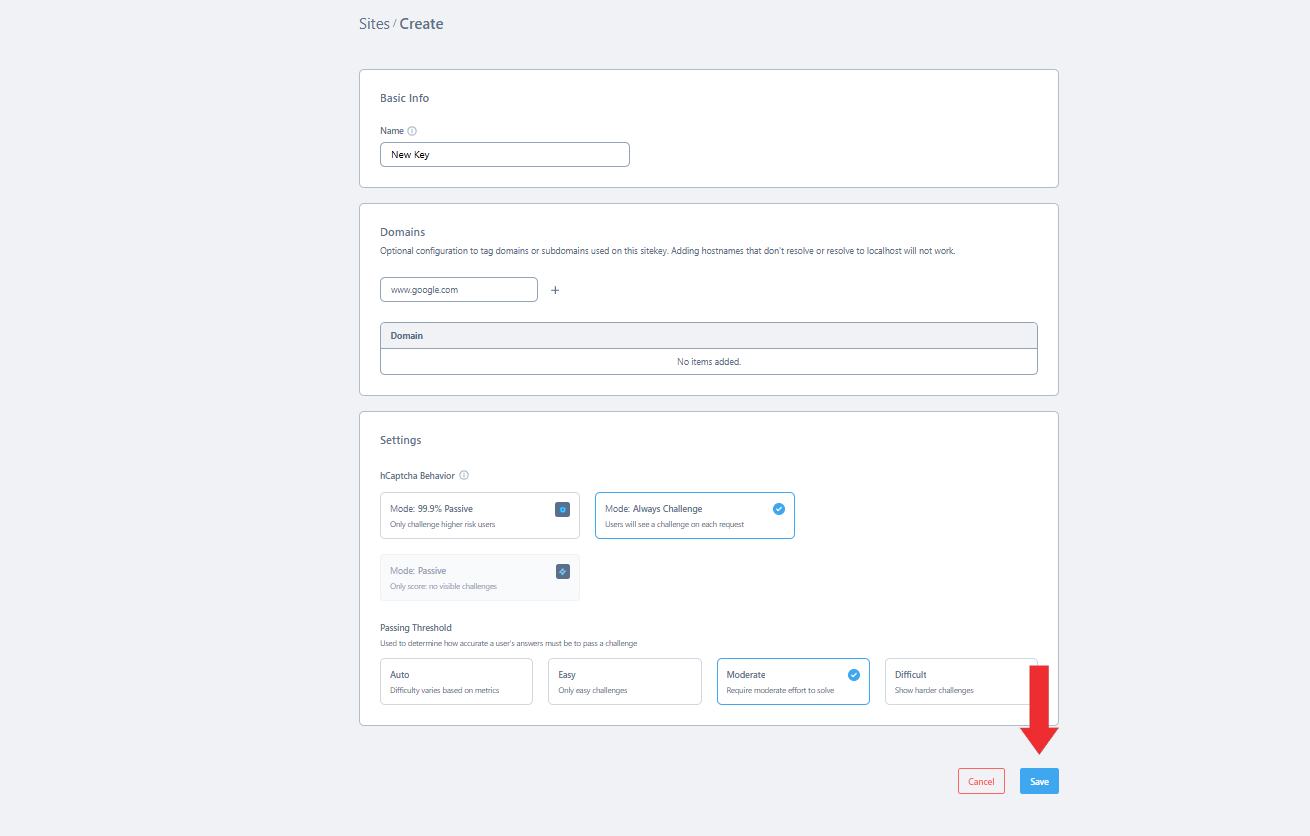
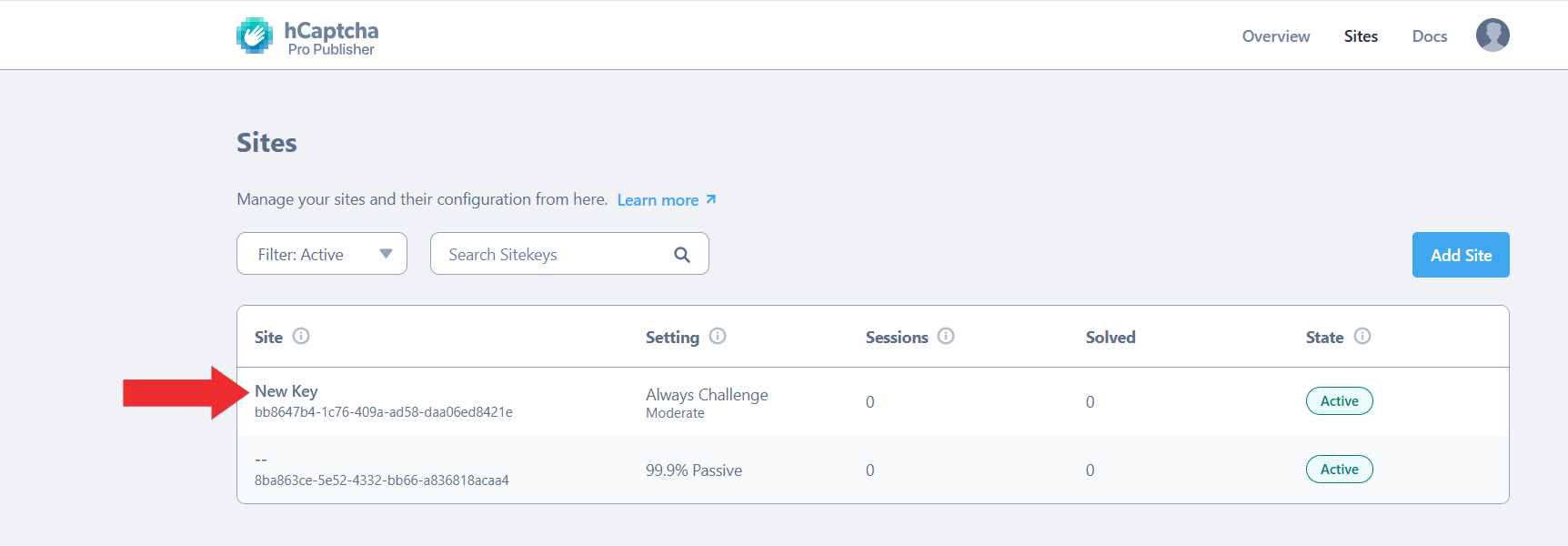
On the Create Site page, enter a site name and domain. Select the Settings Mode. If you choose Always Challenge, also set the difficulty level. Once done, click Save to create the site.
5. Copy the Site Key
After saving, you will be redirected back to the dashboard. Find the site entry you just created and click on it. On the details page, locate the Site Key and copy it for use in EventPrime.
6. Open hCaptcha Settings in EventPrime
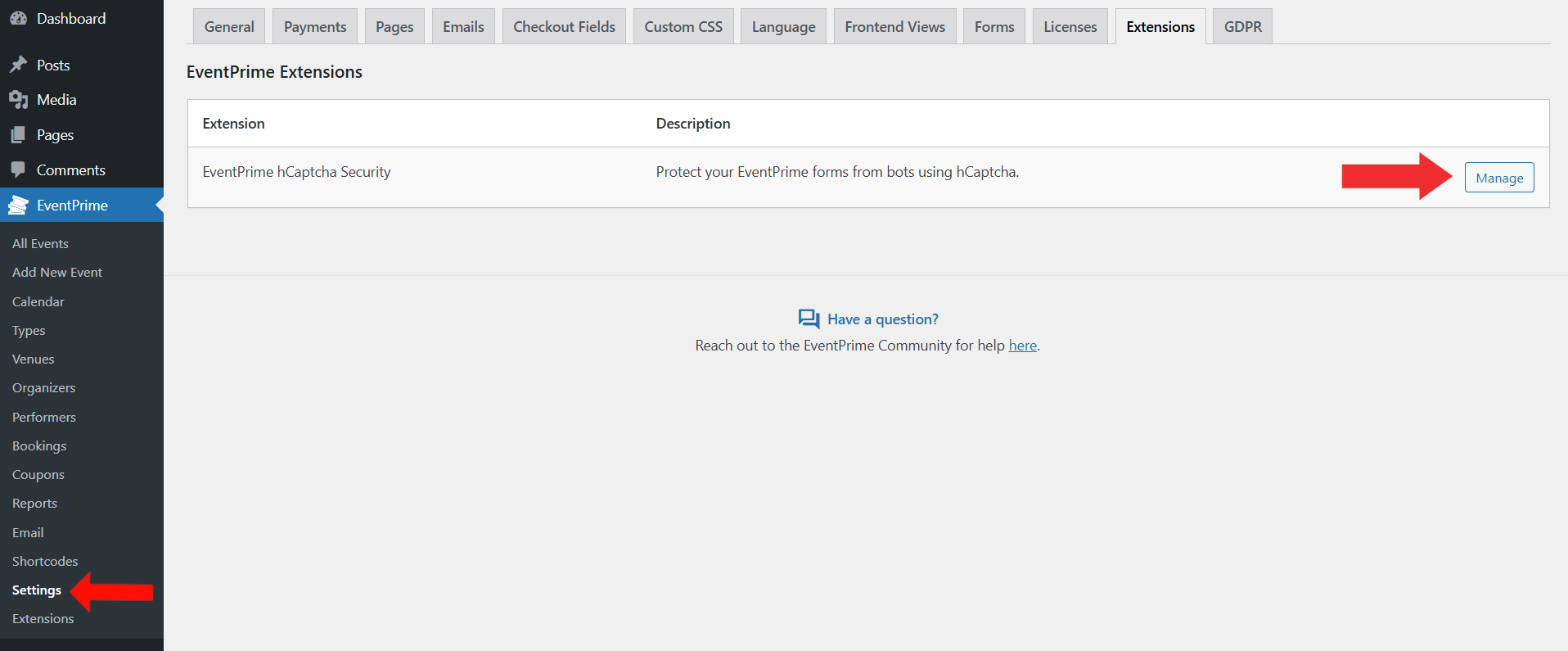
Navigate to the EventPrime menu, select the Settings submenu, open the Extensions tab, and click Manage button for EventPrime hCaptcha Security.
7. Configure hCaptcha Options in EventPrime
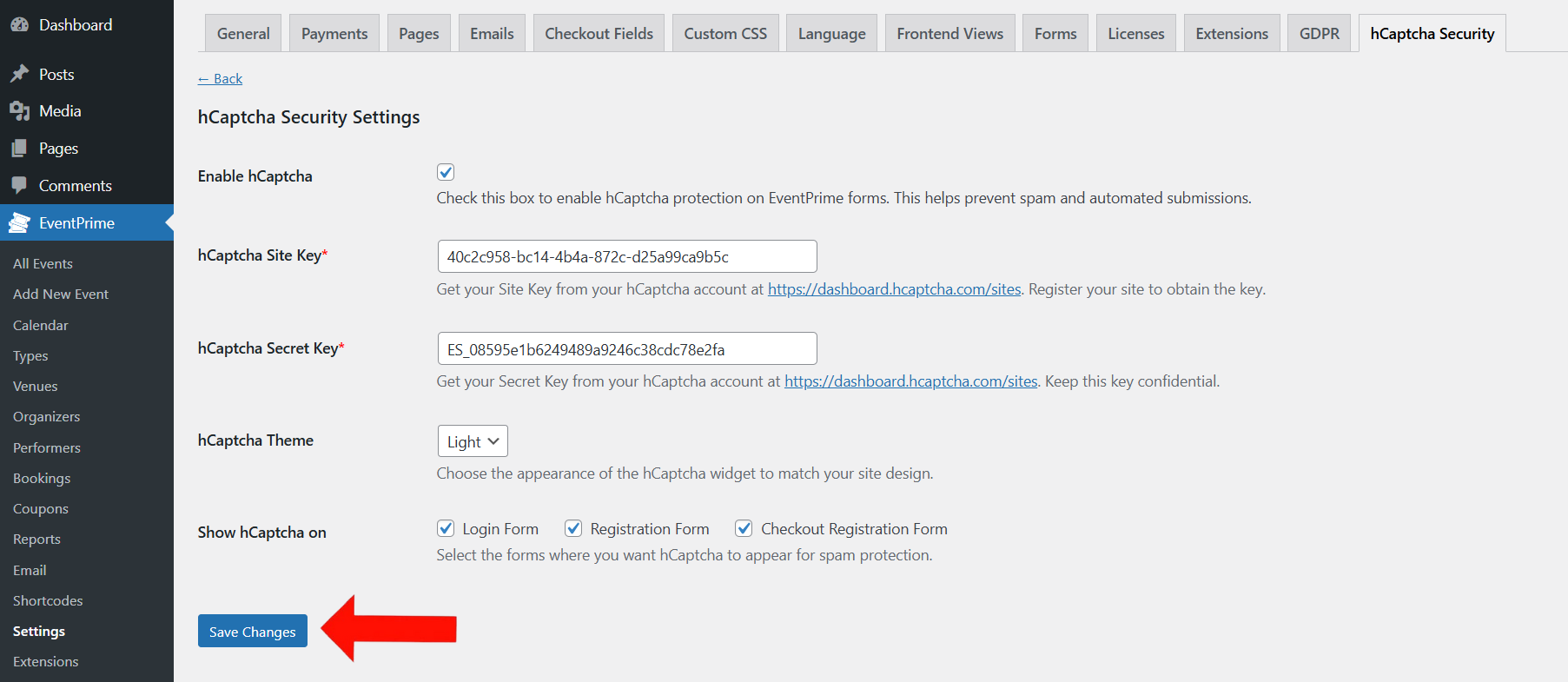
On the hCaptcha Security Settings page:
- Check the Enable hCaptcha box to activate hCaptcha protection on EventPrime forms.
- Enter your hCaptcha Site Key (responsible for displaying the widget).
- Enter your hCaptcha Secret Key (used to validate user responses).
- Choose a Theme (Light or Dark) for the widget appearance.
- Under Show hCaptcha on, select the forms where you want protection: Login Form, Registration Form, and Checkout Registration Form.
- click the Save Changes button to save your settings.
Frontend View
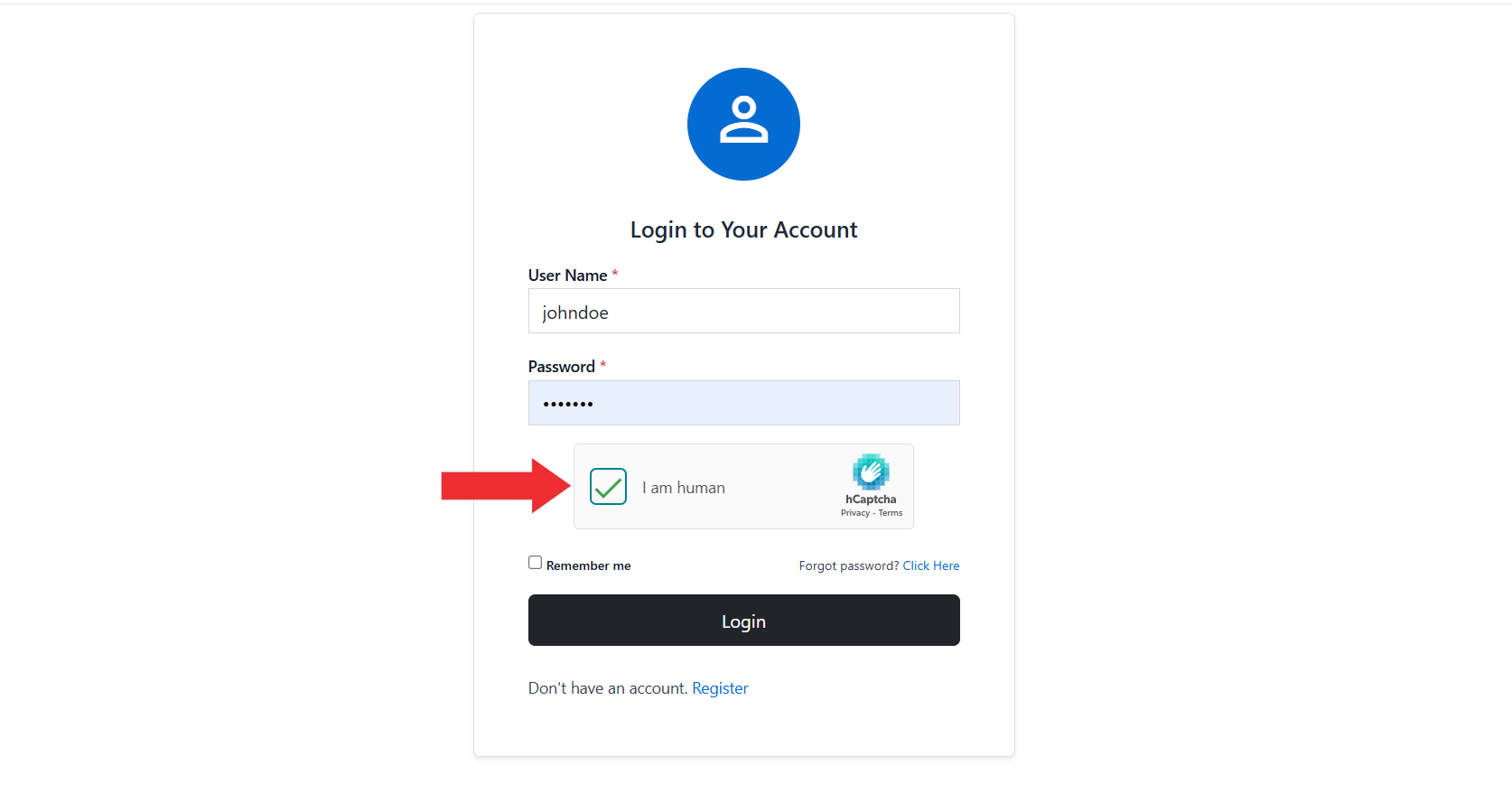
Once enabled, hCaptcha will appear on the forms you selected. Attendees will need to complete the verification challenge to continue. For example, if hCaptcha is applied to the login form, users must solve the challenge before they can log in. The same applies to the registration and checkout registration forms. Only after successful verification will the action be completed.
Conclusion
By enabling the hCaptcha extension in EventPrime, you can protect your website from spam and automated submissions. It secures critical actions such as Event registrations, user logins, and checkouts, while still maintaining a smooth experience for genuine attendees.
Questions, Support & Custom Solutions
- Need more details or can't find what you're looking for? Let us know how we can help! Contact our support team here.
- Looking for a tailor-made solution to meet your specific needs? Our dedicated customization team is here to help! Use this link to share your requirements with us, and we'll collaborate with you to bring your vision to life.