
Overview
The Event Reminder Emails extension for EventPrime enables Organizers to send timely, automated reminders to attendees—helping boost turnout and reduce no-shows.
Admins can schedule reminders to go out 1 hour, 1 day, or 1 week before the Event. These emails can be customized globally or tailored individually for each Event.
Prerequisite
Make sure EventPrime and Event Reminder Emails extension are installed and activated on your WordPress site.
If the extension is not installed, get it from here: Get Your Event Reminder Emails Extension.
Steps to Use Event Reminder Emails Extension
1. Enable the Extension from EventPrime Settings
- Navigate to the EventPrime menu and click on Settings.
- Open the Extensions tab.
- Find the Event Reminder Emails extension and click Manage to enable it.
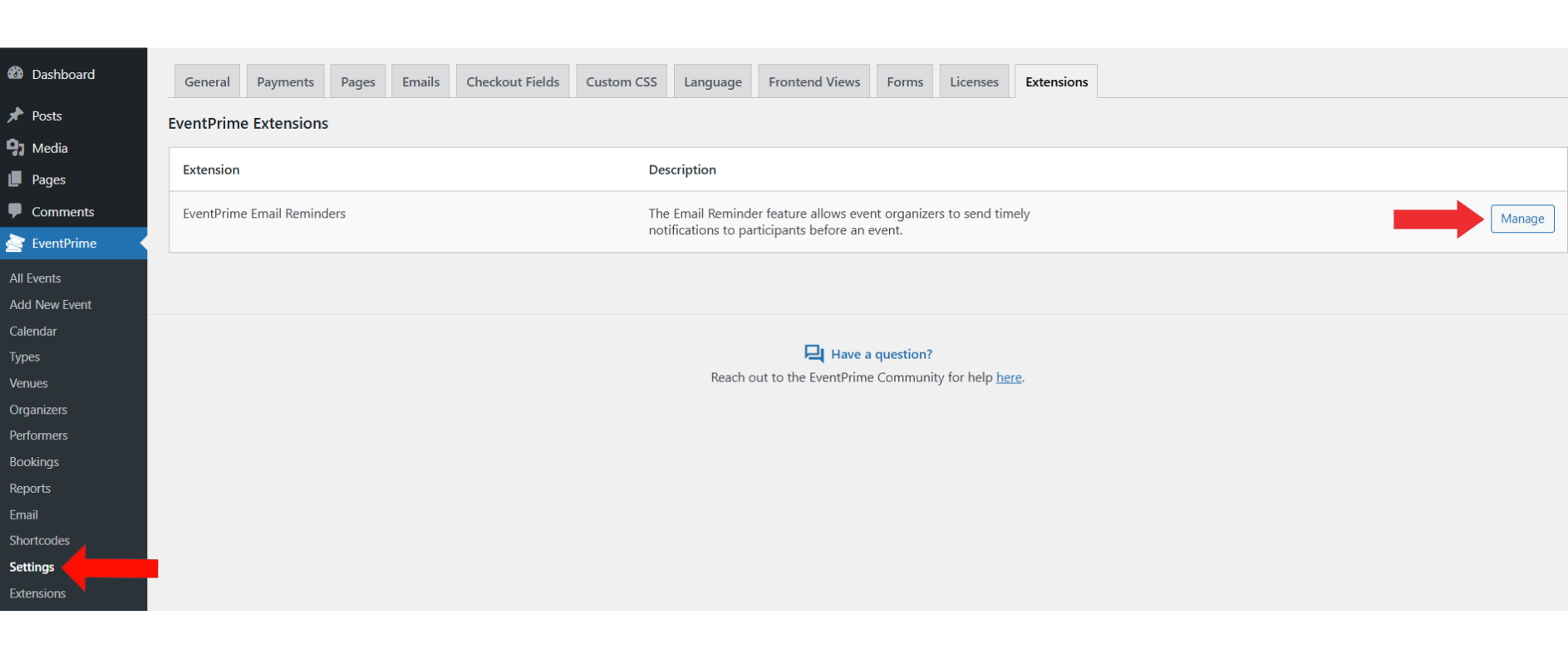
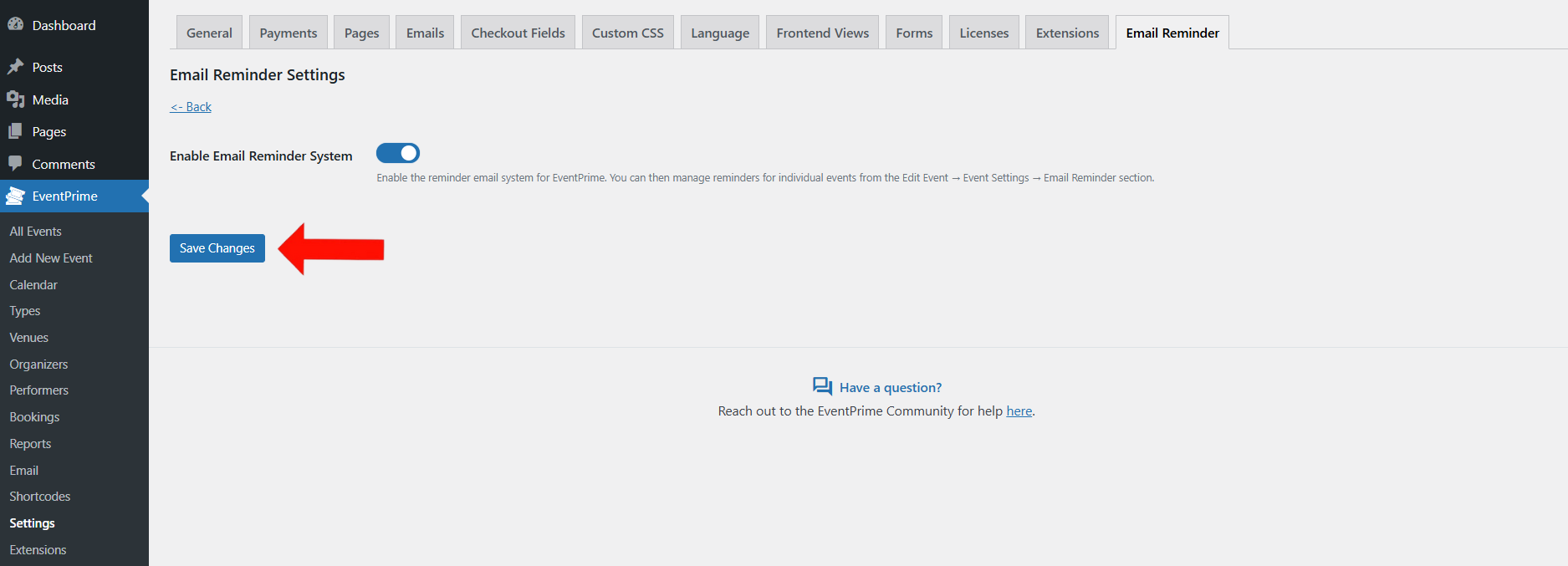
2. Turn On the Email Reminder Emails for Events
- On the Email Reminder Settings page, toggle Enable Email Reminder System to ON.
- Click Save Changes to activate email reminders for your events.
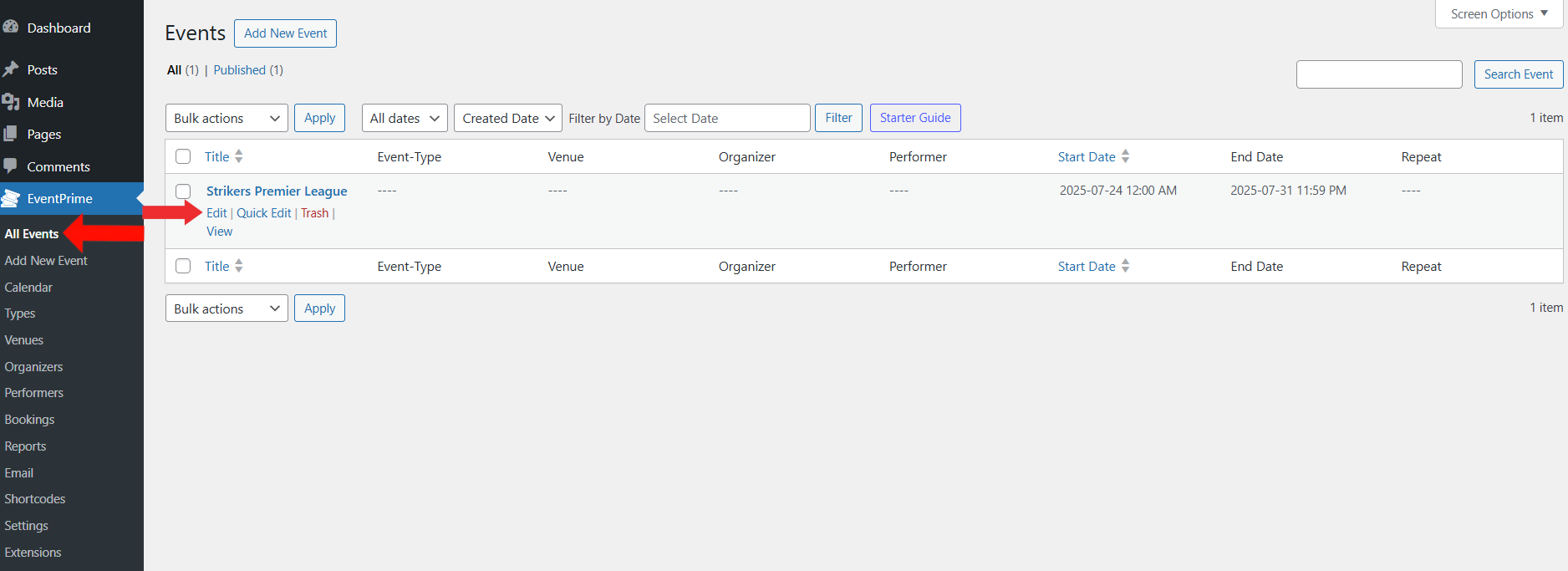
3. Select the Event You Want to Set Reminders For
- Go to the EventPrime menu and click on All Events.
- From the list, click Edit next to the Event where you want to enable reminders.
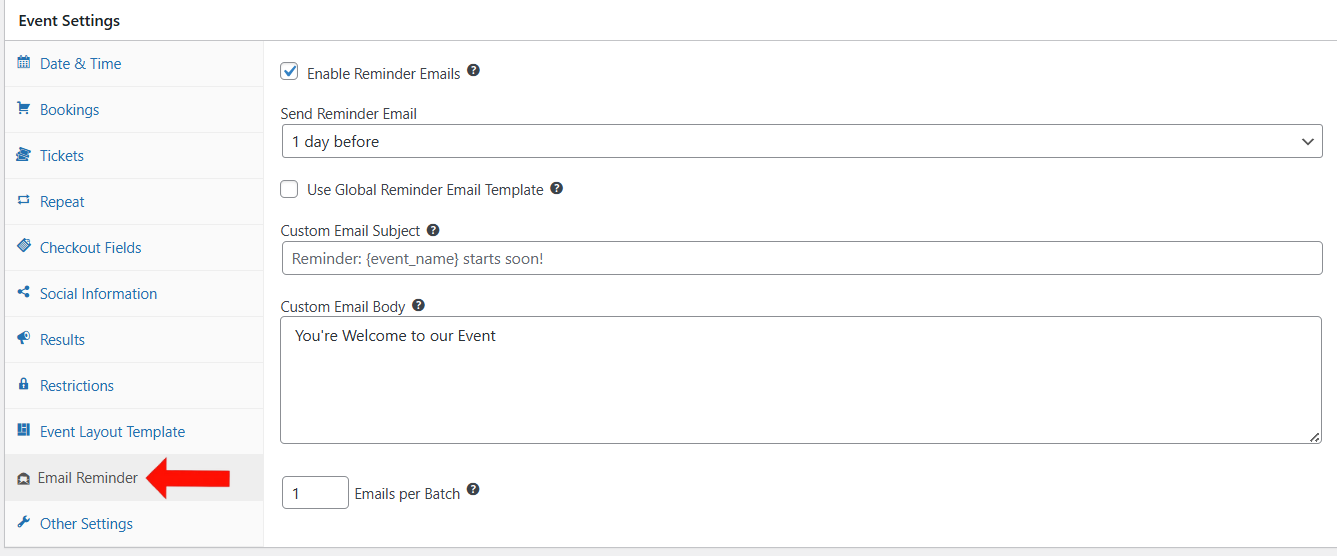
4. Configure Reminders Setting for Event from the Edit Event Page
On the Edit Event page, scroll down to the Event Settings section and select the Email Reminder tab from the left panel.
Here, you can:
- Enable Reminder Emails by checking the corresponding box.
- Choose when the reminder should be sent (e.g., 1 day before the event).
- Use Global Reminder Email Template, or leave it unchecked to create a custom message.
- Enter Custom Email Subject and Custom Email Body, if you’re not using the global template.
- Set the number of emails to send using the Emails per Batch field.
Update the Event to apply this changes.
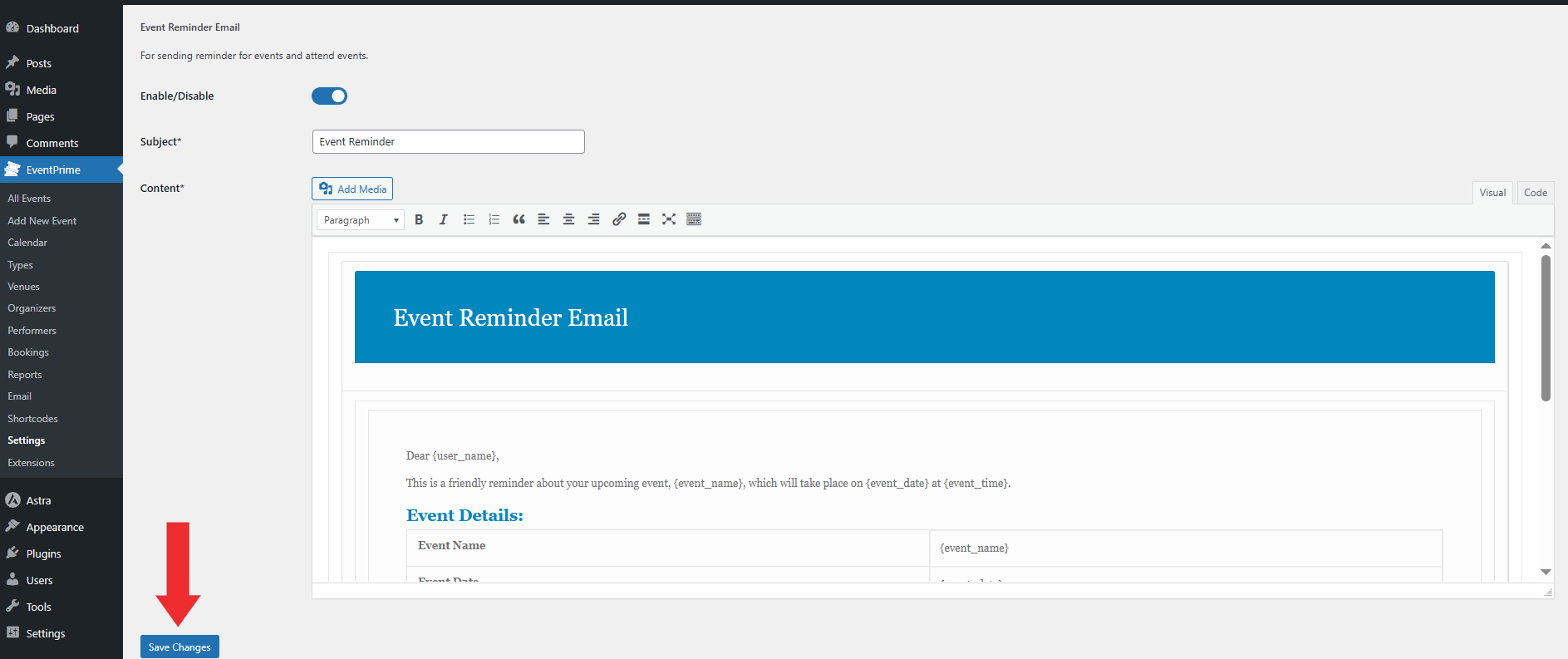
5. Customize the Global Email Template for All Events
- Navigate to EventPrime menu and select Settings submenu then go to Emails tab.
- Find the email labeled Event Reminder Email and click the Manage button.
- Here you can:
- Edit the email subject and content using placeholders.
- Preview the template and make changes based on your communication needs.
- Click Save Changes to update the global template that will be used across all Events.
Conclusion
The Event Reminder Emails extension makes it easy to notify attendees before Events begin. It helps improve attendance, streamline communication, and enhance the overall experience.
With flexible options to customize messages globally or for individual Events, you can keep your audience engaged and well-informed with ease.
Questions, Support & Custom Solutions
- Need more details or can't find what you're looking for? Let us know how we can help! Contact our support team here.
- Looking for a tailor-made solution to meet your specific needs? Our dedicated customization team is here to help! Use this link to share your requirements with us, and we'll collaborate with you to bring your vision to life.
This was a really practical guide for anyone trying to send event reminder emails in WordPress without overcomplicating the setup. I liked how the walkthrough explained both the global reminder template and per-event customization, because that flexibility is useful when different events need different messaging. The option to schedule reminders like 1 hour, 1 day, or 1 week before the event also makes it much easier to reduce no-shows and keep attendees informed. Small details like batch email settings and custom placeholders are what make this especially useful for people managing recurring events.
Thank you so much for your thoughtful feedback!
We truly appreciate you taking the time to share your experience and insights, and happy to hear that you found the guide practical and easy to follow.
Is there a way to test the global Event Reminder Emails by sending an email without waiting for the date to trigger the email?
At present, there is no native functionality within the extension to simulate event email reminders. As an alternative, you can utilize a cron manager plugin to send queued emails.
Our team has also noted this requirement and may consider implementing such functionality after further discussion.