
Overview
The WooCommerce Checkout extension in EventPrime allows you to use WooCommerce payment gateways with your Events. Once activated, users can complete their Event bookings using payment methods set up in WooCommerce—such as PayPal, Stripe, or offline options like bank transfer or cash on delivery. This gives you more flexibility in offering multiple payment choices and simplifies how you manage transactions for your Events.
Prerequisite
Ensure both the WooCommerce plugin and the WooCommerce Checkout extension for EventPrime are installed and activated.
If you haven’t installed the WooCommerce Checkout extension yet, you can download it from here.
Steps to Use WooCommerce Checkout Extension
1. Enable the WooCommerce Checkout Extension from EventPrime Settings
- Navigate to EventPrime menu, select Settings submenu.
- Go to the Extensions tab and click on Manage button for EventPrime WooCommerce Checkout.
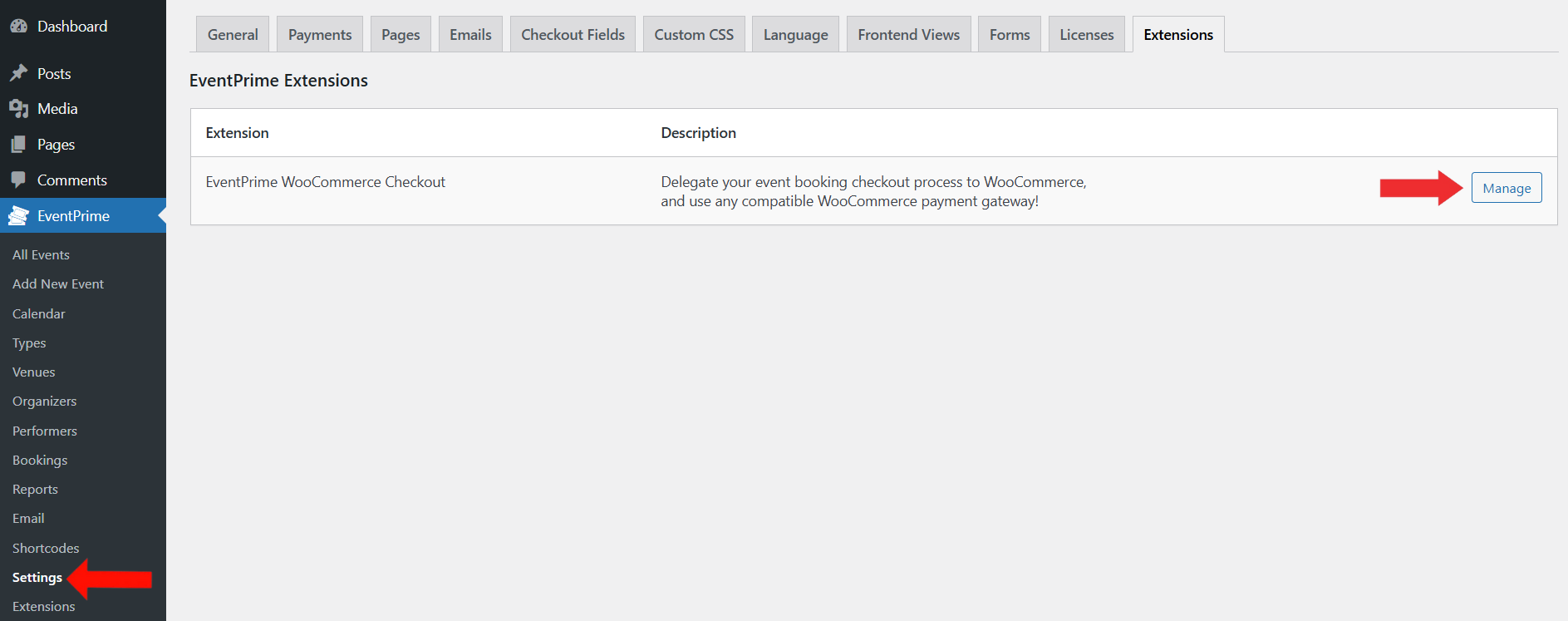
2. Turn On the WooCommerce Checkout Toggle
On the WooCommerce Checkout page, toggle Enable WooCommerce Checkout and click on Save Changes button to activate the integration.

3. Set Up Payment Gateways in WooCommerce
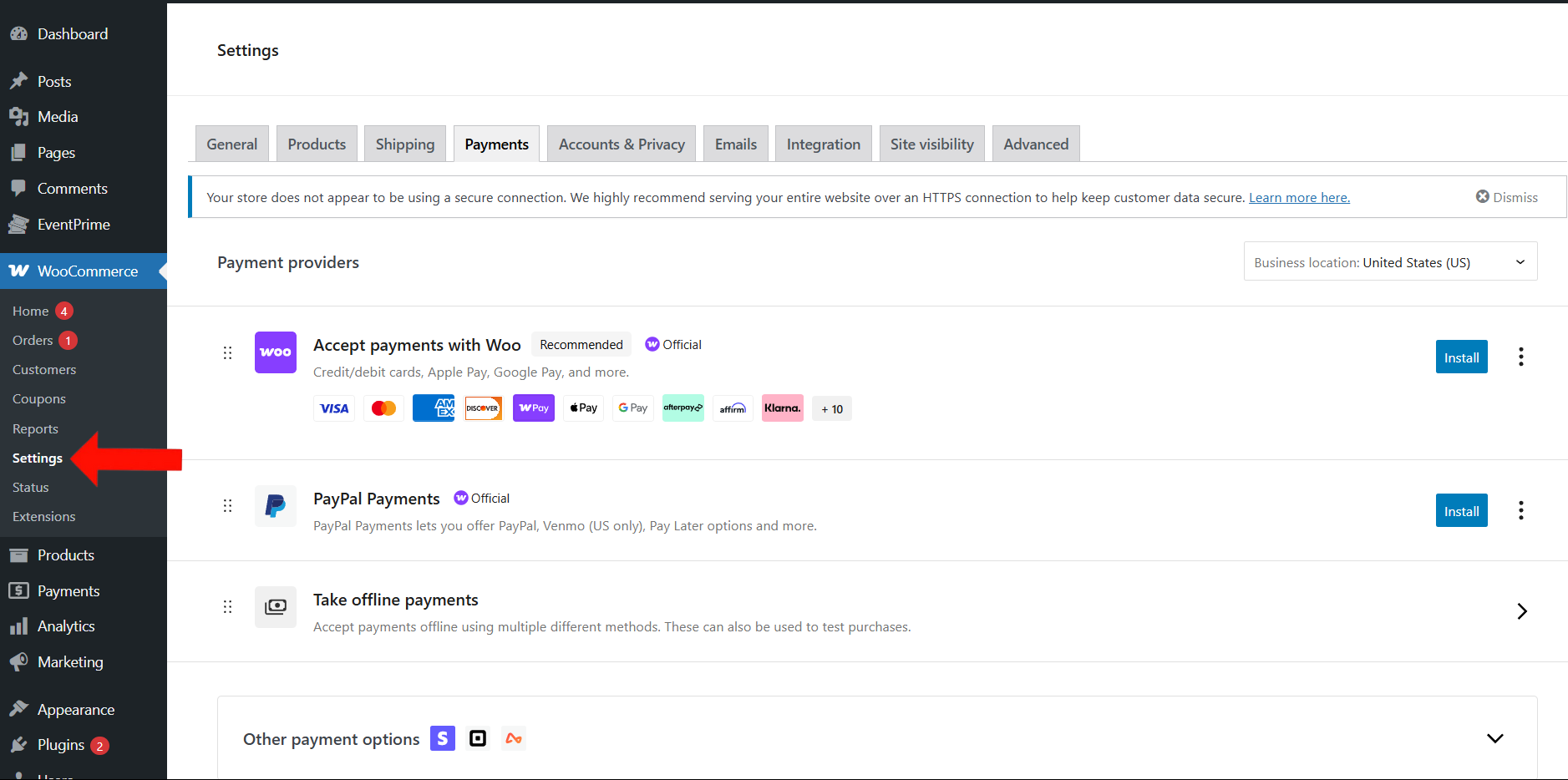
- Navigate to the WooCommerce menu, then select the Settings submenu.
- Go to the Payments tab. Here, you can configure payment gateways.
- Here, you’ll find a list of available payment gateways. For example, to start using PayPal:
- Click the Install button next to PayPal in the Payments tab.
- Once installation is complete, a Complete Setup button will appear—click on it.
- You’ll be redirected to the PayPal Payments setup page.
- Click the Activate PayPal Payments button.
- Follow the prompts to connect and configure your PayPal account.
- You can also enable offline payment methods based on your requirement, including:
- Direct Bank Transfer – Users will see bank details after checkout and complete the payment manually.
- Check Payments – Allows payments by mailed checks.
- Cash on Delivery (COD) – Suitable for in-person Events where attendees pay at the venue.
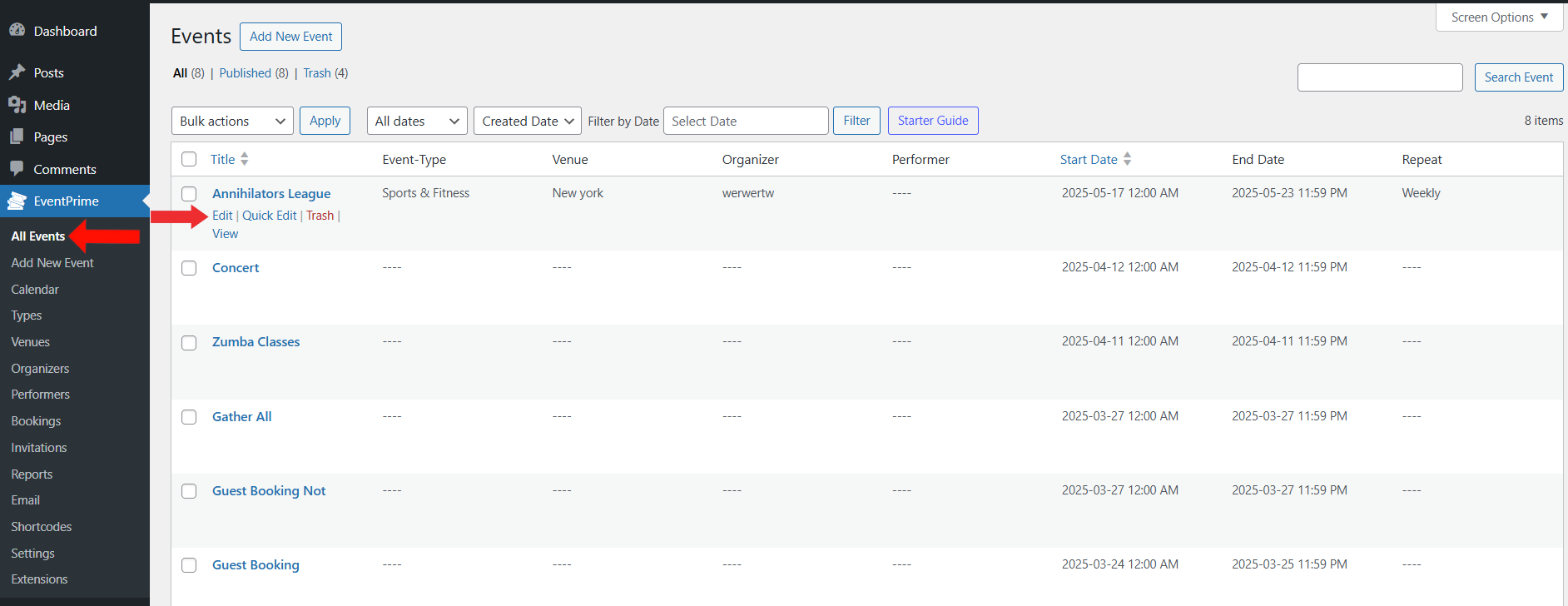
4. Select the Event for Which You Want to Enable WooCommerce Checkout
- Navigate to EventPrime menu, select All Events submenu.
- Click Edit button for the Event where you want to allow WooCommerce checkout.
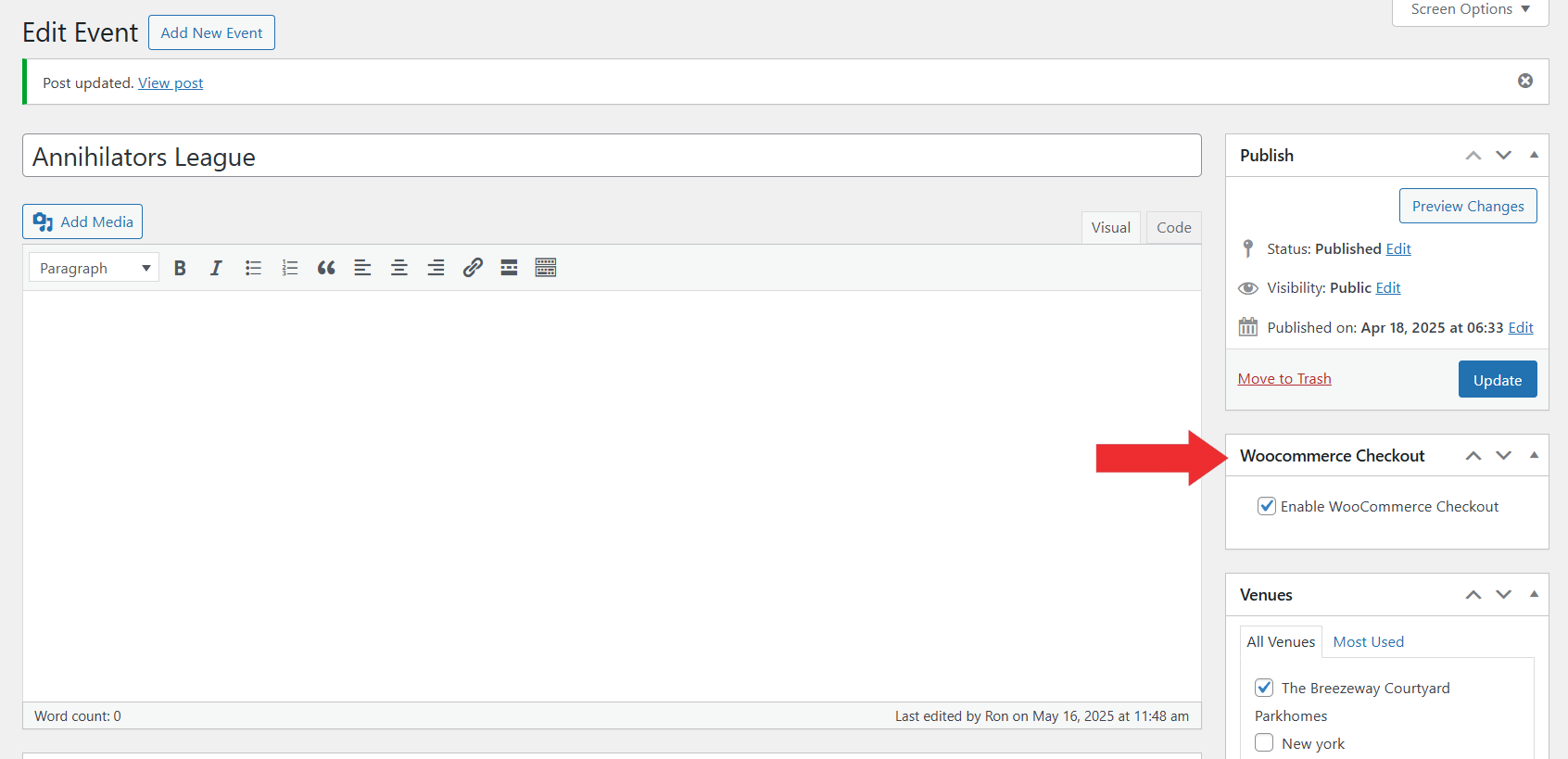
5. Enable WooCommerce Checkout for the Selected Event
- On the Edit Event page, locate the WooCommerce Checkout metabox on the right.
- Check the box for Enable WooCommerce Checkout.
- Update Event to apply the setting.
6. View and Filter WooCommerce Bookings from the EventPrime Bookings Submenu
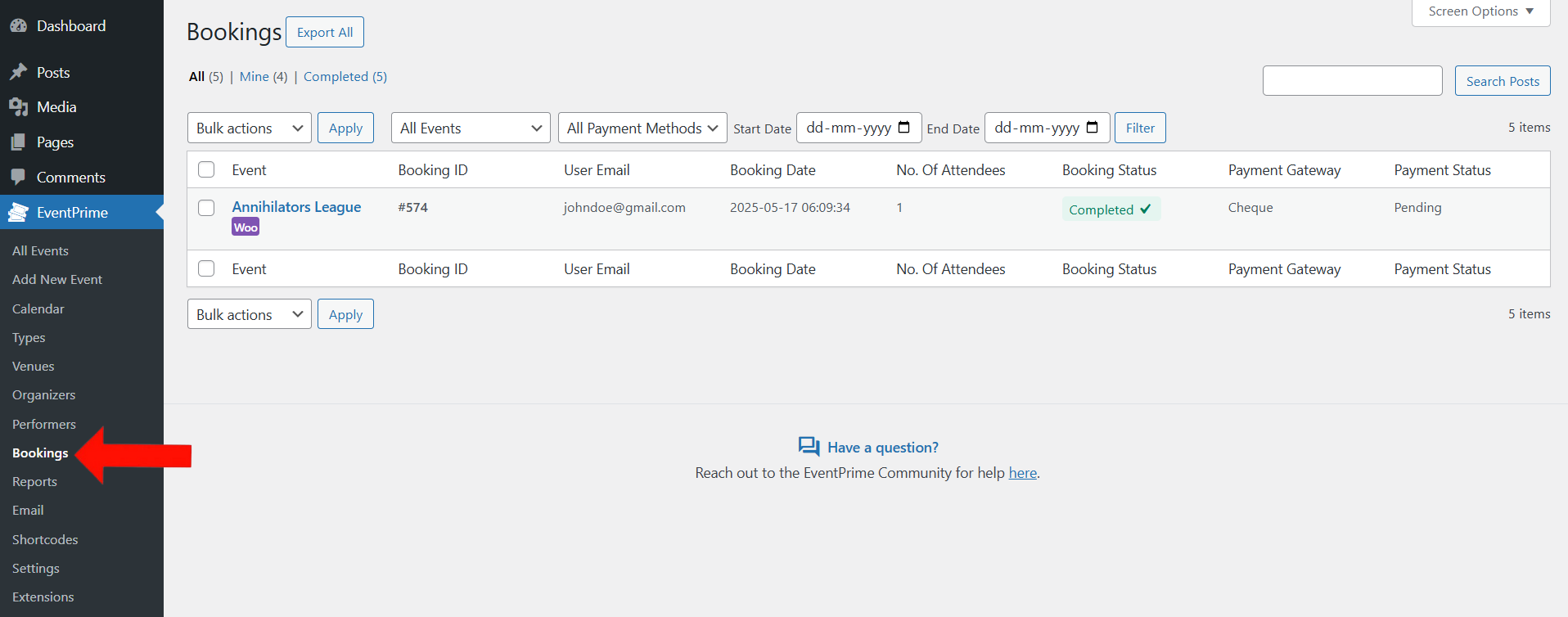
- Navigate to the EventPrime menu, then select the Bookings submenu.
- Here, you can view all bookings made through various payment methods—including WooCommerce.
- WooCommerce-based transactions are marked with a purple “Woo” label below the Event title, making them easy to identify in the bookings list.
- You can also use the All Payment Methods filter dropdown to sort and view bookings processed via WooCommerce.
Frontend View
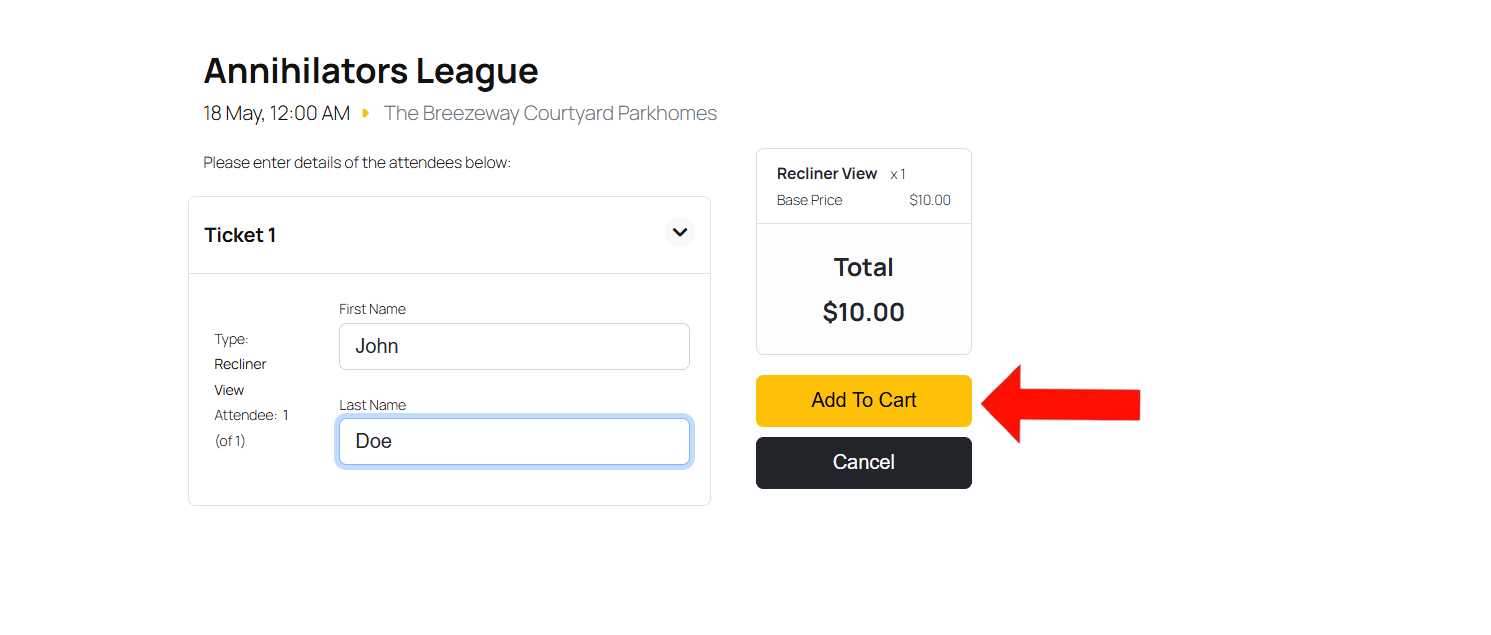
Clicking the Checkout button on an Event page redirects users to the Bookings, where they can add the Event to their cart. They’re then taken to the WooCommerce checkout to complete the booking using the available payment methods.
Conclusion
With the WooCommerce Checkout extension, EventPrime lets you offer a variety of payment options and efficiently handle Event bookings—all within the WooCommerce system.
Questions, Support & Custom Solutions
- Need more details or can't find what you're looking for? Let us know how we can help! Contact our support team here.
- Looking for a tailor-made solution to meet your specific needs? Our dedicated customization team is here to help! Use this link to share your requirements with us, and we'll collaborate with you to bring your vision to life.
Regarding this:
‘Frontend
On the checkout page, you will notice an Add to Cart option INSTEAD of the usual Checkout…….’
When the user clicks add to cart – it redirects to the Cart page – but the cart looks empty. Is there a way to check and fix this?
Also without having add to cart – is there an option to checkout? (We don’t want add to cart option as our website does not sell products)
P.S. We are using WooCommerce Checkout extension as our IPG is connected to that
Thanks for reaching out to us.
The message “your basket is currently empty” usually indicates that the essential WooCommerce pages haven’t been properly configured. To fix this, please follow these steps:
Go to WooCommerce → Settings → Advanced. Make sure the following pages are correctly assigned:
Also, please note the following important points:
With the EventPrime WooCommerce Checkout extension, only one booking can be made at a time.
The cart page is not needed—EventPrime is designed for a direct checkout flow(the message your basket is currently empty because pages are not assigned correctly).
If you have any further questions, please don’t hesitate to reach out to us.
Hello, part of your message is missing – what pages to be assigned?
Anyways we have assigned all the necessary pages in WooCommerce – still the /cart page appears empty without the ticket product.
Thank you for reaching out.
To assist you further, please try the following troubleshooting steps:
1.Temporarily deactivate all other plugins except EventPrime and WooCommerce, to check if any third-party plugin is causing a conflict.
2.Ensure no custom code have been added that might affect the cart or ticket functionality.
Once you’ve tested with only the essential plugins active, please let us know the results. If the issue persists, we’d be happy to investigate further.
Hello EventPrime team,
I’m experiencing an issue with the WooCommerce Checkout Integration. When I add an event to my cart and then try to add a regular WooCommerce product, the event disappears from the cart and only the shop item remains.
I’ve tried several approaches to add products to the cart after adding an event ticket, but each time the event gets removed. This makes it impossible to offer add-on products to customers who are purchasing event tickets.
Is there a recommended way to add regular WooCommerce products to the cart alongside EventPrime tickets without losing the tickets? Or is this a known issue that will be addressed in an upcoming update?
Thank you for your assistance
Thank you for reaching out.
You may use our WooCommerce Integration Extension, which allows you to easily add optional and/or mandatory products(like hats, shirts, etc ) to your events. You can specify the quantity of these products or allow users to choose them. For more details please visit the link: http://theeventprime.com/all-extensions/woocommerce-integration/
http://theeventprime.com/how-to-sell-woocommerce-products-with-your-wordpress-events/
If you have any further questions, please don’t hesitate to reach out to us.
I have added the option to also buy a meal with a ticket, although when I add the ticket to cart and go to checkout, the ticket goes away and only the shop item stays is cart. I have updated EventPrime to the latest one.
Urgently need this resolved. Also The option to choose the venue and seat also dissapeard on the backend
Hi
We’ve attempted to replicate the outlined scenario on our end, and can confirm that it is working as intended.
Please ensure that the latest version of the EventPrime WooCommerce Integration (v4.3) is active on your site.
If the issue persists, we request you to submit a support ticket here.
This will help our team to effectively address the issue.
I’m having a trouble finding the woocommerce activation button on the event page. I will aprecciate your respond. Thank you a lot.
Thank you for reaching out to us.
To activate WooCommerce for your events, please follow the step-by-step guide provided in the link below:http://theeventprime.com/how-book-wordpress-events-with-woocommerce/
If the issue persist please contact to our support team directly for further assistance. We are always happy to help. You can reach our official support through the following support contact link: http://theeventprime.com/support/
Please follow this link for instructions on activating your EventPrime Business Edition license:http://theeventprime.com/adding-license-keys-eventprime/.
If the issue persist please contact to our support team directly for further assistance. We are always happy to help. You can reach our official support through the following support contact link: http://theeventprime.com/support/
In the meantime, you can manually download the extensions from our website. The license is only required for automatic updates.
Download EventPrime Extensions:
Visit the dedicated site for EventPrime at http://theeventprime.com/.
Navigate to the “My Account” section on the website.
Log in using your credentials (Username or Password).
Click on the “Orders” tab to view your purchase history.
Locate the specific order for EventPrime Business and click on “View Order Details.”
Scroll down to the “Product” section where you will find the download option for each extension. The extensions with the latest updates will be the 4.0 versions, while the others will be the older versions.
Hello,
One thing that would be useful – can a setting be added somewhere, that would allow the “Enable WooCommerce Checkout” (http://theeventprime.com/wp-content/uploads/2023/09/woo-checkout-event-metabox.png) to be checked by default on the Add Event page? After adding this plugin, all our events now use the WooCommerce checkout – I can understand the need to have it as an option, but it is easy to forget to check it!
A matter of concern. A user can add tickets through to the checkout page, and when they go to the Pay for Order page (/checkout/order-pay/) the order is created in WooCommerce, a pending booking is added to the EventPrime bookings, and the available tickets are decreased. All good. But if a user does not complete the payment, those tickets remain unavailable, and it would be easy for a malicious user to drain all the tickets available for sale by doing this. Can a mechanism be added to make those pending tickets available again for sale after a certain lapsed time period?
Hi,
Thank you for your feedback!
We have taken note of the requested feature for bulk-enabling “WooCommerce Checkout” functionality for events, and will access its feasibility for potential inclusion in our upcoming release.
On a related note, the workflow you mentioned has been refined in the latest version and you may update to benefit from these enhancements.
Hi,
I can’t manage to get people on the checkout page with Woocommerce.
https://ebtsup.com/booking/
Go to June, there’s an event.
When you click on it, there’s a button “Get Tickets Now”.
If you click on it, there’s a popup that says “Add Details & Check Out”.
If you click on it, it goes back to the booking calendar.
Thanks
Thanks for reaching out to us.
To resolve this, please follow these steps:
If you have any further questions, please don’t hesitate to reach out to us.
I will using my site for virtual events. How can I send my Event link to attendees after they purchase the tickets ?
Hello,
Thank you for using EventPrime!
You can effortlessly distribute the event’s link to the attendees by utilizing our “Email Attendees” feature located under the “Events -> Email” sub-menu, please initiate the process by clicking on the “Auto-populate attendee” button below the email address field subsequently select the pertinent event from the drop-down and include the event’s link along with other relevant details in the mail content.
If you need assistance with the process, feel free to contact us.
Always happy to help!
Hi Team,
I have installed EventPrime – Modern Events Calendar, Bookings and Tickets and EventPrime Woocommerce Integration plugin. The licence has been activated and is enabled. In WooCommerce, appropriate payment types have been enabled. There is not an option on the event page to enable WooCommerce Checkout.
Have I missed something obvious or do I need to have a different licence from the free version.
Best regards
Bruce
Hello Bruce,
Thank you for using EventPrime!
We are delighted to inform you that the support ticket you submitted regarding the mentioned WooCommerce issue on our support forum has been successfully resolved by our team.
If you require further assistance, please feel free to contact us.
Our team is ready to assist you promptly.
Hello.
The WC Checkout is not showing up in my plugin even when installed – what can i do to find out why?
Hello,
Please verify that the ‘Enable WooCommerce Checkout’ setting is switched on under ‘Event -> Settings -> Extensions.’ After activation, you should find the ‘WooCommerce Checkout’ meta-box visible on the ‘Edit Event’ page.
If the issue persists, we will need more information to provide the best possible solution. Please get in touch with us directly using this form.
Whats the difference between bookings to events and using WooCommerce? Do we set up the ticket to attend an event as a WooCommerce product?
Hello,
Thank you for using EventPrime!
The fundamental booking process corresponds to creating tickets natively or opting for third-party bookings where the visitor will be redirected to the provided URL.
In the case of the “EventPrime WooCommerce Checkout” extension, the chosen event’s tickets are added to the cart( you do not need to create a ticket as a WooCommerce product ) and the checkout process will be delegated to the standard WooCommerce checkout process allowing you to utilize the payment gateways configured in the WooCommerce plugin.
I hope this provides clarity on the matter.
If you need further clarification or require additional information, please feel free to contact us.
Always happy to help!
I bought and have the EventPrime plugin installed, yet in the installed plugins it says “Events” and not “Event Prime”; I have the Woocommerce extension installed, yet I don’t see the screens you show above. How do I enable the ability to set a price to register and attend an event and pay through the site?
Hello Sean,
Thank you for reaching out!
We appreciate your feedback and want to clarify that the ‘Events’ label in the installed plugins section is intentional. We take pride in our brand, and the ‘Events’ label is used as a concise and representative name for our EventPrime plugin. Our focus is on delivering a top-notch event management experience, and we appreciate your understanding of our branding approach.
Regarding your inquiry about setting up an event and paying through the site, we’re happy to share that we’ve received this inquiry via our support forum, and our team has already taken care of it.
If you have any further questions, please feel free to contact us.
my add to cart button is not redirecting to the checkout page
it is directly redirecting to the add to cart page of woocommerce
Hello Imran,
We hope you are doing great!
We have comprehensively reviewed your website and could not locate a running instance of EventPrime.
Can you please check and verify whether EventPrime is activated or not?
We will be more than happy to investigate and resolve the issue for you.
I’ve bought this extension and after finally finding these instructions I have it working. However, your instructions say:
‘Frontend
On the checkout page, you will notice an Add to Cart option INSTEAD of the usual Checkout…….’
But what actually happens is that it shows the ADD TO CART option AND the CHECKOUT option (not instead) I think this makes it confusing for the customer. You would think that Checkout and Add to Cart would both take you through WooCommerce as that’s how WooCommerce works.
I tried switching off PayPal to see if the checkout option disappeared but it didn’t. I only want to offer payments through WooCommerce, is this possible?
It need to be really straight forward and at the moment having Add to Cart and Checkout options which use different payment methods will be confusing for people.
Phil
Hi Phil,
Thanks for using EventPrime.
The issue has been resolved and included in the next maintenance release.