
Overview
Event Performers enhance the value, excitement, and clarity of your Events by highlighting who will be participating or entertaining. Whether it’s musicians at concerts, speakers at seminars, or teams at sports matches, EventPrime lets you create detailed performer profiles and assign them to specific Events.
Steps to Add and Assign Performers to Events
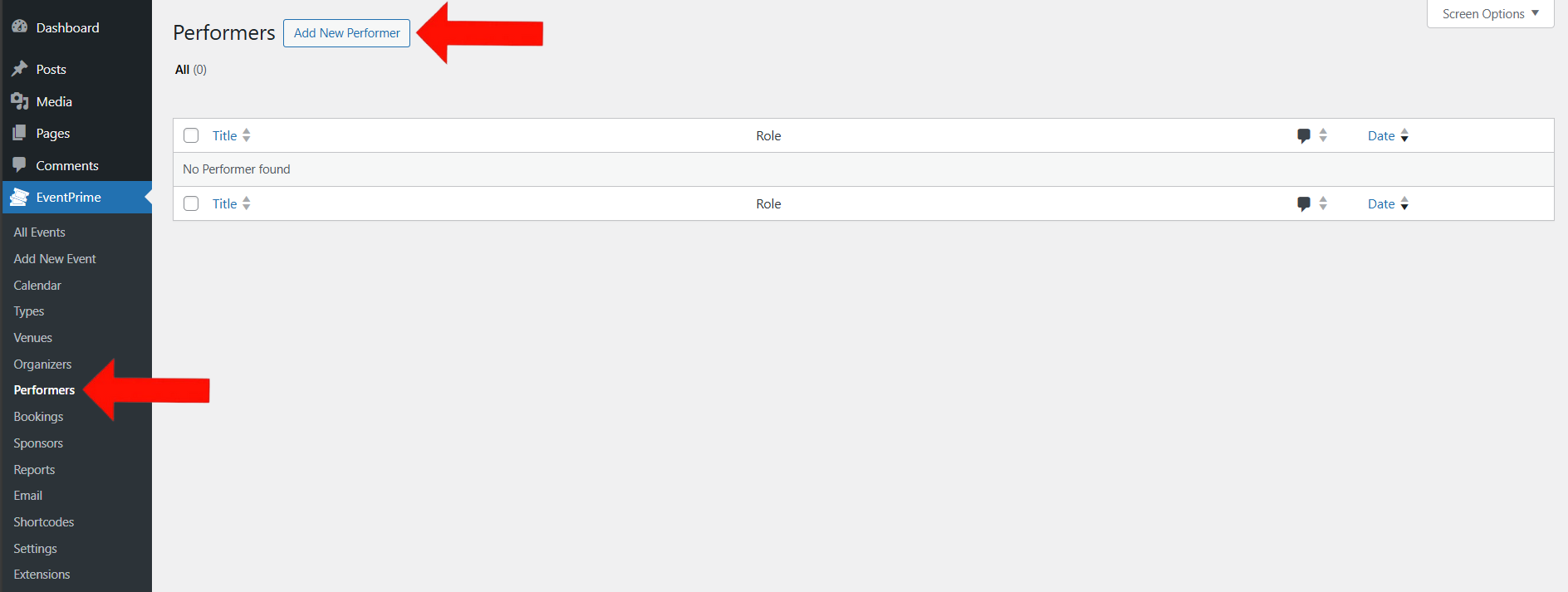
1. Navigate to EventPrime menu, and select Performers submenu. Click Add New Performer button to add new performer profile.
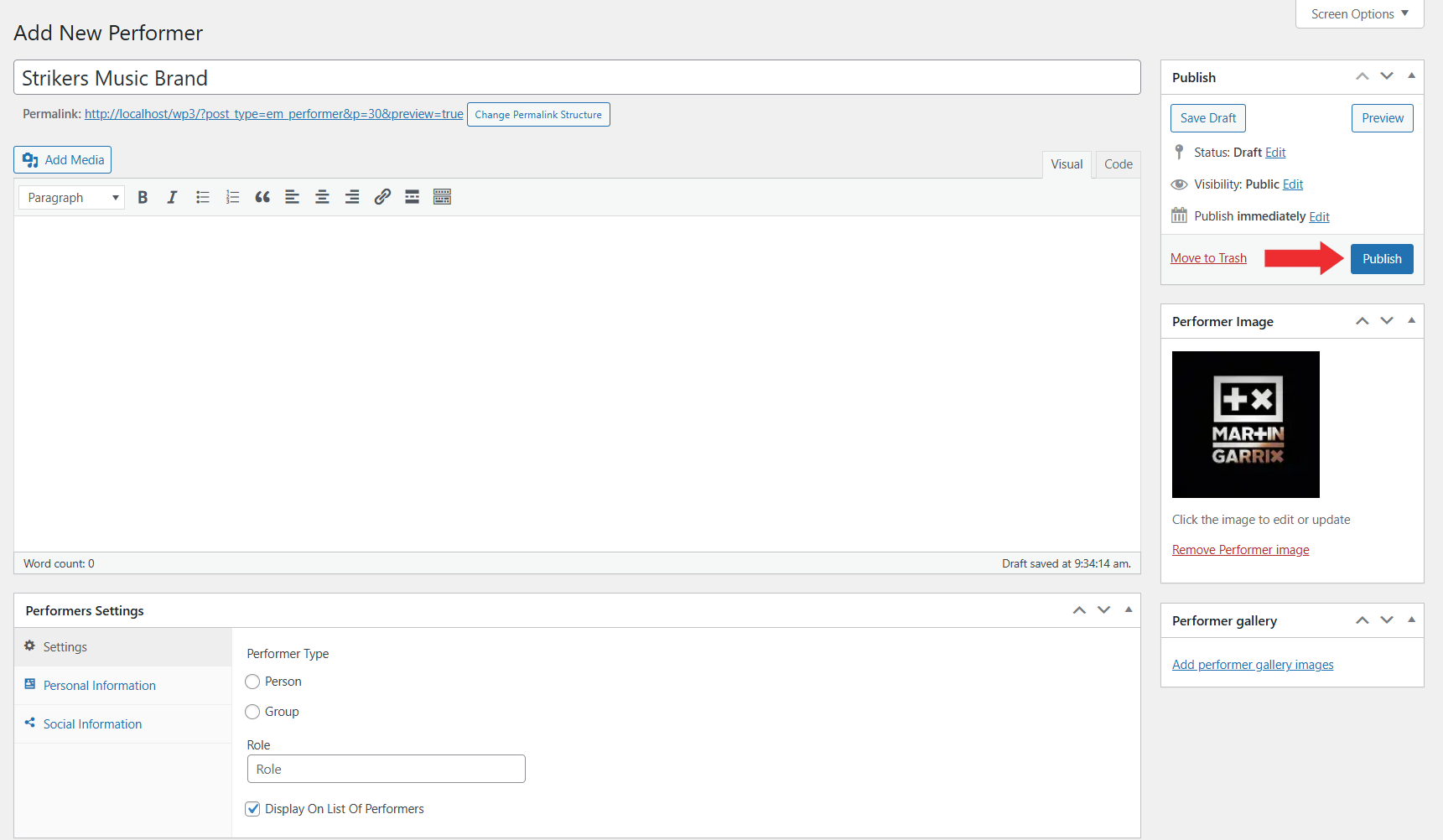
2. On the Add New Performer page, fill in the following details to create the performer profile:
- Name: Enter the performer’s name.
- Performer Type: Select whether the performer is a Person or a Group.
- Role: Specify the performer’s role, such as Musician, Speaker, Actor, etc.
- Description: Write a short description about the performer.
- Display on List of Performers: Enable this option if you want this performer to appear on the public list of Performers.
Enter Personal Information such as:
- Phone: Enter the contact number of the performer.
- Email: Provide the performer’s email address.
- Website: Add the website URL of the performer if applicable.
Enter Social Media Information such as:
- Facebook: Enter the Facebook profile URL.
- Instagram: Enter the Instagram profile URL.
- LinkedIn: Enter the LinkedIn profile URL.
- Twitter: Enter the Twitter profile URL.
- YouTube: Enter the YouTube channel URL.
After filling in all the required details, click the Publish button to save and create the performer profile for your Events.
3. To assign the created performer to an Event:
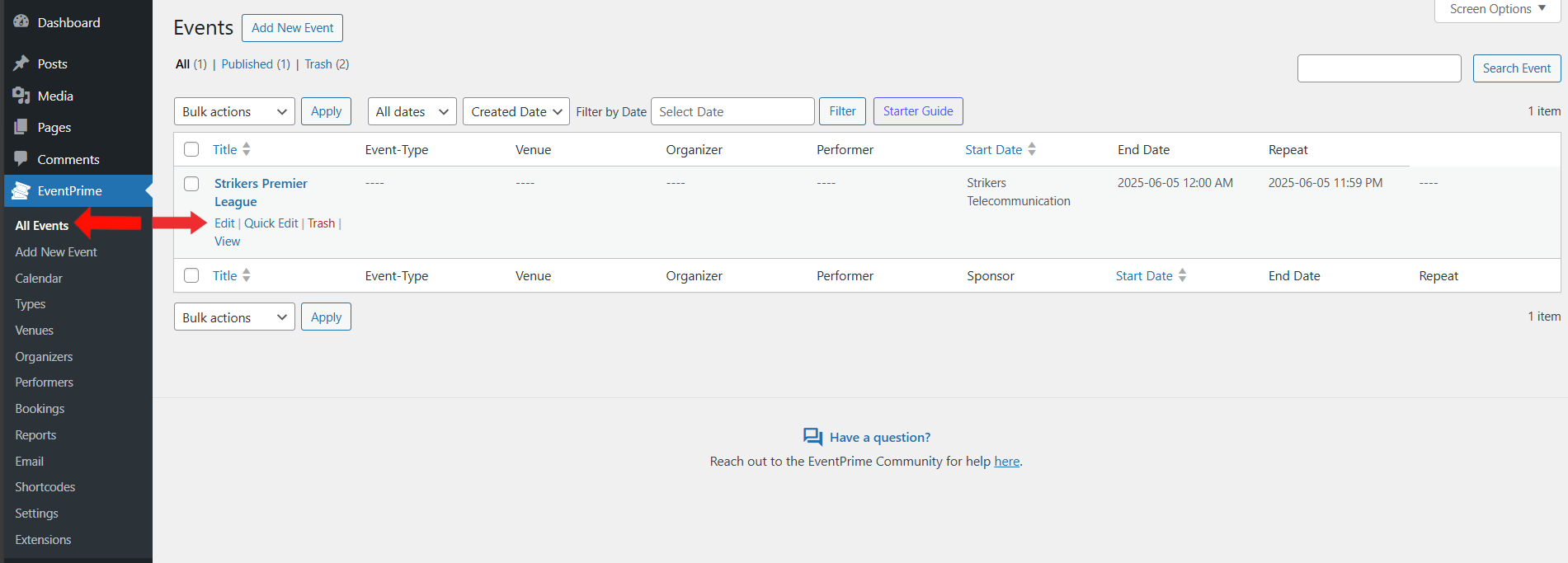
- Navigate to the EventPrime menu and select the All Events submenu.
- In the list of Events, click Edit button for Event you want to assign performer to.
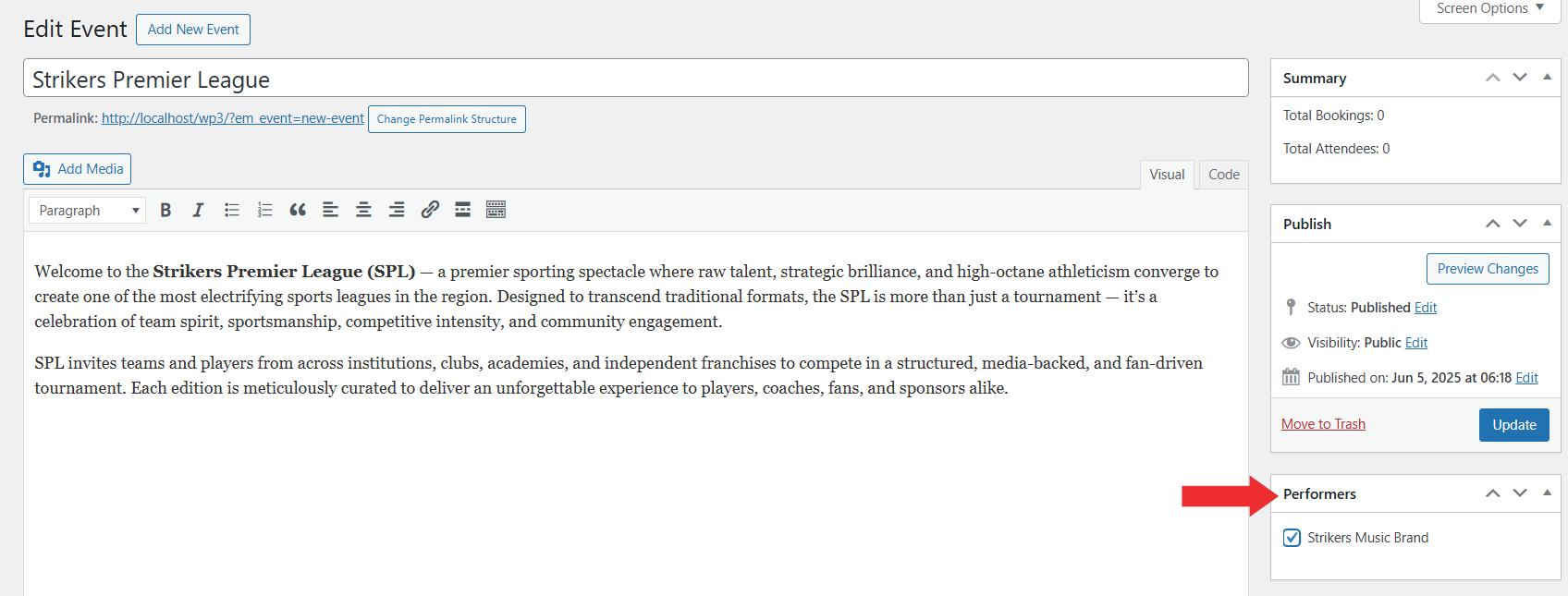
4. On the Edit Event page, here you will see metabox named Performers check the checkbox next to the Performers you want to assign to the Event.
Frontend View
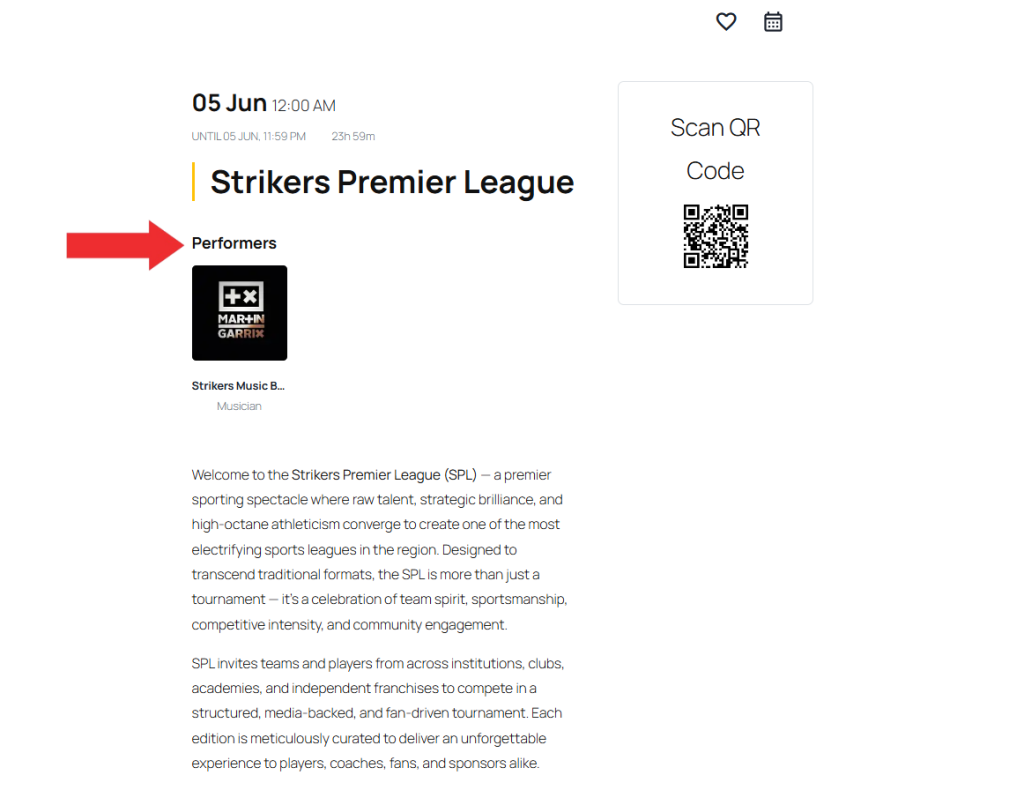
On the Event Details page, attendees will find a dedicated section showcasing the assigned Performers. This feature helps them see who will be performing or appearing, making it easier to make informed Booking decisions.
Conclusion
Adding Performers to your Events with EventPrime makes your Event listings more informative and engaging. Whether it’s a speaker, musician, or special guest, listing Performers gives attendees a better idea of what to expect. Keeping performer details complete and updated also makes your Events look well-organized and professional.
Questions, Support & Custom Solutions
- Need more details or can't find what you're looking for? Let us know how we can help! Contact our support team here.
- Looking for a tailor-made solution to meet your specific needs? Our dedicated customization team is here to help! Use this link to share your requirements with us, and we'll collaborate with you to bring your vision to life.
Hello,
As part of managing the speaker display for my event, I have noticed two issues that I would like to report:
The display of [em_performers] is very unappealing. Previously, the speakers were arranged in four columns, but that is no longer the case. How can we fix this?
When I click on a speaker, their page appears with my website’s default template instead of my event’s template. Is there a way to adjust this?
Thank you in advance for your help.
1️⃣ For the speaker display issue:
You can adjust the number of columns by navigating to EventPrime > Settings > Frontend Views > Performers subtab. In this section, locate the “Grid Columns” dropdown and set it to 4 to restore the previous layout. If your theme has a narrow content area, selecting 1 or 2 can help prevent the display from appearing too cramped.
2️⃣ For the speaker page using the wrong template:
Go to EventPrime > Settings > General > Setup > Layout Template and select the appropriate template.
By default, EventPrime uses its built-in template unless overridden by an event-specific template.
If you need a custom template:
Copy the “default” folder from:
🔹 [plugin root]/public/partials/themes]
Paste it into:
🔹 [your current theme directory]/eventprime/themes]
Rename and modify the template as needed.
Please try these settings, and let us know if you need further assistance!
Hello, I have a problem with the display of my performers. The date and title appear at the top and their image is show twice. Below all that there is the description of the person like the demo, but I would like to be able to have exactly the same thing as on the demo without the unnecessary date, title and photo. Can you help me?
THANKS!
Hello,
Thank you for reaching out. We have rechecked the performer’s display on our end and it is shown as expected.
To better assist you and efficiently address the issue, could you please write to us on our support forum? By providing more details and accessing your specific case, we’ll be able to offer a tailored solution and ensure your performers are displayed exactly as you desire.
Our support team is ready to assist you promptly.
Thank you for your understanding, and we look forward to resolving this matter for you.