
Overview
Many event sites want one “Events” page with two parts: what’s coming up, and what has already happened. Upcoming events help visitors book. Past events show that your organization is active, and they’re good for photos, recaps and recordings. With EventPrime you can build this page with two shortcodes.
Requires: EventPrime 4.3.5.1 or later (free). Earlier versions could show past events in the upcoming list after visitors clicked Load More.
The Two Shortcodes
| List | Shortcode | What it shows |
|---|---|---|
| Upcoming | [em_events view="rows" show="5" upcoming="1" order="asc"] | Only events that haven’t ended yet, soonest first |
| Past | [em_events view="rows" show="5" upcoming="0" order="desc" disable_filter="1"] | Only events that have already started, most recent first |
upcoming="1"shows upcoming events only.upcoming="0"shows past events only. Leaveupcomingout to show all events.order="asc"lists the nearest upcoming event first. For past events,order="desc"lists the most recent one first.showsets how many events load at first. Visitors click Load More for the next set. Each list’s Load More loads only that list’s events.disable_filter="1"hides the search and filter bar. The bar is designed for one list per page, so keep it on one list at most.viewcan berows,square_gridorstaggered_grid(the views that use Load More). The two lists can use different views.
Build the Page
- Go to Pages > Add New Page (or open your existing Events page).
- Add a Heading block, for example “Upcoming events”.
- Add a Shortcode block and paste the upcoming shortcode.
- Add a second Heading block, for example “Past events”.
- Add a second Shortcode block and paste the past shortcode.
- Click Publish (or Update) and view the page.
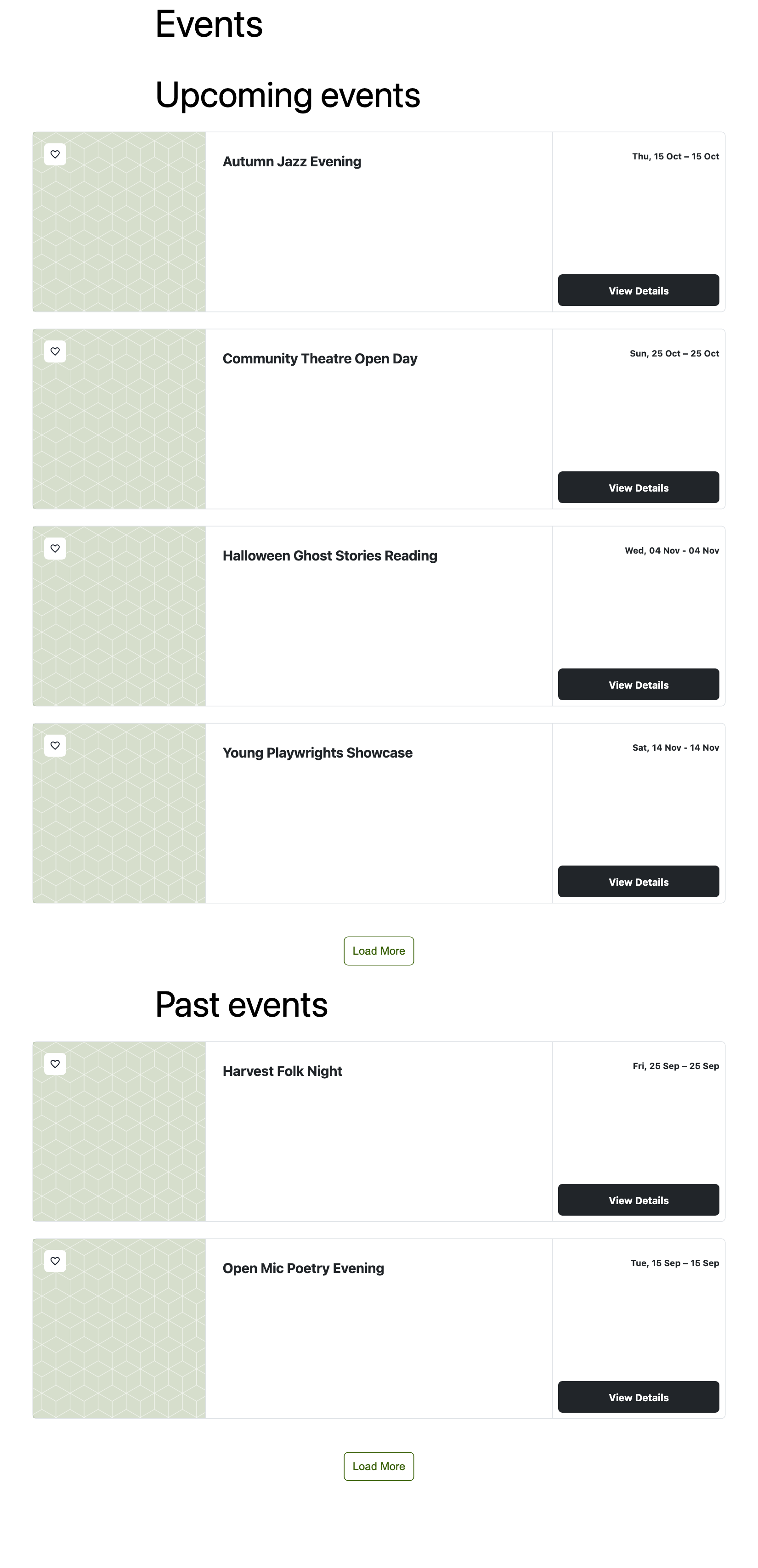
To narrow either list, add the usual attributes, such as types="3" for one event type or sites="7" for one venue. Every list keeps its own attributes through each Load More.
If a List Is Empty
Two global settings apply on top of the shortcodes. Check them under EventPrime > Settings > Frontend Views > Event Listings:
- Hide Past Events from Event Lists: when it’s on, past events are hidden everywhere, so the past list is empty. Turn it off to use a past events list.
- Hide Upcoming Events: when it’s on, upcoming events are hidden, so the upcoming list is empty.
Also check that the events are published, and that types or sites IDs match existing event types and venues.
Good to Know
- Page caching: after updating EventPrime, clear your page cache (and any JavaScript optimization cache) once, so visitors get the new script.
- Calendar views (
month,week,day,listweek) show events in a calendar instead of a list, and don’t use Load More. Use them for one list only.
Related
- EventPrime Shortcodes for Your WordPress Events Site
- How to Manage Frontend Views for Events on WordPress
- EventPrime 4.3.5.1 release notes
Thanks to @didymos234 on WordPress.org, whose report led to this fix.
Questions, Support & Custom Solutions
- Need more details or can't find what you're looking for? Let us know how we can help! Contact our support team here.
- Looking for a tailor-made solution to meet your specific needs? Our dedicated customization team is here to help! Use this link to share your requirements with us, and we'll collaborate with you to bring your vision to life.