
Overview
EventPrime registers its features with the WordPress Abilities API. AI assistants and MCP (Model Context Protocol) clients connected to your site can then work with your events: list upcoming events, check ticket availability, create bookings, add venues and more. This article shows how to switch that on or off and how to decide who it works for.
Requires: EventPrime 4.3.5.0 or later, and WordPress 6.9 or later (Abilities API).
Turn AI Abilities On or Off
- Navigate to EventPrime menu and select Settings submenu.
- Open the API / Webhooks tab.
- Find Enable AI Abilities (Abilities API / MCP).
- Switch it on or off, then click Save.
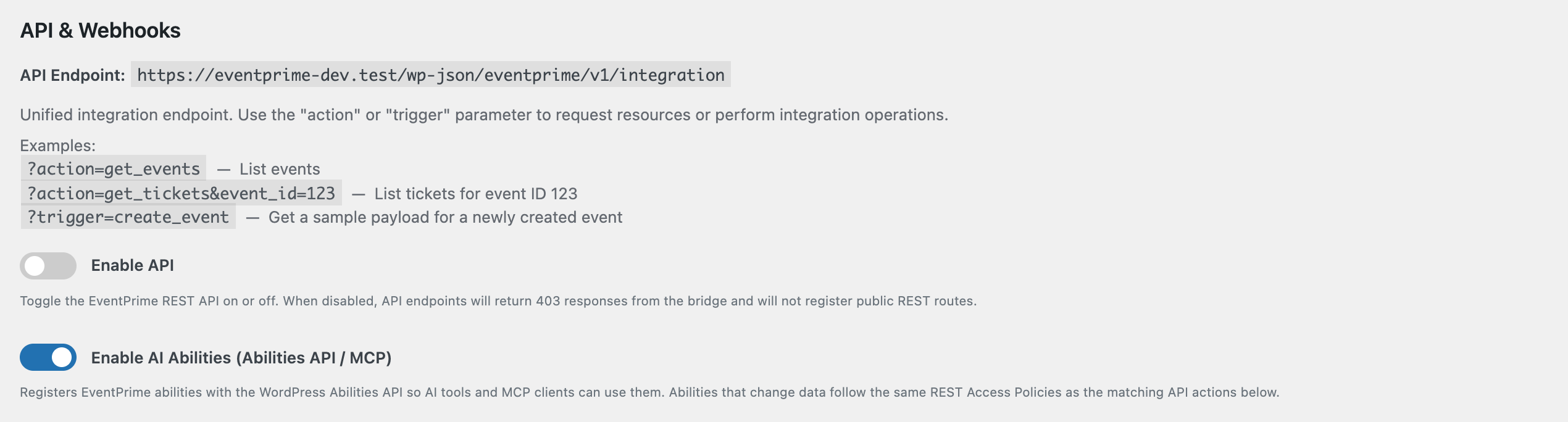
- On (default): EventPrime‘s abilities are registered and AI tools can find and use them, within the permissions below.
- Off: EventPrime registers no abilities. AI tools connected to your site won’t see any EventPrime abilities. Your events, bookings and the EventPrime REST API aren’t affected.
Turn it off if you don’t use AI tools with your site, or while you review your access settings.
What Anyone Can Read
These abilities only read public information, so any connected AI tool can use them:
- List events and get event details (password-protected event content stays hidden)
- List tickets and check ticket availability
- List venues, performers, organizers and event types
What Needs Permission
Abilities that change data, or that read bookings and attendee lists, need a logged-in user whose role is allowed by the matching REST Access Policy. The AI tool acts as that user and can’t do more than that user is allowed to.
| What the AI tool wants to do | REST Access Policies row (Target) whose Allowed Roles must include the user’s role |
|---|---|
| Create, update or delete an event | action=create_event, action=update_event, action=delete_event |
| Create a booking | action=create_booking |
| View a booking | the single-booking route (/bookings/{id}); the user must also own the booking or be able to edit it |
| Cancel a booking | action=update_booking (same ownership rule) |
| Create a venue, performer, organizer or event type | action=create_venue, action=create_performer, action=create_organizer, action=create_event_type |
| Export attendees | action=bookings |
Users who can’t manage bookings can only book for their own account.
Change a Policy
- Navigate to EventPrime > Settings > API / Webhooks.
- Scroll to REST Access Policies.
- Find the row by its Target (use Filter APIs to search), and pick roles in Allowed Roles.
- Click Save.
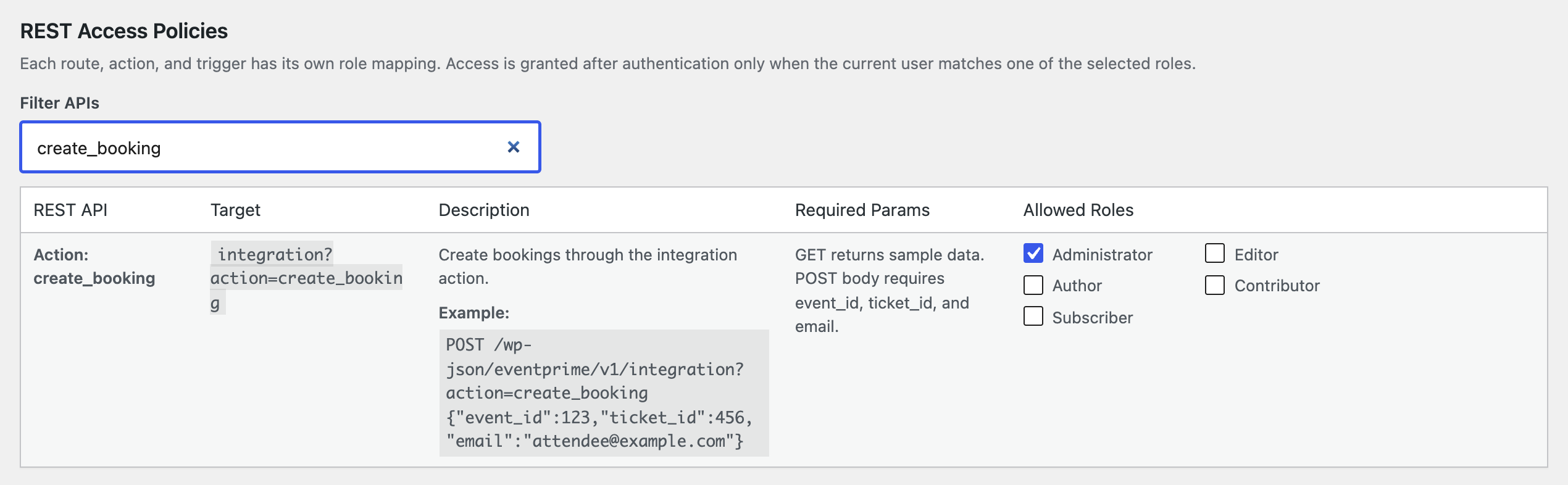
create_bookingThe same policies control the EventPrime REST API, so one table governs both your API integrations and your AI tools.
Tip: Save the whole API / Webhooks tab together. Saving it stores the policy table exactly as it appears on screen.
Troubleshooting
- “You must be logged in to use this ability.” The AI tool isn’t connected as a WordPress user. Connect it with an account, for example with an application password.
- “Your role is not allowed to access this API endpoint.” The user’s role isn’t allowed by that action’s policy. Add the role under REST Access Policies, or connect as a user with a role that’s allowed.
- No EventPrime abilities show up in the AI tool. Check that Enable AI Abilities is on and that your WordPress version includes the Abilities API.
Related
Questions, Support & Custom Solutions
- Need more details or can't find what you're looking for? Let us know how we can help! Contact our support team here.
- Looking for a tailor-made solution to meet your specific needs? Our dedicated customization team is here to help! Use this link to share your requirements with us, and we'll collaborate with you to bring your vision to life.