
Overview
This guide explains how to access your Download Plugin Pro license, download the extension, and activate it on your WordPress website so you can receive updates and use all premium features.
Prerequisite
Make sure Download Plugin is downloaded and activated on your WordPress website.
How to Activate License
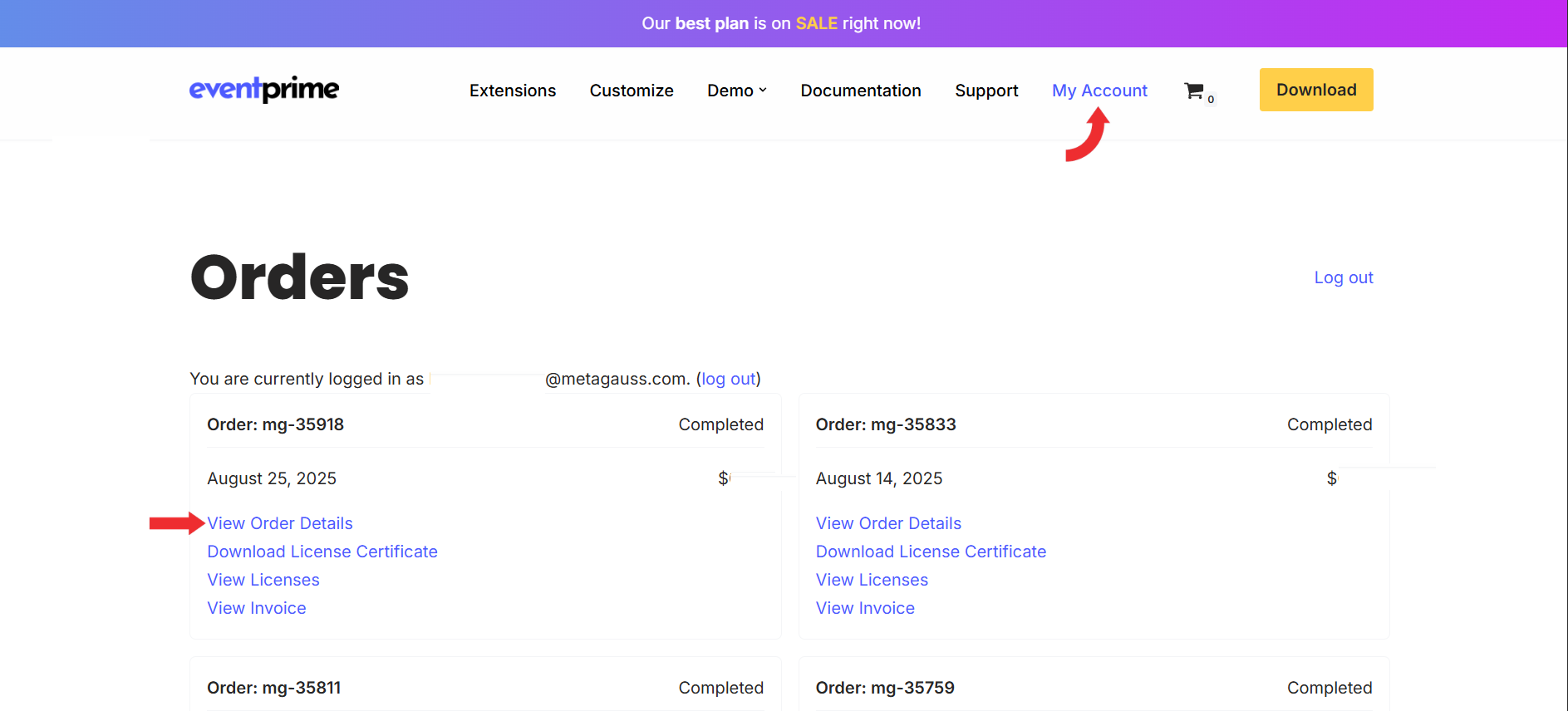
Step 1: Access Account and Order Details
- Go to theeventprime.com.
- Click on My Account.
- Log in using your registered email and password.
- Navigate to the Orders section.
- Locate your Download Plugin Pro order.
- Click View Order Details.
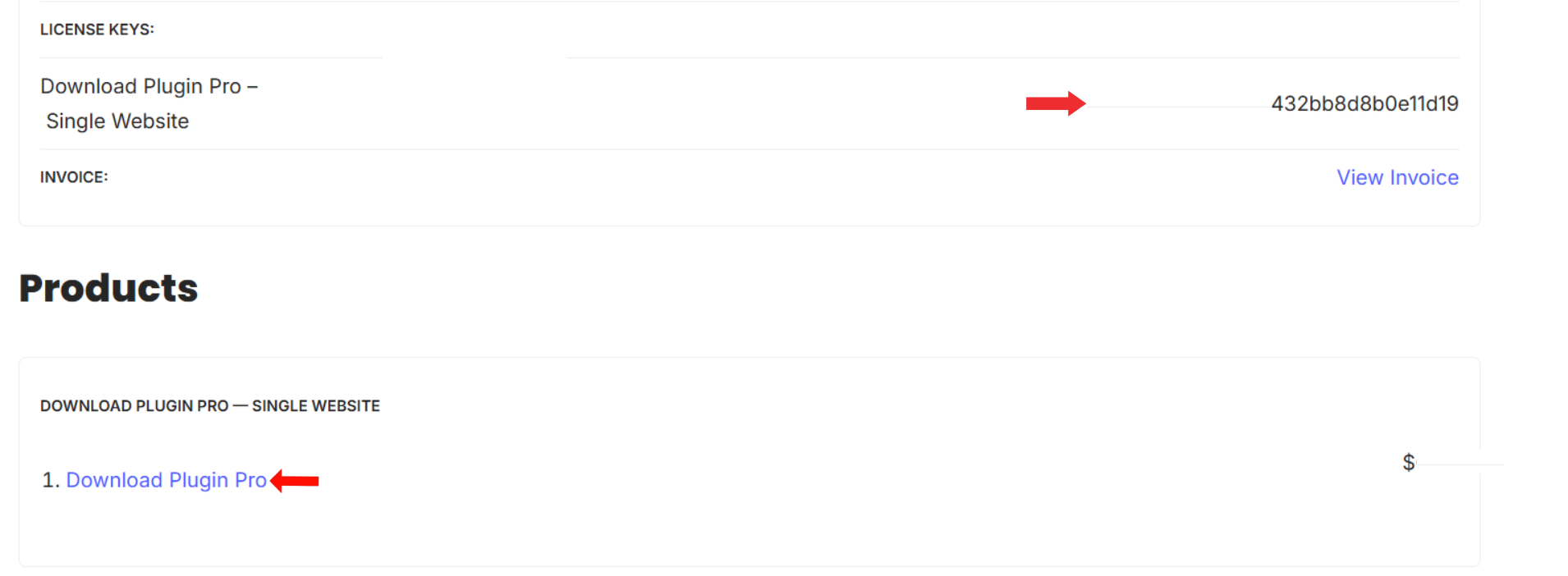
Step 2: Copy License Key and Download Extension
- Locate the License Key for Download Plugin Pro.
- Copy the License Key.
- Scroll to the Products section.
- Click Download Plugin Pro
- Save the extension ZIP file to your system
Step 3: Install, Activate, and Add License
- Go to your WordPress admin panel.
- Navigate to Plugins → Add New → Upload Plugin.
- Upload the downloaded ZIP file.
- Install and activate the extension.
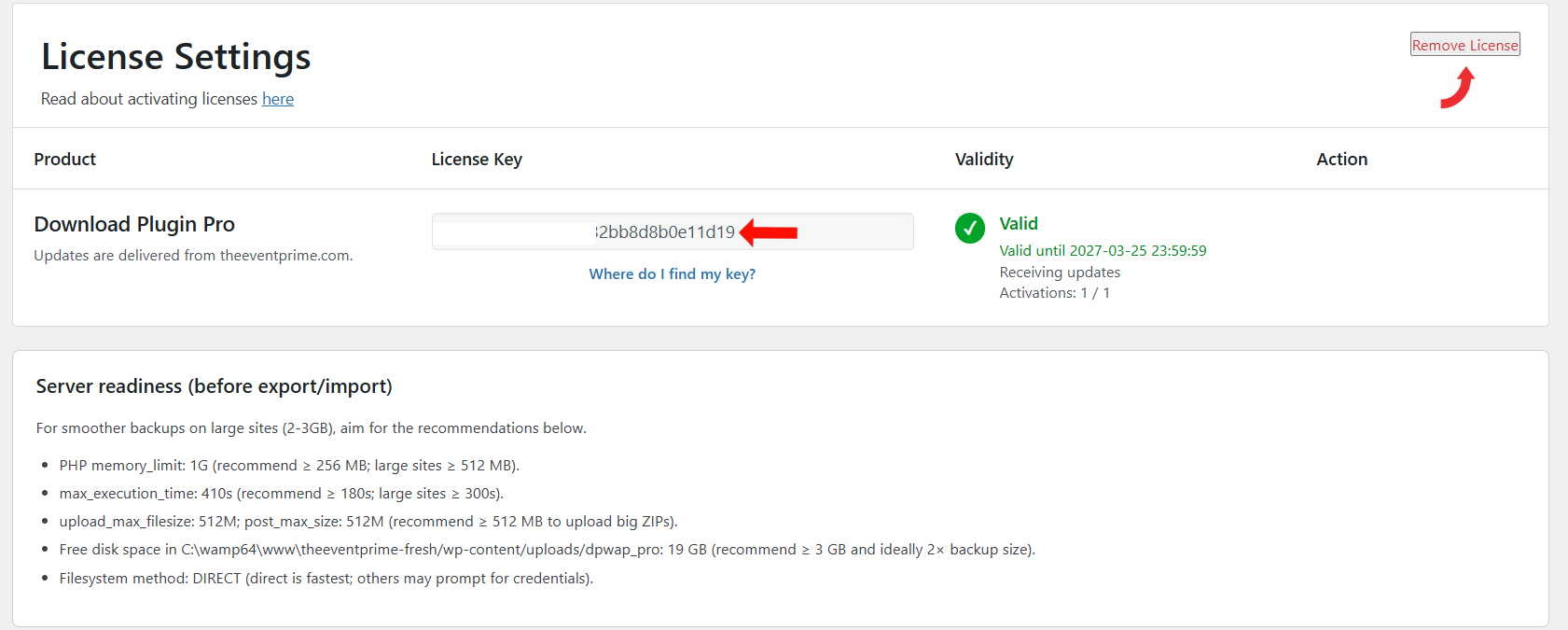
- Paste the copied license key into the License Key field on the License Settings page.
- Activate the license.
- Click Remove License to remove your license.
Conclusion
You can access your license and download the extension from your EventPrime account. The license key must be added in the License Settings after plugin activation. You can remove or reassign the license anytime from the same settings page.
Questions, Support & Custom Solutions
- Need more details or can't find what you're looking for? Let us know how we can help! Contact our support team here.
- Looking for a tailor-made solution to meet your specific needs? Our dedicated customization team is here to help! Use this link to share your requirements with us, and we'll collaborate with you to bring your vision to life.